如何为 Microsoft Configuration Manager 打包 ASP.NET 核心运行时 x64
Summary: 本文提供有关如何打包用于 Microsoft Configuration Manager ASP.NET Core Runtime x64 作为戴尔软件解决方案的前提条件的信息。
This article applies to
This article does not apply to
This article is not tied to any specific product.
Not all product versions are identified in this article.
Instructions
受影响的产品:
- Dell Pro AI Studio
- Dell 客户端设备管理器
- 戴尔可信设备
前提条件:
- 从 Microsoft
下载最新版本的 ASP.NET Core Runtime x64。
- 将 ASP.NET Core Runtime x64 安装文件放在环境中的文件共享上。
针对 Microsoft 配置管理器的打包:
- 打开 Configuration Manager 控制台。

- 转至 软件库>应用程序管理>应用程序

- 单击顶部功能区中的 Create Application 按钮。

- 单击 Manually specify the application information 单选按钮,然后单击 Next。

- 输入名称并提供任何所需信息,如发布者和软件版本,然后更新应用程序所有者和支持联系人(如果需要),然后单击 下一步。

- 在软件中心入口屏幕上,根据需要更新语言,然后单击 下一步。

- 在部署类型屏幕上,单击 添加。

- 单击单选按钮以 手动指定部署类型信息 ,然后单击 下一步。

- 提供名称并根据需要选择一种语言,然后单击 Next。

- 单击 内容位置 旁边的浏览,然后选择安装程序所在的文件夹。

- 在安装程序字段中,键入
aspnetcore-runtime-{VERSION}-win-x64.exe /install /quiet /norestart其中 {VERSION} 是应用程序版本号示例 8.0.15。
- 对于卸载程序类型
aspnetcore-runtime-{VERSION}-win-x64.exe /uninstall /quiet /norestart其中 {VERSION} 是应用程序版本号示例 8.0.15。然后单击“下一步”。
- 在“检测方法”页上,单击“ 添加子句 ”按钮。

- 设置以下选项,然后单击 确定。
Setting Type: File System
Type: File
Path: C:\Program Files\dotnet\shared\Microsoft.AspNetCore.App
File or folder name: 8.0.15
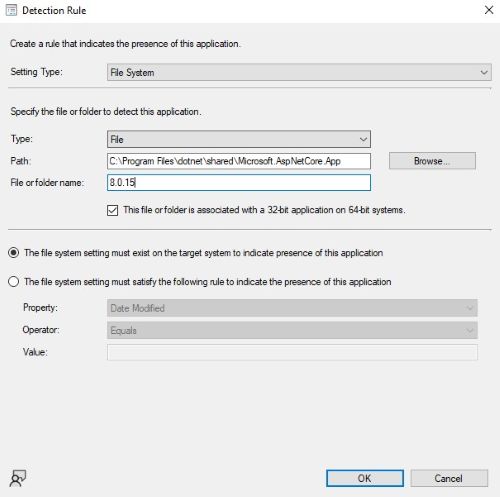
- 单击 Next。

- 在 用户体验 页面上,设置以下选项,然后单击 下一步。
Installation behavior: Install for system
Logon requirement: Whether or not a user is logged on
Installation program visibility: Hidden

- 在“要求”页上,单击“添加”
- 根据您的环境选择要求,然后单击 确定。

- 完成后,单击 下一步。

- 在依赖关系页面上,单击 下一步。

- 在 “摘要 ”页上,单击“ 下一步 ”,然后在“完成”页上单击 “关闭”。

- 在Deployment Types页面上单击Next。

- 在 “摘要 ”页上,单击 “下一步 ”,然后在完成屏幕上单击 “关闭”。

Affected Products
Dell Client Device Manager, Dell Pro AI Studio, Dell Trusted DeviceArticle Properties
Article Number: 000321691
Article Type: How To
Last Modified: 19 May 2025
Version: 3
Find answers to your questions from other Dell users
Support Services
Check if your device is covered by Support Services.