如何為 Microsoft Configuration Manager 打包 .NET Desktop Runtime x64
Summary: 本文提供如何將 Microsoft Configuration Manager (MCM) 適用之 .NET Desktop Runtime x64 封裝為 Dell 軟體解決方案的必要條件的相關資訊。
This article applies to
This article does not apply to
This article is not tied to any specific product.
Not all product versions are identified in this article.
Instructions
Microsoft .NET Desktop Runtime x64 可封裝用於 Microsoft Configuration Manager,作為 Dell 軟體解決方案和其他第三方軟體的必要條件。
受影響的產品:
- Dell Pro AI Studio
- Dell 用戶端裝置管理員
- Dell Display 和 Peripheral Manager
- Dell Trusted Device
- Dell Command | Update
先決條件
- 從 Microsoft
下載最新版本的 .NET Desktop Runtime x64。
- 將 .NET 桌面運行時 x64 安裝檔放在環境中的文件共用上。
Microsoft Configuration Manager 的套件
- 開啟 Configuration Manager 主控台。

- 前往 軟體庫>應用程式管理>應用程式

- 按兩下頂部功能區中的 「創建應用程式 」 按鈕。

- 按一下手動指定應用程式資訊的選項按鈕,然後按下一步。

- 輸入名稱並提供任何所需資訊,例如發行者和軟體版本,然後視需要更新應用程式擁有者及支援聯絡人,然後按一下下一步。

- 在「軟體中心」項目畫面上,視需要更新 語言 ,然後按一下 「下一步」。

- 在「部署類型」畫面上,按一下 「新增」。

- 按一下選項按鈕以手動指定部署類型資訊,然後按下一步。

- 如有需要,請提供 名稱 並選取 語言 ,然後按一下 下一步。

- 按一下內容位置旁的瀏覽,然後選取安裝程式所在的資料夾。

- 在安裝程式欄位中,鍵入
windowsdesktop-runtime-{VERSION}-win-x64.exe /install /quiet /norestart其中 {VERSION} 是應用程式版本號示例 8.0.15。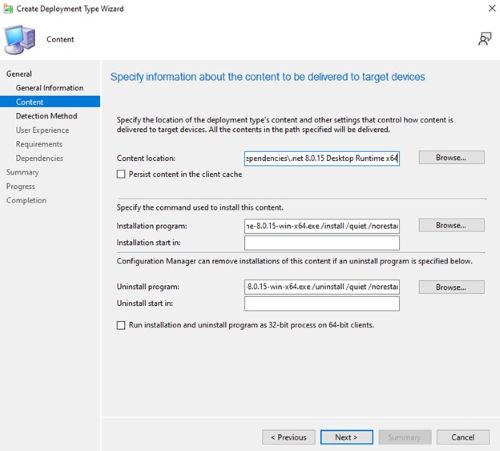
- 適用於解除安裝程式類型
windowsdesktop-runtime-{VERSION}-win-x64.exe /uninstall /quiet /norestart其中 {VERSION} 是應用程式版本號示例 8.0.15。然後按一下下一步。
- 在「檢測方法」頁上,按下「 添加子句 」 按鈕。

- 設定下列選項 ,然後按一下確定。
Setting Type: File System
Type: File
Path: C:\Program Files\dotnet\shared\Microsoft.NETCore.App
File or folder name: 8.0.15

- 按一下下一步。

- 在 使用者體驗 頁面上, 設定下列選項,然後按一下 下一步。
Installation behavior: Install for system
Logon requirement: Whether or not a user is logged on
Installation program visibility: Hidden

- 在需求頁面上,按一下 新增
- 根據您的環境選擇要求,然後按兩下 確定」。

- 完成後,按一下 下一步。

- 在相依性頁面上,按一下 下一步。

- 在摘要頁面上,按一下 下一步 ,然後在完成頁面上按一下 關閉。

- 在部署類型頁面上按一下下一步。

- 在 「摘要」頁面上,按一下 「下一步 」,然後在完成畫面上按一下 「關閉」。

Affected Products
Dell Command | Update, Dell Client Device Manager, Dell Display and Peripheral Manager, Dell Pro AI Studio, Dell Trusted DeviceArticle Properties
Article Number: 000322743
Article Type: How To
Last Modified: 21 May 2025
Version: 1
Find answers to your questions from other Dell users
Support Services
Check if your device is covered by Support Services.