如何打包和上傳 ASP.NET Core Runtime 8.0 ARM64,以在 Microsoft Intune 中使用
Summary: 本文提供如何打包和上傳 Core Runtime 8.0 ARM64 ASP.NET 以便在 Microsoft Intune 中使用的資訊。
This article applies to
This article does not apply to
This article is not tied to any specific product.
Not all product versions are identified in this article.
Instructions
依照下列步驟 ASP.NET 套件 Core Runtime 8.0 ARM64 與 Microsoft Win32 內容準備工具,並上傳 aspnetcore-runtime-8.0.16-win-arm64.intunewin 以用於 Microsoft Intune,作為 Dell 軟體解決方案的先決條件。
受影響的產品:
- Dell Pro AI Studio
先決條件
- 從 Microsoft 的 GitHub 下載 Microsoft Win32 內容準備工具
 ,並將其解壓縮到臨時資料夾。範例 C:\Temp
 - 下載 ASP.NET Core Runtime 8.0 ARM64 並將其放在臨時資料夾中。範例 C:\Temp\App
- 在臨時資料夾中,創建一個名為「輸出」 的資料夾。範例 C:\Temp\Output
使用 Microsoft Win32 內容準備工具建立 .intunewin 檔案
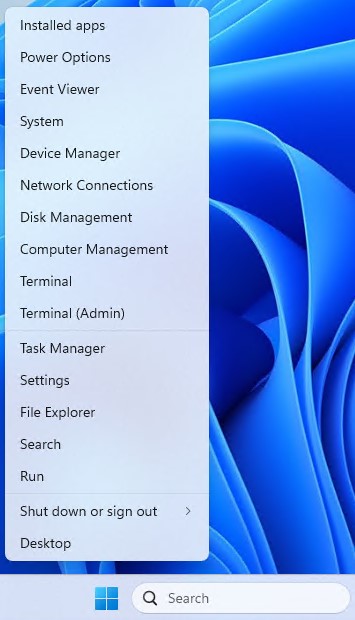
- 以滑鼠右鍵按一下 Windows「開始」功能表,然後選取 終端機。
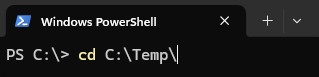
- 將終端機中的目錄變更為您解壓縮檔案的位置。範例:輸入 cd C:\Temp\ ,然後按下 Enter 鍵。
- 型。\IntuneWinAppUtil.exe -c C:\Temp\App\ -s C:\Temp\App\aspnetcore-runtime-8.0.16-win-arm64.exe -o C:\Temp\Output\

正在上傳 aspnetcore-runtime-8.0.16-win-arm64。Intunewin 至 Microsoft Intune
- 開啟 瀏覽器 並前往 https://intune.microsoft.com/

- 按一下應用程式

- 按一下 所有應用程式

- 按一下 「建立」

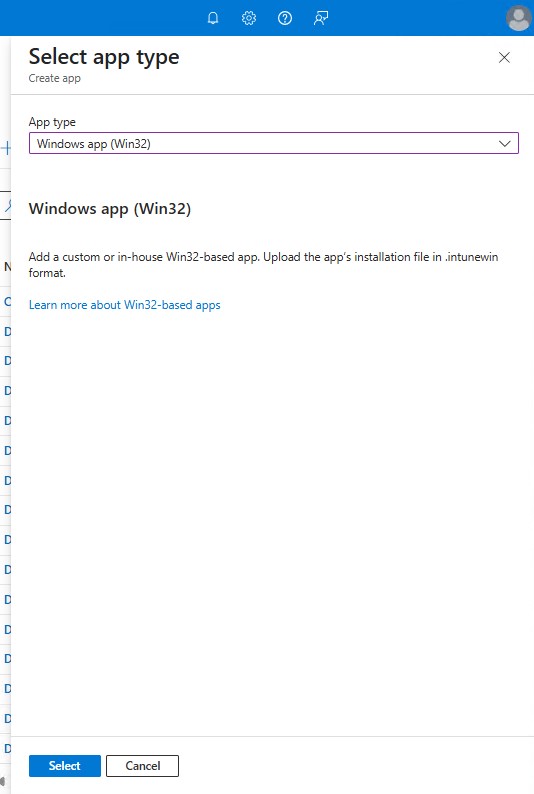
- 在“應用類型”下的“選擇應用類型”窗格中,選擇“Windows 應用 (Win32)”,然後按兩下“選擇”。
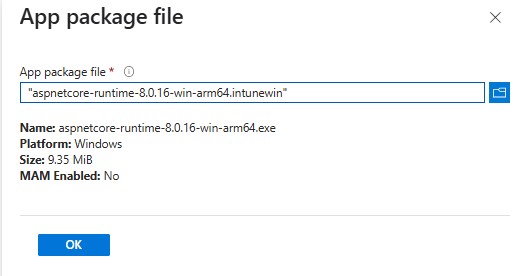
- 按一下 選取應用程式套件檔案 ,並找到 aspnetcore-runtime-8.0.16-win-arm64。intunewin 是在步驟 3 中建立。然後按一下確定。
- 在“應用資訊”頁上,輸入 “名稱”、“說明”、“發行者” 和任何其他詳細資訊。然後按 一下下一步。
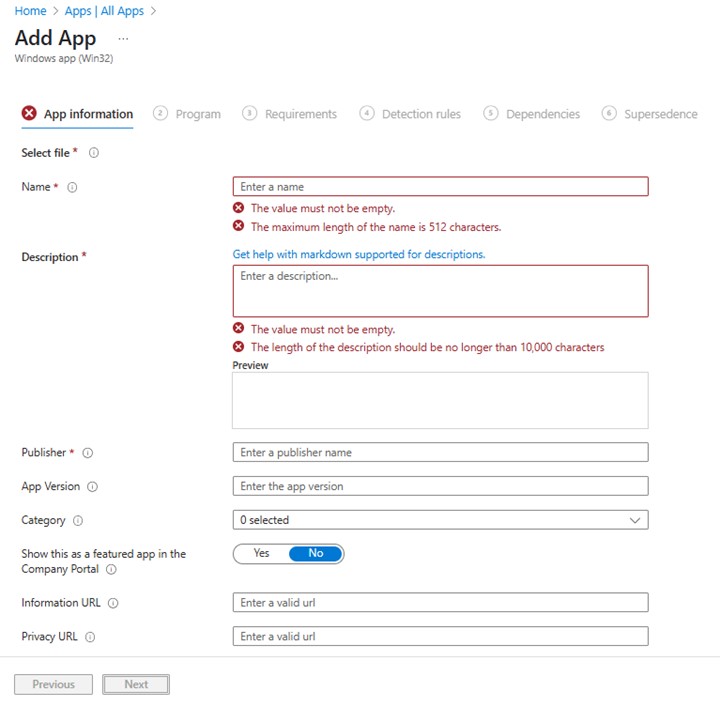
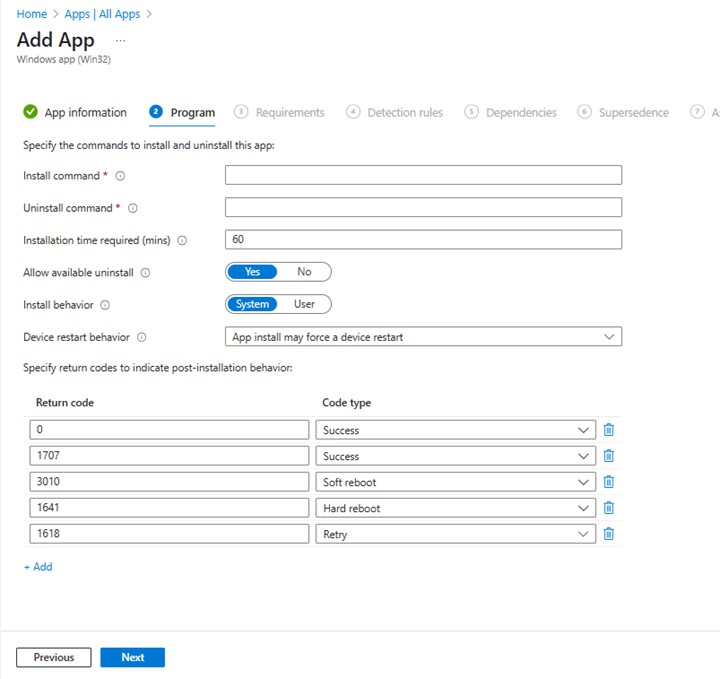
- 在程式頁面上,輸入以下資訊,然後按兩下 一步。
- 安裝命令: aspnetcore-runtime-8.0.16-win-arm64.exe /install /quiet /norestart
- 解除安裝命令: aspnetcore-runtime-8.0.16-win-arm64.exe /uninstall /quiet /norestart
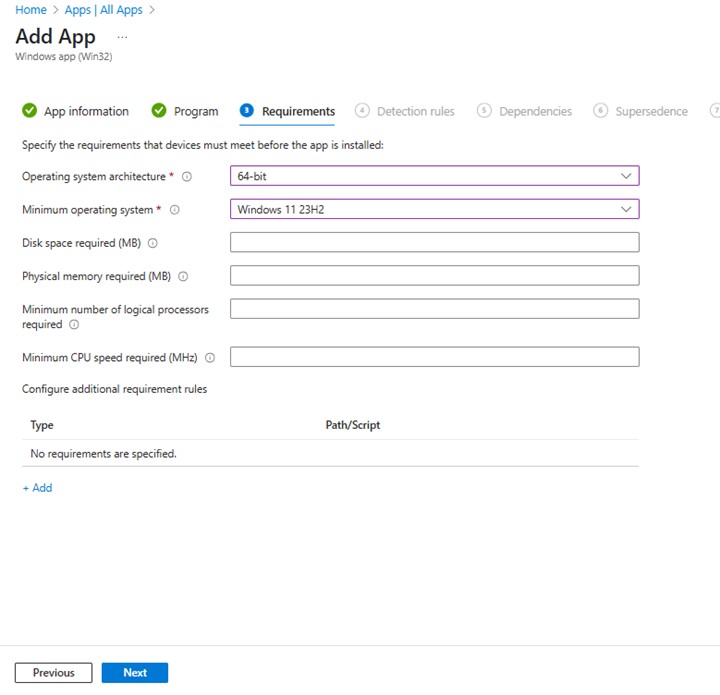
- 在需求畫面上,設定 作業系統架構和最低作業系統所需的任何需求,然後按一下 下一步。
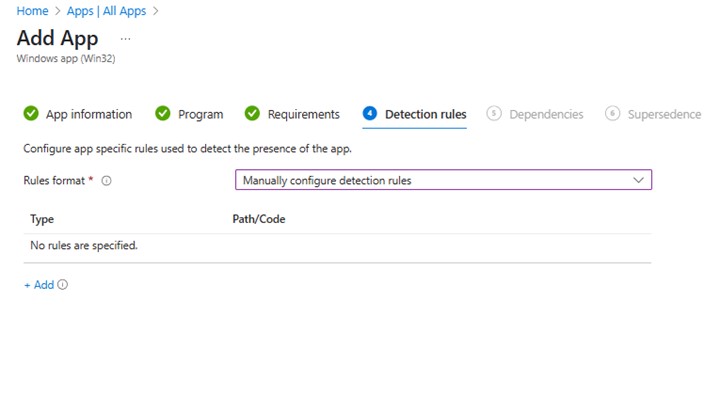
- 在 「偵測規則」上,選取 手動設定偵測規則 ,然後按一下 新增
- 在 偵測規則窗格中,輸入下列資訊,然後按一下 確定。
- 規則類型:MSI
- 微星產品代碼:{E4EBEFC3-AAE3-3D3C-A86B-A43F4513ABF2}

- 返回「檢測規則」頁,按兩下 一步。

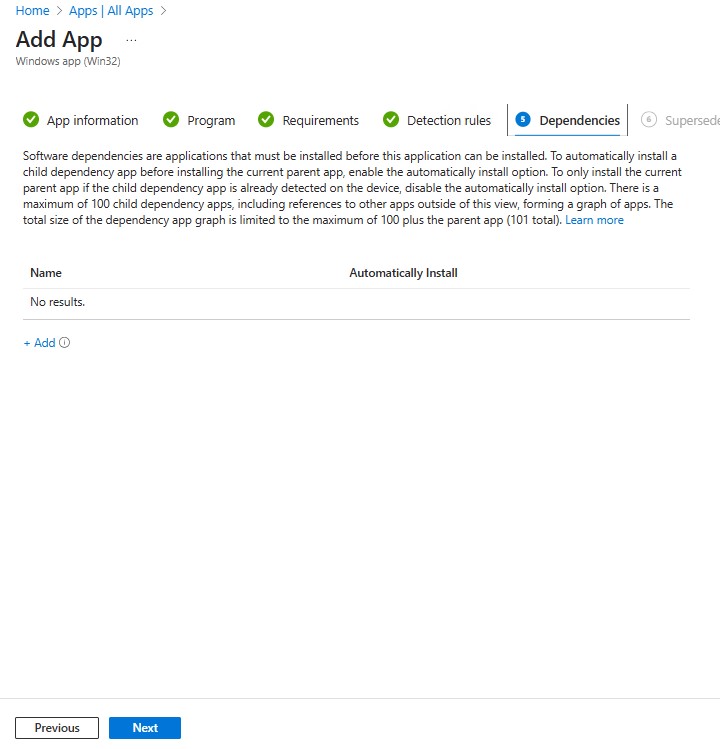
- 在 相依性上,按一下 下一步。
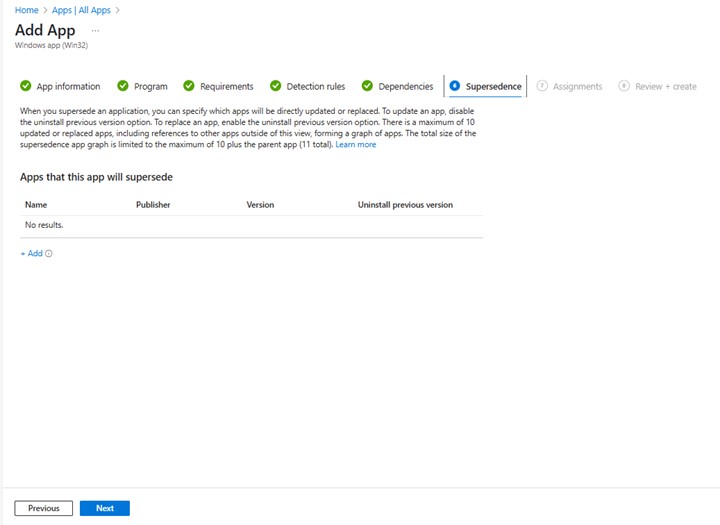
- 在 「取代」中,按一下 下一步。
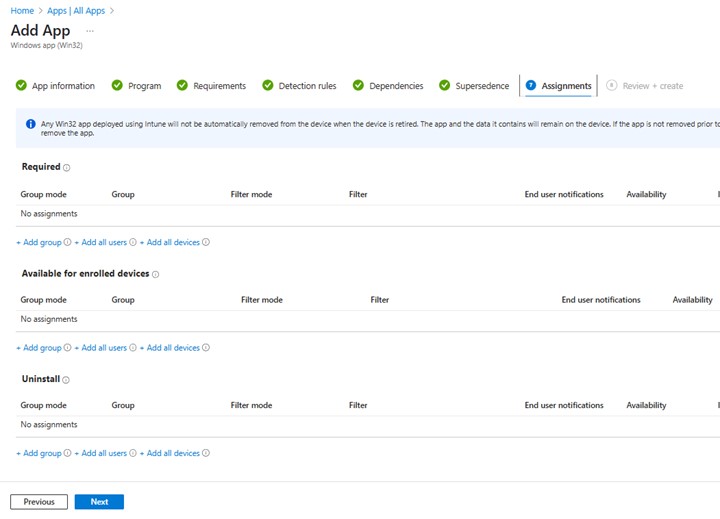
- 在 「指派」上,為您的環境選取任何所需的組態,然後按一下 「下一步」。
- 在 「查看 + 建立」中,確認配置,然後按兩下 建立”

Affected Products
Dell Pro AI StudioArticle Properties
Article Number: 000323087
Article Type: How To
Last Modified: 28 May 2025
Version: 1
Find answers to your questions from other Dell users
Support Services
Check if your device is covered by Support Services.