Come avviare Gestione attività di Windows 11
Summary: Scopri le istruzioni dettagliate per aprire Gestione attività in Windows 11. Informazioni sui tasti di scelta rapida, sui tasti di scelta rapida di Gestione attività e su come aprire Gestione attività con la tastiera. ...
This article applies to
This article does not apply to
This article is not tied to any specific product.
Not all product versions are identified in this article.
Instructions
Gestione attività di Windows viene utilizzato per visualizzare i processi in esecuzione, terminare attività, esaminare le prestazioni del computer e altro ancora. Con il rilascio di Windows 11, alcuni collegamenti per accedere a Gestione attività potrebbero essere cambiati.
Sistema operativo interessato:
- Windows 11
Avviare Gestione attività in Windows 11 utilizzando CTRL + ALT + CANC, fare clic con il pulsante destro del mouse sul pulsante Start,CTRL + MAIUSC + ESC, tasto Windows + X o il comando Esegui. Fare clic sul metodo appropriato per ulteriori informazioni su come aprire Gestione attività con o senza tastiera.
CTRL + ALT + CANC
- Tenere premuti contemporaneamente i tasti CTRL, ALT e CANC sulla tastiera. Una volta aperto il menu, rilasciare tutti e tre i tasti.

- Cliccare su Gestione attività.

- Viene avviato Gestione attività .
Clic con il pulsante destro del mouse sul pulsante Start
- Dalla barra delle applicazioni cliccare con il pulsante destro del mouse sul pulsante Start.

- Dal menu di scelta rapida cliccare su Gestione attività.
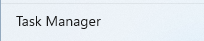
- Viene avviato Gestione attività .
CTRL + MAIUSC + ESC
- Tenere premuti contemporaneamente i tasti CTRL, MAIUSC ed ESC sulla tastiera. Rilasciare tutti e tre i tasti.
- Viene avviato Gestione attività .
Tasto Windows + X
- Tieni premuti contemporaneamente il tastoWindows e il tasto X sulla tastiera. Una volta aperto il menu Power User, rilasciare entrambi i tasti.

- Cliccare su Gestione attività.

- Viene avviato Gestione attività .
Comando Esegui
- Cliccare sul pulsante Start.
 Nota: in alternativa, tenere premuti contemporaneamente il tasto Windows e il tasto R per avviare il comando Esegui. Una volta aperto il comando Esegui, rilasciare i tasti.
 - Quando viene visualizzato il menu Start, digitare
Run.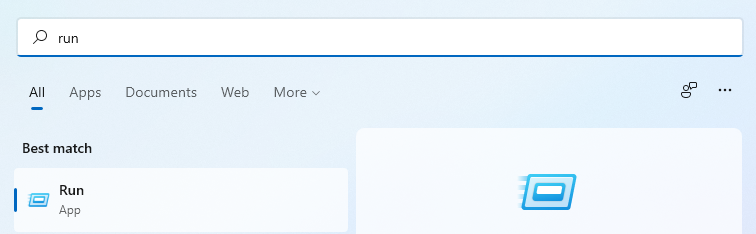
- Cliccare su Esegui in Corrispondenza migliore.

- Popolare
taskmgrnella finestra di dialogo che si apre, quindi fare clic su OK.
- Viene avviato Gestione attività .
Additional Information
Collegamenti correlati:

Affected Products
Alienware, Dell All-in-One, Dell Pro All-in-One, Dell Pro Max Micro, Dell Pro Max Slim, Dell Pro Max Tower, Dell Pro Micro, Dell Pro Slim, Dell Pro Tower, Dell Slim, Dell Tower, Inspiron, OptiPlex, Vostro, XPS, G Series, G Series, Alienware
, Dell Plus, Dell Pro, Dell Pro Max, Dell Pro Plus, Dell Pro Premium, Inspiron, Latitude, Dell Pro Rugged, Vostro, XPS, Fixed Workstations, Mobile Workstations, Dell Pro Max Micro XE FCM2250, Dell Pro Max Slim XE FCS1250, Dell Pro Max Tower T2 XE FCT2250, Dell Pro Max 16 XE MC16250, Dell Pro Micro Plus XE QBM1250, Dell Pro Slim Plus XE5 QBS1250, Dell Pro Tower Plus XE5 QBT1250
...
Article Properties
Article Number: 000192107
Article Type: How To
Last Modified: 21 Jul 2025
Version: 7
Find answers to your questions from other Dell users
Support Services
Check if your device is covered by Support Services.