CloudLink Cluster Node Certificate is Expired
Summary: This article explains how to renew the cluster node certificate when CloudLink is showing the alarm "Cluster node certificate is expired."
This article applies to
This article does not apply to
This article is not tied to any specific product.
Not all product versions are identified in this article.
Symptoms
CloudLink is showing the alarm:
Cluster node certificate is expired.
Cause
When the cluster node certificates are expired, it can cause the cluster to go out of sync. In the CloudLink webUI > SYSTEM > Cluster, check if the Sync State is Off. There is also a potential security issue related to an expired certificate.
Resolution
CloudLink 8.1 and above:
Starting in CloudLink version 8.1, you can renew the SVMCLUSTER CA and cluster node certificates from within the CloudLink webUI. Take snapshots and backups of all CloudLink nodes before changing certs.
Go to SYSTEM > Backup > Generate New Backup and then Actions > Download Backup. Also, ensure that the user can locate their CloudLink backup key (cckey.pem)
Before rebooting the CloudLink VMs, go to SYSTEM > Vault and confirm that the Vault Unlock Mode is set to Auto. If the Unlock Mode is set to Manual, you must confirm that the user knows the Vault Passcodes or temporarily change the Mode to Auto.
DO NOT Change the SVMCLUSTER CA while the cluster is out of sync!
This creates an inconsistency where each CloudLink node has a different SVMCLUSTER CA and it is difficult to get the cluster back in sync.
When the cluster is out of sync, you must renew the cluster node certificates on each CloudLinknode. Go to SYSTEM > Cluster > Actions > Change Server Certificate. Do this for all CloudLink nodes and then reboot all CloudLink nodes (not simultaneously). This should bring the cluster back in sync, and Sync State should say OK.
If the cluster has been out of sync for a long time, it may take a while for the resync to finish. Check the nodes in SYSTEM > Cluster and confirm that you do not see any Awaited Outgoing Batches. It may take several hours for this to complete.
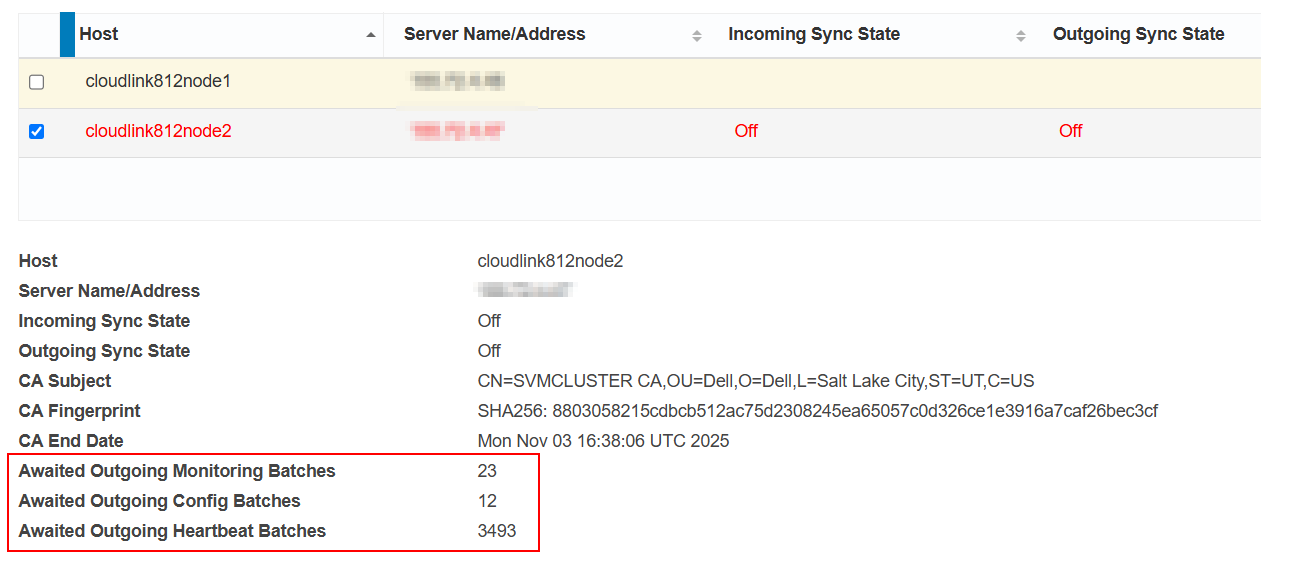
Once the Cluster is back in sync, then you can change the SVMCLUSTER CA. Go to SYSTEM > Cluster > Actions > Change CA Certificate. Doing this automatically renews the cluster node certificates again requiring you to reboot each CloudLink node again (not simultaneously).
CloudLink 7.x:
In CloudLink 7.x, you cannot renew the SVMCLUSTER CA or cluster node certificates. You can only Upload a CA Signed PEM.
Here are instructions for using OpenSSL to generate a self-signed certificate intended to replace CloudLink 7.x SVMCLUSTER CA and cluster node certificates:
- Use any Linux server (not CloudLink) and confirm OpenSSL is installed by running command
openssl version - Create a file called
template.cfgby running commandvi template.cfgand paste the information within the box below. - For the blue entries, modify and replace with the relevant information.
[req]
default_bits           = 2048
distinguished_name     = req_distinguished_name
req_extensions         = v3_req

[req_distinguished_name]
C =Country(2 letter code)
ST =State
L =Locality(city)
O =Organization
OU =OrgUnit
CN =CommonName

C_default =US
ST_default =utah
L_default =salt lake city
O_default =dell
OU_default =dell
CN_default =SVMCLUSTER CA

[ v3_req ]
subjectAltName   = @alt_names
keyUsage         = critical, digitalSignature, keyCertSign, cRLSign
extendedKeyUsage = serverAuth, clientAuth
basicConstraints = critical, CA:true, pathlen:1
subjectKeyIdentifier=hash

[alt_names]
DNS.1   = SVMCLUSTER CA
- Run the command:
openssl req -newkey 2048 -keyout svmcluster.key -config template.cfg -x509 -days 730 -out svmcluster.crt -extensions v3_req -nodes
This outputs two files;
svmcluster.crt and svmcluster.key . You upload these files into the CloudLink UI in System > Cluster > Actions > Upload CA Signed PEM > Third Party PEM. Also, save these files and keep them somewhere safe. It sets -days to 730 which is 2 years but you can adjust as needed.
- Restart CloudLink Web Services or reboot all CloudLink nodes (NOT simultaneously).
Affected Products
CloudLink SecureVM, PowerFlex rack, ScaleIO, CloudLinkArticle Properties
Article Number: 000233517
Article Type: Solution
Last Modified: 06 Nov 2025
Version: 7
Find answers to your questions from other Dell users
Support Services
Check if your device is covered by Support Services.