iDRAC:导出和导入 iDRAC 配置信息
Summary: 本文介绍如何导出和导入在 iDRAC Web 控制台上设置的配置信息。但是,只有 iDRAC9 允许 Web 界面访问该信息。
This article applies to
This article does not apply to
This article is not tied to any specific product.
Not all product versions are identified in this article.
Instructions
提醒: iDRAC9 及更高版本支持 UI,但 iDRAC7/8 仅支持 CLI。
iDRAC 服务器配置配置文件
持续时间:00:10:20 (hh:mm:ss)
如果可用,可以使用此视频播放器上的 CC 图标选择隐藏式字幕(字幕)语言设置。
有关 UI 交互的更多信息,请参阅手册:https://www.dell.com/support/manuals/idrac9-lifecycle-controller-v3.3-series/idrac_3.31.31.31_ug/exporting-server-configuration-profile-using-idrac-web-interface<>
使用 CLI 的步骤
前期准备:
- 如果未安装 racadm,请安装 DRAC 工具。
- 运行以下命令以检查 iDRAC 版本:
racadm -r "iDRAC IP address" -u "iDRAC user ID" -p "iDRAC password" getversion
Command example: racadm -r 192.16.1.120 -u root -p calvin getversion
导出
步骤运行命令以导出 XML 文件。
racadm -r "iDRAC IP address" -u "iDRAC user ID" -p "iDRAC password" get -t xml -f "File path/filename of export destination"
Command example: racadm -r 192.168.0.120 -u root -p calvin get -t xml -f C:\iDRAC_config.xml
提醒:文件名/文件路径是一个示例。指定任何导出目标/文件名。
仅当在高级准备步骤中确认的 iDRAC 版本为 1.x 时,XML 文件才不包含警报信息。
为此,请运行命令以导出警报信息(ini 文件)。
racadm -r "iDRAC IP address" -u "iDRAC user ID" -p "iDRAC password" get -t ini -f "file path/file name"
Command example: racadm -r 192.168.0.120 -u root -p calvin get -t ini -f C:\iDRAC_config.ini
导入
步骤按照以下步骤导入导出的信息。
-
仅适用于 iDRAC 版本 1.x,运行命令以导入警报信息(ini 文件)。
racadm -r "iDRAC IP address" -u "iDRAC user ID" -p "iDRAC password" set -t ini -f "file path/filename of file to be imported"
Command example: racadm -r 192.168.0.120 -u root -p calvin set -t ini -f C:\iDRAC_config.ini
-
运行命令以导入 XML 文件(系统配置)。
racadm -r "iDRAC IP address" -u "iDRAC user ID" -p "iDRAC password" set -t xml -f "file path/filaname of the file to be imported"
Command example: racadm -r 192.168.0.120 -u root -p calvin set -t xml -f C:\iDRAC_config.xml
提醒:在替换 iDRAC 后导入时, 输入 默认密码 作为 iDRAC 密码。 -
等待系统重新启动。
如果系统未自动重新启动,请手动重新启动系统。
由于 iDRAC 的每个用户的密码未恢复,因此请更改每个用户的密码。
此外,由于并非所有密码都会还原,因此如有必要,请还原代理和 VNC 服务器等。
使用 UI 的步骤
提醒:只有 iDRAC9 支持 UI 上的作。
导出步骤
-
登录到 iDRAC Web 控制台。
-
从菜单栏中选择 Configuration ->Server Setting Profile 。
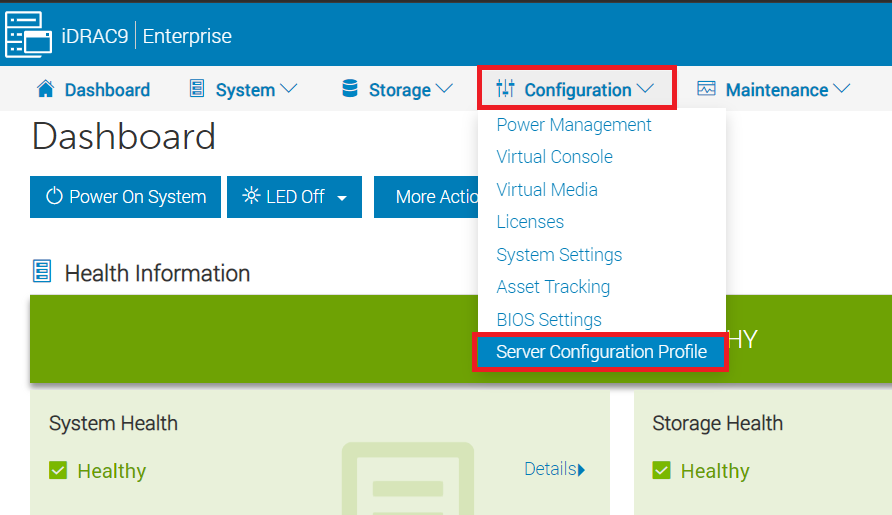
-
展开 导出,并至少输入以下项目。
・文件名:任何文件名
・导出组件:选择要导出的项目。选择“全部”。
将其他设置保留为默认值或根据需要进行设置,然后单击 导出。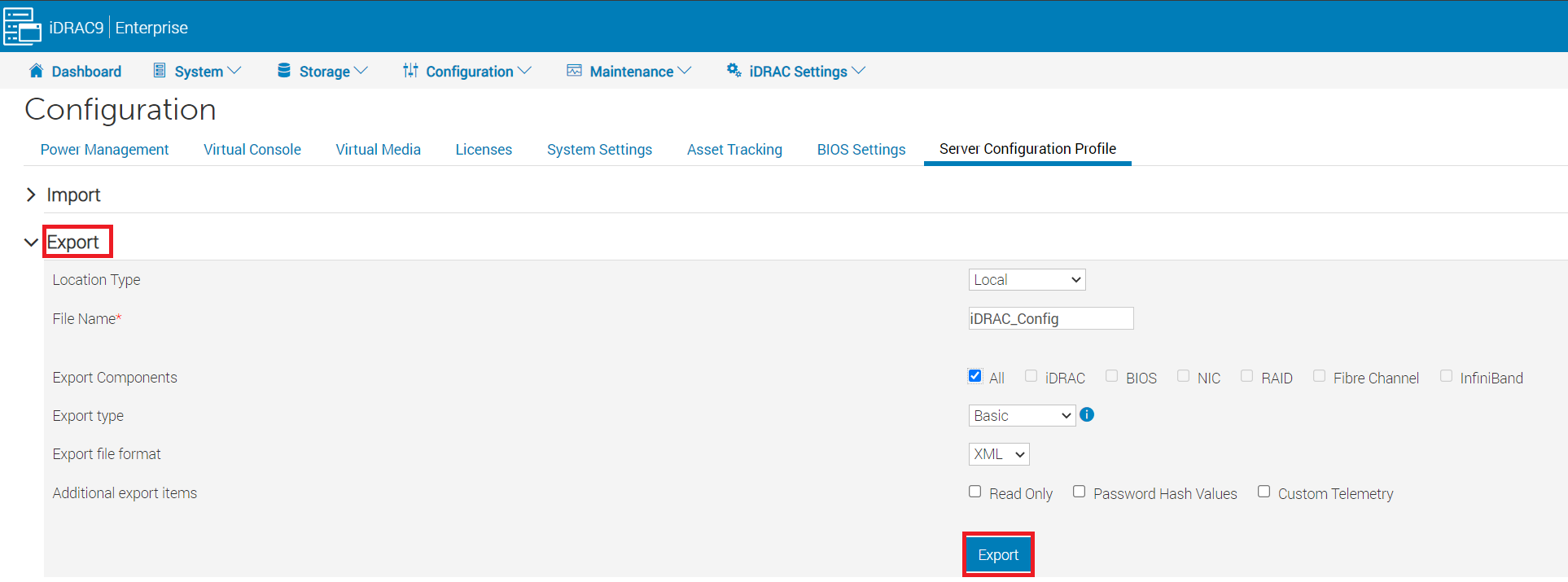
-
在出现的消息上单击 本地保存 ,然后将其保存在任意位置。

导入
步骤按照以下步骤导入导出的信息。
-
按照上述导出步骤作,直到步骤 2。
-
展开 导入,并至少
输入以下项目 ・文件路径:选择要导入
的文件 ・导入组件“:选择要导入的项目。选择“全部”
,将其他设置保留为默认值或根据需要进行设置,然后单击 导入。
Additional Information
Affected Products
iDRAC6, iDRAC7, iDRAC8, iDRAC9Article Properties
Article Number: 000114972
Article Type: How To
Last Modified: 09 Dec 2024
Version: 12
Find answers to your questions from other Dell users
Support Services
Check if your device is covered by Support Services.