切断モードで実行中のDell Security Management Server Virtualがクラウドからアップデートを取得しようとする
Summary: この記事では、Dell Security Management Server Virtualがローカル リポジトリーではなくクラウドからアップデートを取得しようとしている場合に、ローカル リポジトリーに戻す方法について説明します。
This article applies to
This article does not apply to
This article is not tied to any specific product.
Not all product versions are identified in this article.
Symptoms
対象製品:
- Dell Security Management Server Virtual
影響を受けるバージョン:
- v9.11から10.2.8
Cause
-
Resolution
- 次の方法でログインします 。
dellsupportをDell Security Management Server Virtualに追加します。
 注:
注:- Dell Security Management Server Virtualのデフォルト認証情報は次のとおりです。
- Username:
dellsupport - Password:
dellsupport
- Username:
- 管理者は、製品の[Virtual Appliance Menu]内でデフォルトのパスワードを変更できます。
- 管理コンソールにログインしている場合は、 Alt + Q を押してログイン画面を終了します。
- Dell Security Management Server Virtualのデフォルト認証情報は次のとおりです。
- コマンド
sudo nano /etc/opt/dell/console/application.propertiesと入力してEnterを押します。

- 矢印キーを使用して disconnected.mode= まで下にスクロールします。
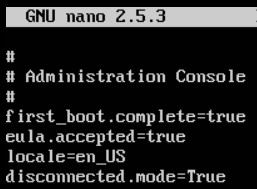
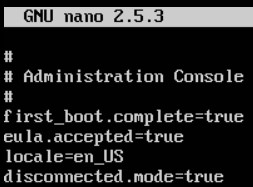
- disconnected.mode=で、
Trueとタイプtrueが連携しない場合があります。
- Type CTRL + X を押して終了します。保存を求めるプロンプトが表示されたら、Yを押して続行します。
![[終了(E)]](https://supportkb.dell.com/img/ka06P00000096Z8QAI/ka06P00000096Z8QAI_ja_5.jpeg)
- Enter キーを押して、名前を変更せずにファイルを保存します。

- コマンド
sudo nano /opt/dell/server/security-server/conf/application.propertiesと入力してEnterを押します。

- 矢印キーを使用して disconnected.mode= まで下にスクロールします。
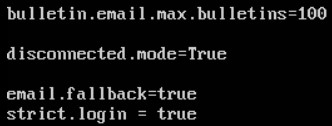
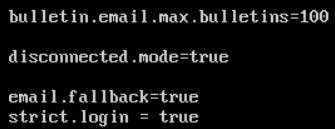
- disconnected.mode=で、
Trueとタイプtrueが連携しない場合があります。
- CTRL + Xを押して終了します。保存を求めるプロンプトが表示されたら、Yを押して続行します。
![[終了(E)]](https://supportkb.dell.com/img/ka06P00000096Z8QAI/ka06P00000096Z8QAI_ja_10.jpeg)
- Enter キーを押して、名前を変更せずにファイルを保存します。

- コマンド
exitと入力してEnterを押します。

サポートに問い合わせるには、「Dell Data Securityのインターナショナル サポート電話番号」を参照してください。
TechDirectにアクセスして、テクニカル サポート リクエストをオンラインで生成します。
さらに詳しい情報やリソースについては、「デル セキュリティ コミュニティー フォーラム」に参加してください。
Affected Products
Dell EncryptionArticle Properties
Article Number: 000130886
Article Type: Solution
Last Modified: 23 Jul 2024
Version: 11
Find answers to your questions from other Dell users
Support Services
Check if your device is covered by Support Services.