AI Effect Opt-in Driver Stops Some AMD Laptop Cameras from Working
Summary: The following article provides information about a camera issue on AMD Ryzen 5 and 7 laptops. Carrying out your own operating system reinstall can cause the camera to have issues.
This article applies to
This article does not apply to
This article is not tied to any specific product.
Not all product versions are identified in this article.
Symptoms
AMD laptops with an integrated camera stops working after AI Effects Opt-In driver installed
Are you planning an operating system reinstall or recovering your operating system? You may experience camera issues afterwards if you use one of the following AMD Ryzen 5 and 7 laptops:
- Inspiron 14 5445
- Inspiron 14 7445 2-in-1
- Inspiron 16 5645
- Dell 14 DC14255
- Dell 14 Plus DB14255
- Dell 16 Plus DB16255
- Dell Pro 14 Essential PV14255
- Dell Pro 14 Plus PB14255
- Dell Pro 16 Plus PB16255
Note: This article deals with the AMD Ryzen R5 8640HS and the Ryzen R7 8840HS CPUs. It does not deal with the AMD Ryzen 5 8540U CPU.
One of the following issues is seen with the laptop camera:
- The camera does not work.
- The laptop screen is black.
- You see one of the following error messages on-screen:
If you need it here's the error code:
0xA00F429E<PageOpenFailed>(0x80070057)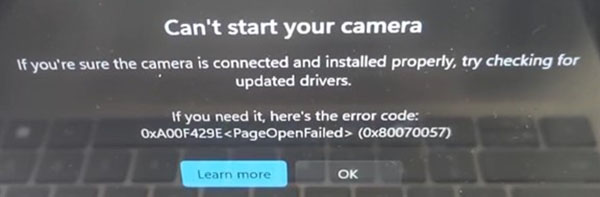
If you need it here's the error code:
0xA00F429F<WindowsShowFailed>(0x80070057)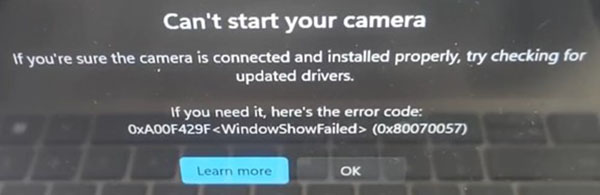
Note: You can confirm the Central Processor Unit (CPU)s manufacturer and type in several ways. However, the easiest way to check on a Dell laptop is to use the F2 prompt at the splash screen. Enter the BIOS setup screens and confirm the CPU type on the main page of the BIOS:
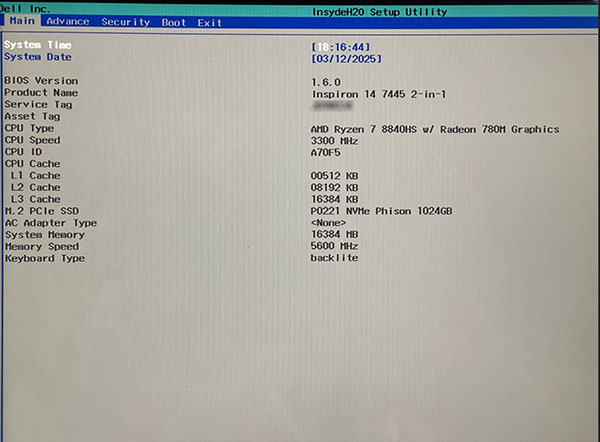
Cause
The AI Effect Opt-in camera driver requires that you have Microsoft Visual C++ software installed on your laptop. (This software is often missed when you go through your reinstall or recovery of the operating system.)
Resolution
Note: You must have administrator rights on your laptop to make any operating system changes or update any software.
Ensuring that you have included the Microsoft Visual C++ software during in the install or recovery means that you do not see this problem.
However, you can recover the camera and get the AI effect working by using any of the following three methods:
Method One: Manually install the latest version of C++ from Microsoft
You go step by step through searching for and installing the latest version of Microsoft Visual C++ on the following Microsoft article:
- Microsoft Learn Article: Microsoft Visual C++ Redistributable latest supported downloads

Method Two: Manually install the MyDell application to install C++ through updates
The following article provides instructions on installing the MyDell application. Once installed it automatically updates the missing Microsoft Visual C++ software to your laptop:
- Dell Knowledge Base Article: Introducing the New MyDell
Note: If you are running or have updated to Windows 11 version 24H2, you may want to consider moving to the new Dell Optimizer application instead:
- Dell Knowledge Base Article: Transition to the New Dell Optimizer
Method Three: Use the SupportAssist OS Recovery application on your laptop
The following article guides you through installing the SupportAssist OS recovery tool. Recovery takes you through restoring your Laptop to the Dell image, and you must confirm that this includes the Microsoft Visual C++ software when it finishes:
- Dell Knowledge Base Article: Repair and Restore your Computer Using SupportAssist OS Recovery
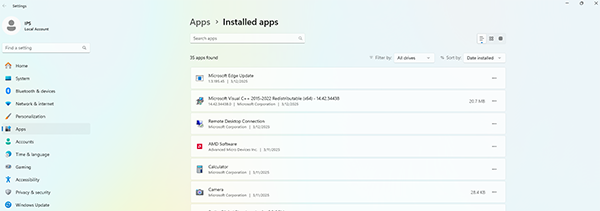
Note: You can confirm that the Microsoft Visual C++ software is installed on your laptop by checking the list of Apps in your settings window:
Affected Products
Dell 14 Plus DB14255, Dell 16 Plus DB16255, Dell 14 DC14255, Dell Pro 14 Plus PB14255, Dell Pro 16 Plus PB16255, Dell Pro 14 Essential PV14255, Inspiron 14 5445, Inspiron 14 7445 2-in-1, Inspiron 16 5645Article Properties
Article Number: 000293583
Article Type: Solution
Last Modified: 23 Oct 2025
Version: 4
Find answers to your questions from other Dell users
Support Services
Check if your device is covered by Support Services.