Dell UNITY: How to create a VMware Datastore (User correctable)
Summary: Instructions on how to create a VMware Datastore in Unisphere.
This article applies to
This article does not apply to
This article is not tied to any specific product.
Not all product versions are identified in this article.
Instructions
Select VMware from the Storage section in the left pane.
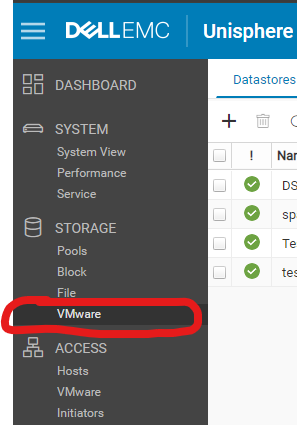
To create a new Datastore, click on the "+" icon from the Datastores tab to launch the "Create VMware Datastore" wizard.


Type
1. Select the type of datastore that you want to create: File, Block, vVol (File), or vVol (Block).
- If you select File, select the NAS server providing storage for the new datastore.
- If you select Block, select the type of VMFS version.
- In order to create a vVol, you must have a Capability Profile created first.
Name
1. Enter the datastore name.
2. Enter a description of the datastore (optional).
Storage
1. Select a storage pool to use for the datastore.
2. Select one of the available tiering policies for the datastore and the quantity of primary storage to allocate for the datastore.
3. Select the size of the datastore.
4. Verify if the datastore should be thin. If you choose the datastore to be thick, then uncheck the box.
5. Check box next to "Data Reduction" if you choose to have Data Reduction enabled.
6. "Host I/O Limit" is by default "No Limit" selected. If you choose to create a host limit, select it here.
Access
1. To choose the host access, click the "+" icon to add host access.
You can choose to add host access later.
Snapshot
1. Check the box next to "Enable Automatic Snapshot Creation" if you choose to enable snapshots.
If you choose to enable snapshot, set up the snapshot schedule using the prompts.
Replication
1. Check the box next to "Enable Replication" if you choose to enable replication.
If you choose to enable replication, follow the prompts to configure replication.
Summary
This page is designed to verify all previous settings chosen.
If everything in the summary page is correct, select Finish.
Results
This page provides the results of the creation of the datastore. If you get anything except "100% Completed" reach out to Dell support to investigate.

To create a new Datastore, click on the "+" icon from the Datastores tab to launch the "Create VMware Datastore" wizard.
Type
1. Select the type of datastore that you want to create: File, Block, vVol (File), or vVol (Block).
- If you select File, select the NAS server providing storage for the new datastore.
- If you select Block, select the type of VMFS version.
- In order to create a vVol, you must have a Capability Profile created first.
NOTE: For more information about how to create vVols and Capability Profiles, reference document "Dell EMC Unity Family Configuring vVols"
https://dl.dell.com/content/manual80664256-dell-emc-unity-family-configuring-vvols.pdf?language=en-us
https://dl.dell.com/content/manual80664256-dell-emc-unity-family-configuring-vvols.pdf?language=en-us
Name
1. Enter the datastore name.
2. Enter a description of the datastore (optional).
Storage
1. Select a storage pool to use for the datastore.
2. Select one of the available tiering policies for the datastore and the quantity of primary storage to allocate for the datastore.
3. Select the size of the datastore.
4. Verify if the datastore should be thin. If you choose the datastore to be thick, then uncheck the box.
5. Check box next to "Data Reduction" if you choose to have Data Reduction enabled.
6. "Host I/O Limit" is by default "No Limit" selected. If you choose to create a host limit, select it here.
Access
1. To choose the host access, click the "+" icon to add host access.
You can choose to add host access later.
Snapshot
1. Check the box next to "Enable Automatic Snapshot Creation" if you choose to enable snapshots.
If you choose to enable snapshot, set up the snapshot schedule using the prompts.
Replication
1. Check the box next to "Enable Replication" if you choose to enable replication.
If you choose to enable replication, follow the prompts to configure replication.
Summary
This page is designed to verify all previous settings chosen.
If everything in the summary page is correct, select Finish.
Results
This page provides the results of the creation of the datastore. If you get anything except "100% Completed" reach out to Dell support to investigate.
Additional Information
For more information regarding configuring host access to datastores, reference document "Dell EMC Unity™ Family Configuring Hosts to Access VMware Datastores"
https://dl.dell.com/content/manual72135472-dell-emc-unity-family-configuring-hosts-to-access-vmware-datastores.pdf?language=en-us
https://dl.dell.com/content/manual72135472-dell-emc-unity-family-configuring-hosts-to-access-vmware-datastores.pdf?language=en-us
Affected Products
Dell EMC Unity FamilyProducts
Dell EMC Unity FamilyArticle Properties
Article Number: 000004543
Article Type: How To
Last Modified: 10 Apr 2023
Version: 3
Find answers to your questions from other Dell users
Support Services
Check if your device is covered by Support Services.