Isilon: How to Powercycle Gen6 Nodes
Summary: How to Powercycle Gen6 Nodes.
This article applies to
This article does not apply to
This article is not tied to any specific product.
Not all product versions are identified in this article.
Instructions
NOTE: You must have physical access to the node in order to complete the power-cycle.
Procedure:
STEP 1 Establish an SSH session as 'root' user with the node you want to power-cycle.
STEP 2 Power-off the node
# isi_flush
and wait for the flush to complete.
Then run Issue the shutdown command
#shutdown -p now
Visually verify that all lights on the node have turned off.
NOTE: Sometimes this command fails to power off the node. On occasions, it reboots the node instead or fails to work. In those situations, follow the next options in order until the node is fully powered-down and remains off.
*** If the node successfully powers off, then go to STEP 3.
If step (a) does NOT power off the node, contact EMC Isilon Technical Support.
STEP 3 Once the node is powered off, remove the power cable, wait 60 s.
STEP 4 Reinstall the power cable
*** If the node does not come up after re-installing the power cable, Follow step 5.
STEP 5 Restart the node by pressing the Multi-Functional power button on the back of the node.
*** If the node does not power back up, contact EMC Isilon Support.
Additional Information
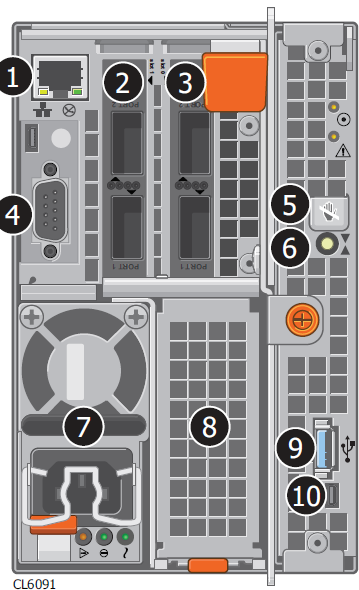
As seen in the image, No.6 is the Multi Functional Button and No.7 is the Power supply (below which you see the power supply cord)
Affected Products
Isilon Gen6Products
Isilon Gen6Article Properties
Article Number: 000013863
Article Type: How To
Last Modified: 18 Dec 2025
Version: 9
Find answers to your questions from other Dell users
Support Services
Check if your device is covered by Support Services.