如何在 Unisphere 中產生資料移動器記憶體使用量和 CPU 使用率的警示
Summary: 設定為在 Unisphere 中產生資料移動器記憶體使用量和 CPU 使用率警示的逐步程序
This article applies to
This article does not apply to
This article is not tied to any specific product.
Not all product versions are identified in this article.
Instructions
以下是在 Unisphere 中設定「資料移動者 CPU 用量」和「記憶體用量」產生警示的步驟。
在 Unisphere 中設定「資料移動者 CPU 用量」和「記憶體用量」警示的步驟。
1.使用 Contorol Station IP 開啟 Unisphere 並登入。
2.然後選取系統 (在左上角的系統下拉式功能表中)。
3.前往系統 -> 監控和警示,然後選取檔案通知。
4.選取「資料移動者載入」標籤。
5.選取建立按鈕。
6.輸入值,然後選擇“應用”。

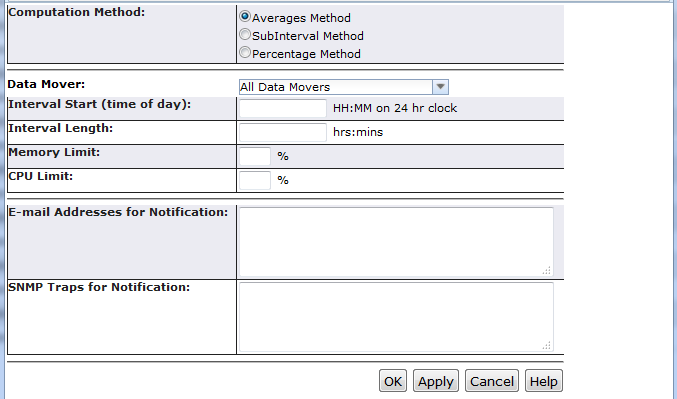
在 Unisphere 中設定「資料移動者 CPU 用量」和「記憶體用量」警示的步驟。
1.使用 Contorol Station IP 開啟 Unisphere 並登入。
2.然後選取系統 (在左上角的系統下拉式功能表中)。
3.前往系統 -> 監控和警示,然後選取檔案通知。
4.選取「資料移動者載入」標籤。
5.選取建立按鈕。
6.輸入值,然後選擇“應用”。
Additional Information
使用 DM 載入警示的間隔方法,不會觸發任何接近午夜的間隔,例如 23:50 或 23:55。
使用者應設定「間隔開始時間 00:05 或之後」和「間隔結束時間 23:40 之前」以取得警示。
* 使用者無法使用此功能整天監控資料移動器記憶體使用方式和 CPU 使用方式。
** 間隔結束時間 = 間隔開始時間 + 間隔長度。
使用者應設定「間隔開始時間 00:05 或之後」和「間隔結束時間 23:40 之前」以取得警示。
* 使用者無法使用此功能整天監控資料移動器記憶體使用方式和 CPU 使用方式。
** 間隔結束時間 = 間隔開始時間 + 間隔長度。
Affected Products
VNX1 SeriesProducts
VNX1 Series, VNX2 SeriesArticle Properties
Article Number: 000019359
Article Type: How To
Last Modified: 06 Nov 2025
Version: 3
Find answers to your questions from other Dell users
Support Services
Check if your device is covered by Support Services.