如何在 Unisphere 中生成 Data Mover 内存使用情况和 CPU 使用情况的警报
Summary: 在 Unisphere 中设置以生成 Data Mover 内存使用情况和 CPU 使用情况警报的分步过程
This article applies to
This article does not apply to
This article is not tied to any specific product.
Not all product versions are identified in this article.
Instructions
以下是在 Unisphere 中设置以生成 Data Mover CPU 使用率和内存使用率警报的步骤。
在 Unisphere 中使用 Data Mover CPU 使用情况和内存使用情况设置警报的步骤。
1.使用 Contorol Station IP 打开 Unisphere 并登录。
2.然后,选择系统(在左上角的系统下拉菜单中)。
3.转至 System -> Monitoring and Alerts,然后选择 Notifications for File。
4.选择Data Mover Load选项卡。
5.选择“创建”按钮。
6.输入值,然后选择应用。
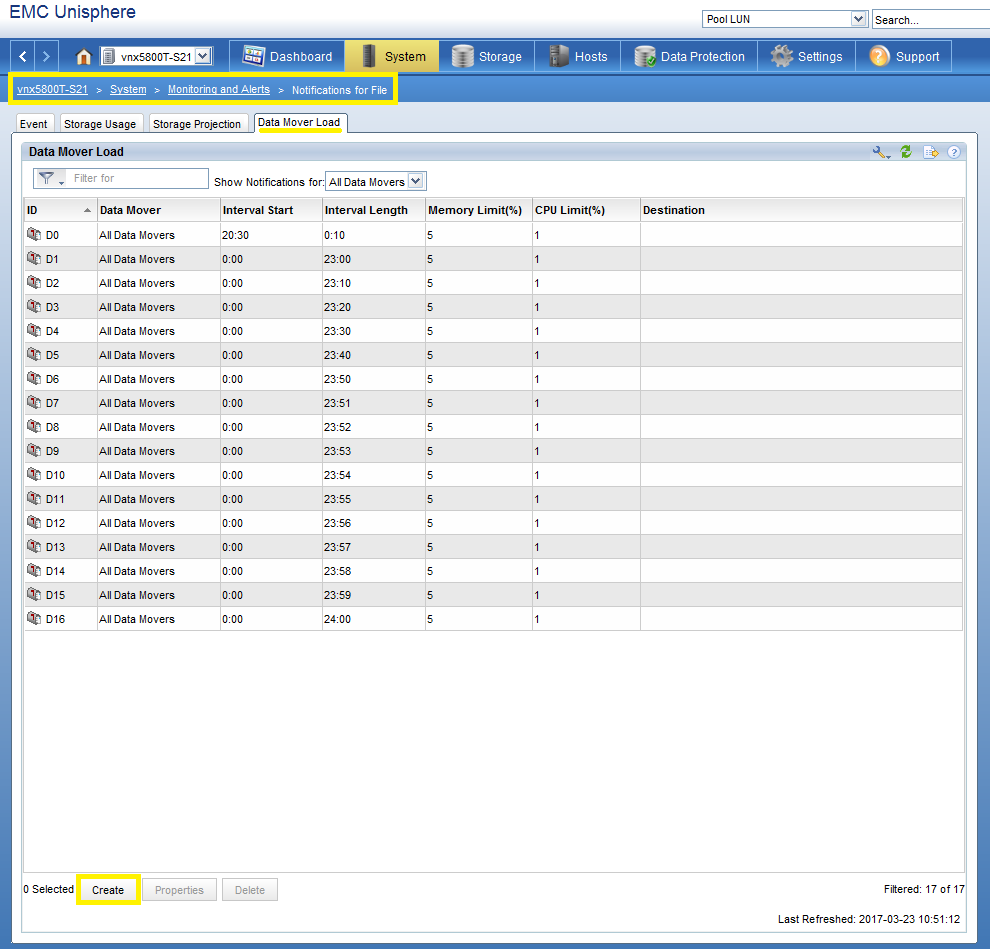
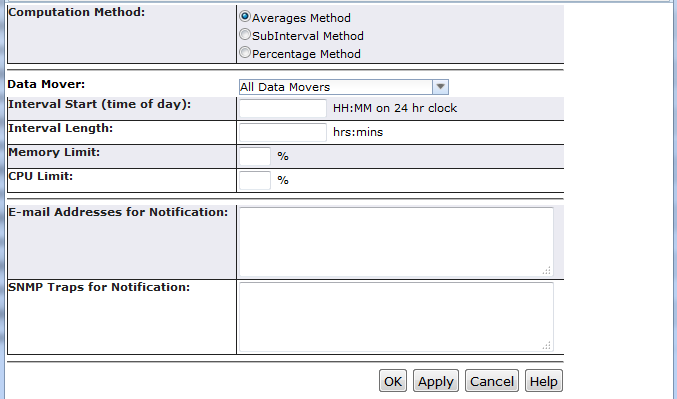
在 Unisphere 中使用 Data Mover CPU 使用情况和内存使用情况设置警报的步骤。
1.使用 Contorol Station IP 打开 Unisphere 并登录。
2.然后,选择系统(在左上角的系统下拉菜单中)。
3.转至 System -> Monitoring and Alerts,然后选择 Notifications for File。
4.选择Data Mover Load选项卡。
5.选择“创建”按钮。
6.输入值,然后选择应用。
Additional Information
对 DM 负载警报使用间隔方法时,任何接近午夜的时间间隔(如 23:50 或 23:55)都不会触发。
用户应设置“interval start time 00:05 or later”和“interval end time 23:40 before”以获取警报。
* 用户无法使用此功能全天监视 Data Mover 内存使用情况和 CPU 使用情况。
** 间隔结束时间 = 间隔开始时间 + 间隔长度。
用户应设置“interval start time 00:05 or later”和“interval end time 23:40 before”以获取警报。
* 用户无法使用此功能全天监视 Data Mover 内存使用情况和 CPU 使用情况。
** 间隔结束时间 = 间隔开始时间 + 间隔长度。
Affected Products
VNX1 SeriesProducts
VNX1 Series, VNX2 SeriesArticle Properties
Article Number: 000019359
Article Type: How To
Last Modified: 06 Nov 2025
Version: 3
Find answers to your questions from other Dell users
Support Services
Check if your device is covered by Support Services.