VNXe : How to change NAS Server IP
Summary: How to change NAS Server IP after its creation
This article applies to
This article does not apply to
This article is not tied to any specific product.
Not all product versions are identified in this article.
Instructions
Below are the steps required to modify NAS Server by Using GUI and UEMCLI.
Using GUI :
1. Within the GUI, Go to Settings > NAS Servers.
2. Once you are in the list of NAS Servers, Select the NAS Server you wish to modify.
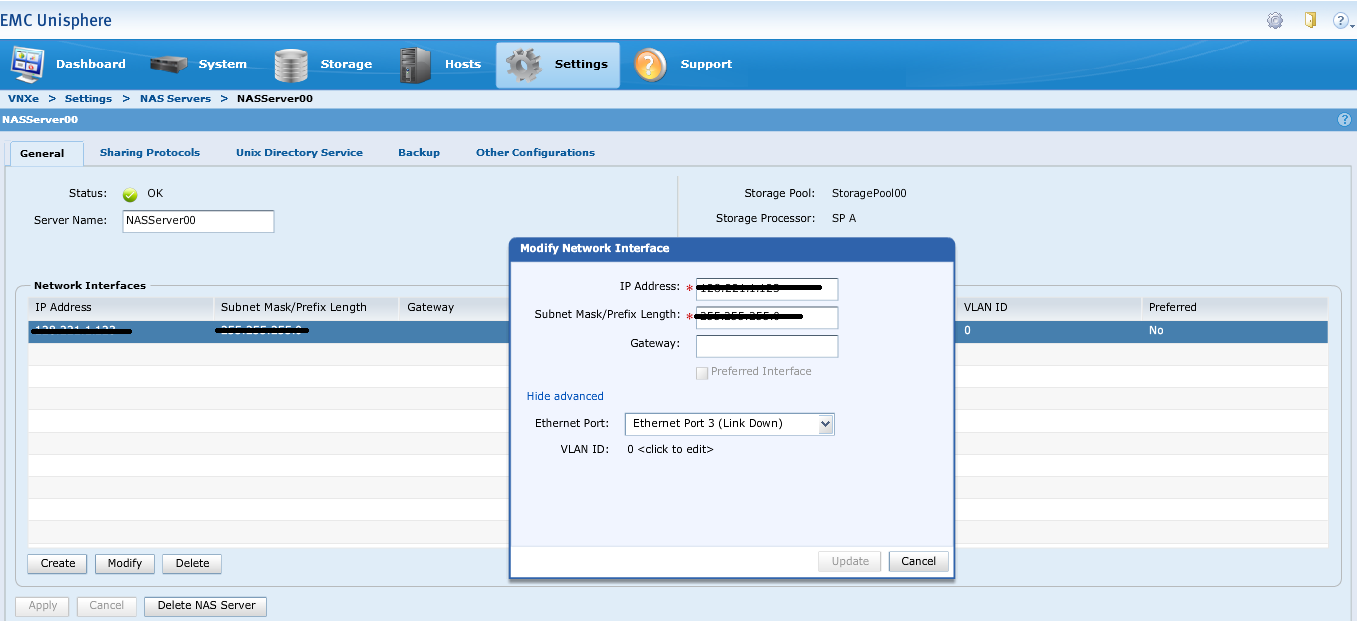
3. Select the network interface and click on modify, Change the IP address. Then click on Update.
4. It will update the new IP and You will find changed IP address on NAS Server.
Note : The Network Interface you choose must not be associated with an existing NAS server, ISCSI interface or the system management interface
Using UEMCLI :
1. Collect the NAS/CIFS Server ID:To get this information, the following command can be used: uemcli /net/nas/server show
The following output will be received while running the above command. the Output will list all of the NAS servers present on the machine:
1: ID = nas_1 -> ID of the NAS Server
Name = NASServer00 -> Name of the NAS server
NetBIOS name =
SP = spa
Storage pool = pool_1
Interface = if_13 -> Interface used by the NAS
NFS enabled = yes
NFSv4 enabled = yes
CIFS enabled = no
Multiprotocol sharing enabled = no
Unix directory service = none
Health state = OK (5)
Collect the NAS id (nas_1 in the above example).
2. To change NAS server interface IP, insert the following command with the interface id and enter the address you wish to modify: uemcli -u user -p password /net/if -id if_ID set -addr New_IP.
The following output will be received when modifying the NAS Server interface. In this example we are modifying the Interface 13, which is assigned to the NAS Server NASServer00
03:27:00 root@none spa:/cores/service> uemcli -u User -p Password /net/if -id if_13 set -addr 10.0.0.y -> This value is taken as example, need to replace it with customer provided IP
Storage system address: 127.0.0.1
Storage system port: 443
HTTPS connection
ID = if_13
Operation completed successfully.
Note : We can use "-netmask" and "-gateway" option , to change subnet mask and gateway IP respectively.
Here the IP address has been changed from 10.0.0.x to 10.0.0.y
Old interface setting :
03:20:00 root@none spa:/cores/service> uemcli /net/if -id if_13 show
Storage system address: 127.0.0.1
Storage system port: 443
HTTPS connection
1: ID = if_13
Type = file
NAS server = nas_1
Port = spa_eth3
VLAN ID =
IP address = 10.0.0.x
Subnet mask = 255.0.0.0
Gateway =
IPv4 mode =
IPv4 address = 10.0.0.x
IPv4 subnet mask = 255.0.0.0
IPv4 gateway =
IPv6 mode =
IPv6 address =
IPv6 gateway =
SP = spa
Preferred = 0
New interface setting :
03:27:46 root@none spa:/cores/service> uemcli /net/if -id if_13 show
Storage system address: 127.0.0.1
Storage system port: 443
HTTPS connection
1: ID = if_13
Type = file
NAS server = nas_1
Port = spa_eth3
VLAN ID =
IP address = 10.0.0.y
Subnet mask = 255.0.0.0
Gateway =
IPv4 mode =
IPv4 address = 10.0.0.y
IPv4 subnet mask = 255.0.0.0
IPv4 gateway =
IPv6 mode =
IPv6 address =
IPv6 gateway =
SP = spa
Preferred = 0
Using GUI :
1. Within the GUI, Go to Settings > NAS Servers.
2. Once you are in the list of NAS Servers, Select the NAS Server you wish to modify.
3. Select the network interface and click on modify, Change the IP address. Then click on Update.
4. It will update the new IP and You will find changed IP address on NAS Server.
Note : The Network Interface you choose must not be associated with an existing NAS server, ISCSI interface or the system management interface
Using UEMCLI :
1. Collect the NAS/CIFS Server ID:To get this information, the following command can be used: uemcli /net/nas/server show
The following output will be received while running the above command. the Output will list all of the NAS servers present on the machine:
1: ID = nas_1 -> ID of the NAS Server
Name = NASServer00 -> Name of the NAS server
NetBIOS name =
SP = spa
Storage pool = pool_1
Interface = if_13 -> Interface used by the NAS
NFS enabled = yes
NFSv4 enabled = yes
CIFS enabled = no
Multiprotocol sharing enabled = no
Unix directory service = none
Health state = OK (5)
Collect the NAS id (nas_1 in the above example).
2. To change NAS server interface IP, insert the following command with the interface id and enter the address you wish to modify: uemcli -u user -p password /net/if -id if_ID set -addr New_IP.
The following output will be received when modifying the NAS Server interface. In this example we are modifying the Interface 13, which is assigned to the NAS Server NASServer00
03:27:00 root@none spa:/cores/service> uemcli -u User -p Password /net/if -id if_13 set -addr 10.0.0.y -> This value is taken as example, need to replace it with customer provided IP
Storage system address: 127.0.0.1
Storage system port: 443
HTTPS connection
ID = if_13
Operation completed successfully.
Note : We can use "-netmask" and "-gateway" option , to change subnet mask and gateway IP respectively.
Here the IP address has been changed from 10.0.0.x to 10.0.0.y
Old interface setting :
03:20:00 root@none spa:/cores/service> uemcli /net/if -id if_13 show
Storage system address: 127.0.0.1
Storage system port: 443
HTTPS connection
1: ID = if_13
Type = file
NAS server = nas_1
Port = spa_eth3
VLAN ID =
IP address = 10.0.0.x
Subnet mask = 255.0.0.0
Gateway =
IPv4 mode =
IPv4 address = 10.0.0.x
IPv4 subnet mask = 255.0.0.0
IPv4 gateway =
IPv6 mode =
IPv6 address =
IPv6 gateway =
SP = spa
Preferred = 0
New interface setting :
03:27:46 root@none spa:/cores/service> uemcli /net/if -id if_13 show
Storage system address: 127.0.0.1
Storage system port: 443
HTTPS connection
1: ID = if_13
Type = file
NAS server = nas_1
Port = spa_eth3
VLAN ID =
IP address = 10.0.0.y
Subnet mask = 255.0.0.0
Gateway =
IPv4 mode =
IPv4 address = 10.0.0.y
IPv4 subnet mask = 255.0.0.0
IPv4 gateway =
IPv6 mode =
IPv6 address =
IPv6 gateway =
SP = spa
Preferred = 0
Affected Products
VNXe2 SeriesProducts
VNXe2 Series, VNXe3200Article Properties
Article Number: 000021484
Article Type: How To
Last Modified: 07 Nov 2025
Version: 3
Find answers to your questions from other Dell users
Support Services
Check if your device is covered by Support Services.