VNX, VNX2, UNIFIED: How to change the passwords for sysadmin, nasadmin, and root user accounts on a Unified storage array (User Correctable)
Summary: This article shows how to reset or change the default user account passwords on multiple VNX family models.
This article applies to
This article does not apply to
This article is not tied to any specific product.
Not all product versions are identified in this article.
Instructions
Here are the steps to change the three default user passwords on a VNX Unified system, VNX-File, and VNX-Block.
Steps to change the password from Unisphere:

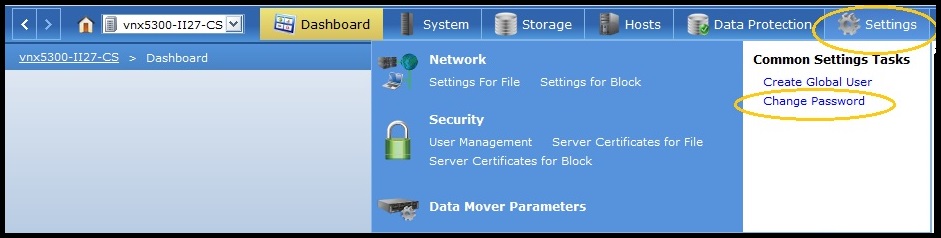
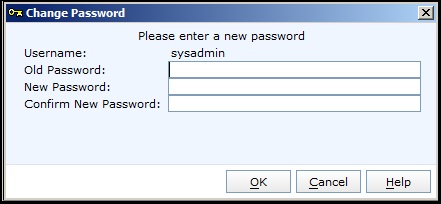
Repeat the above steps 1 through 5 for each of the user accounts. Ensure you fully log out of the web UI before starting the next user account. IE does not close the Unisphere window. Click the "Logout" button on the upper right of the Unisphere window.
Steps to change the password from Unisphere:
- Open Unisphere by using Control Station IP.
- Log in by using the user that you would like to change the password for such as sysadmin, nasadmin, or root.
(Note: The scope should be "Global" when using "sysadmin" user. Sysadmin is a Global User. However, when using "nasadmin" or "root" users, scope should be "Local" because they are local users.)
- Select the system in the System drop-down menu in the upper left.
- Go to Settings and select Change Password.
- Type your Old Password and your New password.
Example:
Unisphere is opened by "sysadmin" user so you have the option to change the password for the account.
Repeat the above steps 1 through 5 for each of the user accounts. Ensure you fully log out of the web UI before starting the next user account. IE does not close the Unisphere window. Click the "Logout" button on the upper right of the Unisphere window.
Affected Products
VNX-VSS SeriesProducts
VNX-F Series, VNX-F5000, VNX-F7000, VNX VG10, VNX VG2, VNX VG50, VNX VG8, VNX-VSS Series, VNX-VSS100, VNX1 Series, VNX2 Series, VNX5100, VNX5150, VNX5200, VNX5300, VNX5400, VNX5500, VNX5600, VNX5700, VNX5800, VNX7500, VNX7600, VNX8000, VNX/VNXe, vVNX
, vVNX Series
...
Article Properties
Article Number: 000022349
Article Type: How To
Last Modified: 16 Sep 2025
Version: 6
Find answers to your questions from other Dell users
Support Services
Check if your device is covered by Support Services.