VMAX3 and VMAX All Flash: How to copy SMAS DB backup files from Embedded Management for VMAX using vApp Manager
Summary: Provides instructions to customers how to make a copy of the data from Embedded Management for VMAX.
This article applies to
This article does not apply to
This article is not tied to any specific product.
Not all product versions are identified in this article.
Instructions
Starting from the release 8.3 it is possible to make a copy of the data from vApp Manager for eManagement.
Follow the following procedure to copy SMAS DB backup files (.dat):
-
Log in to vApp Manager using IP address of eManagement and the port 5480 with the seconfig account and password

-
On the bottom right of the screen in the Operation area, you have an option to download logs and the data

-
The Download Files Wizard is opened

You can download the followings:
- System database backups these are .dat file
- Performance data (.dat files)
- Performance Reports
Note: This Performance Backup file (.dat file) is the same as you would receive from performance/settings/database/backup over port 8443, but makes it easier for CS to download a copy of it, in case the container has to be reimaged.
These Performance backup files can be located in /opt/emc/SMAS/backup/SPA.
These Performance backup files can be located in /opt/emc/SMAS/backup/SPA.
Additional Information
It is also recommended to copy options and nethost files from eManagement. To do this, open the Download Files Wizard as described above and choose these files as shown below.
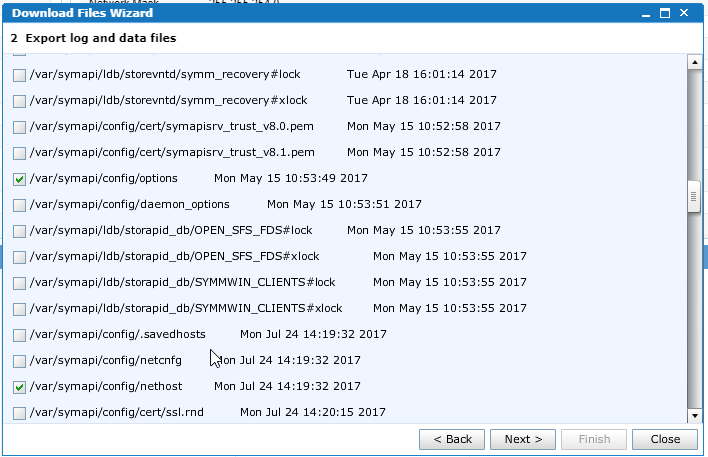
To restore these files, engage the Dell Technologies Global Support.
Affected Products
VMAX3 SeriesProducts
Unisphere for VMAX, VMAX All Flash, VMAX3 SeriesArticle Properties
Article Number: 000022546
Article Type: How To
Last Modified: 27 Mar 2025
Version: 6
Find answers to your questions from other Dell users
Support Services
Check if your device is covered by Support Services.