Unisphere for VMAX: How to enable SSH on a vApp
Summary: Unisphere for VMAX: How do I enable SSH on a vApp?
This article applies to
This article does not apply to
This article is not tied to any specific product.
Not all product versions are identified in this article.
Instructions
How to enable SSH on a vApp for Versions 1.6 up to 8.4:
- Open vApp Manager using your web browser (https://<appliance_IP>:5480)
- Log in to the vApp Manager. The default credential is:
U: seconfig
P: seconfig - Navigate to the 'Command Execution' tab.
- Click the 'Host Configuration' drop-down to reveal additional options.
- Enable SSH.
For versions 9.x:
- Open vApp Manager using your web browser (https://<appliance_IP>:5480)
- Log in to the vApp Manager. The default credential is:
U: seconfig
P: seconfig - Navigate to Configure > Host
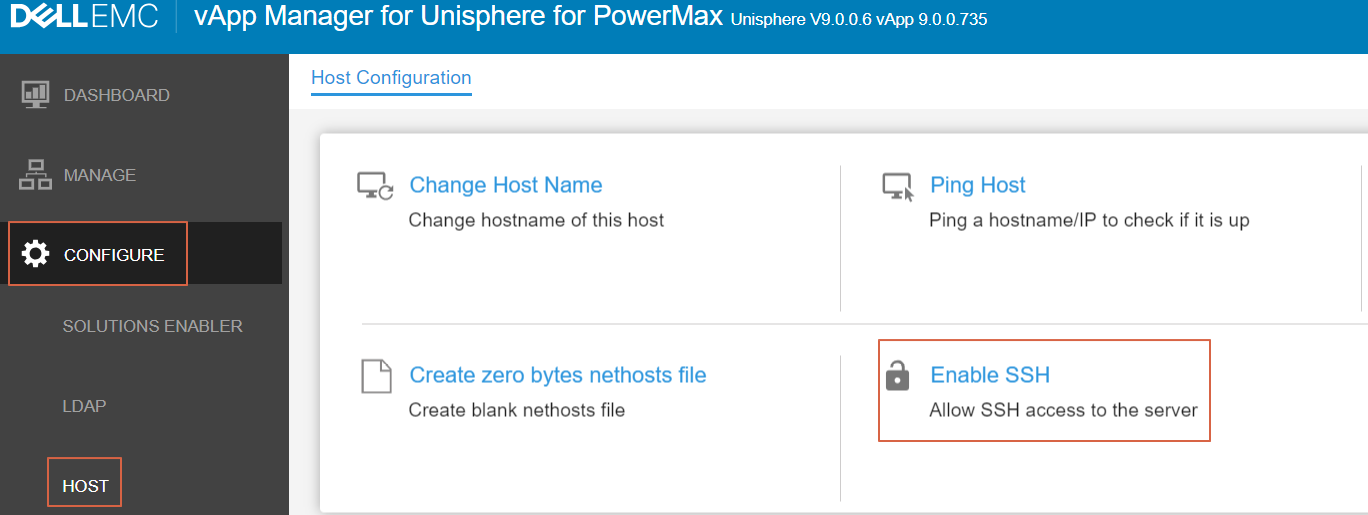
4. Click Enable SSH:
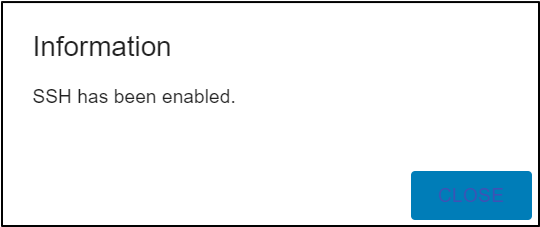
5. Click CLOSE. SSH access is now enabled.
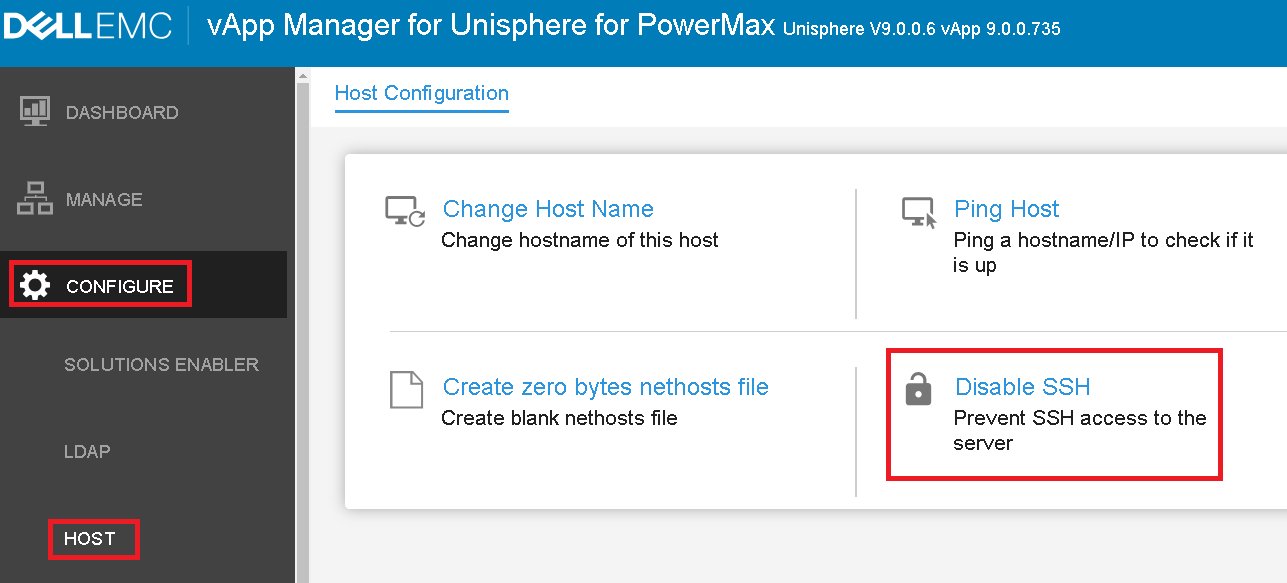
Additional Information
SSH must be enabled after each reboot of the vApp. This is by design.
The default credentials for SSH are:
U: cseadmin
P: cseadmin
Affected Products
Unisphere for VMAX, Unisphere for PowerMaxArticle Properties
Article Number: 000022642
Article Type: How To
Last Modified: 01 Aug 2025
Version: 6
Find answers to your questions from other Dell users
Support Services
Check if your device is covered by Support Services.