Dell EMC Unity, VNX: How to Backup D@RE (Data at Rest Encryption Key) Keystore File (User Correctable)
Summary: Backing up Keystore file (Encryption key) in Unity and VNX2.
This article applies to
This article does not apply to
This article is not tied to any specific product.
Not all product versions are identified in this article.
Instructions
How to backup the D@RE Keystore File (Encryption Key)
Unity arrays
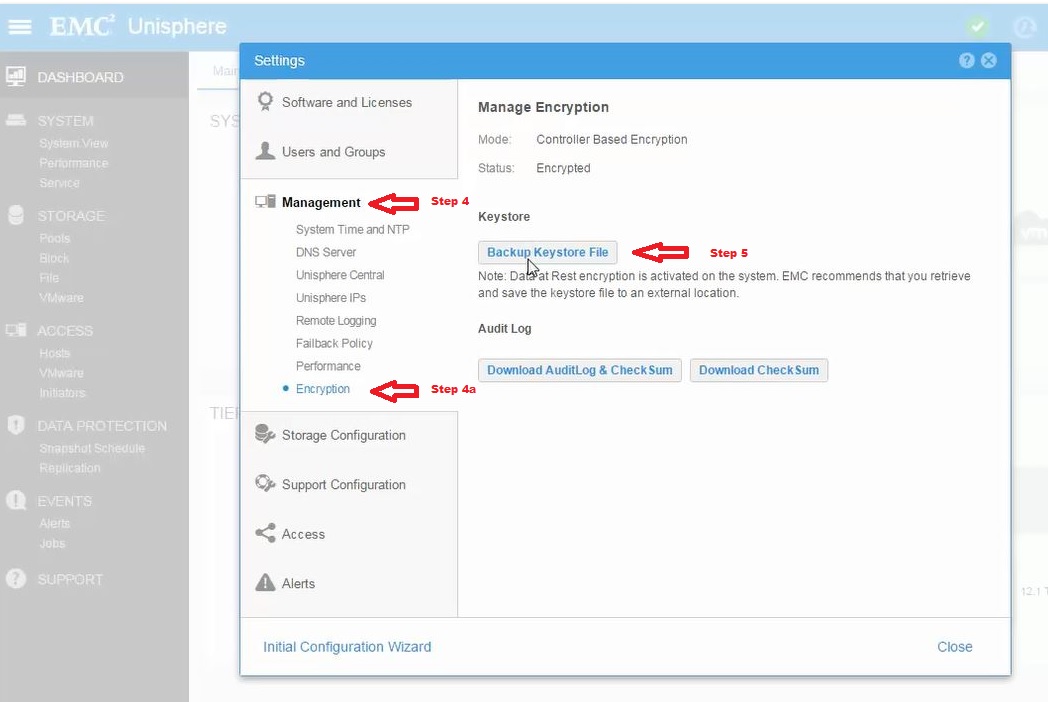
From Unisphere

From CLI
Note: UEMCLI needs to be installed on the local machine
Syntax:
uemcli -no -d <UNITY IP> -u admin -p <PASSWORD> -download encryption -type backupKeys
Example:
Default location of the file on the local PC should be in the folder the Command Prompt window is using, when the command is issued.
However when doing testing, it was noticed that when using the <USER> directory the file may save to:
C:\Users\<USER>\AppData\Local\VirtualStore
File name is based on the serial number of the array, with date and time in the name, similar to:
CKM00XXXX_2018_11_01_15_39_35_000000000000000E.lbb
VNX2 Arrays
From Unisphere

From CLI
Syntax:
naviseccli h <SP IP> securedata backupkeys retrieve path <path>
Note: by default naviseccli will save a file in the folder the command is run from if no path is specified.
If another folder location is not desired, the " -path <path> " parameter is not needed.

Unity arrays
From Unisphere
- Open and log into Unisphere.
- Click on the gear icon (top right corner) to enter the Settings page.
- Ensure Data at Rest Encryption is enabled on your system in the License Management list. (Ensure it has a check mark)
- Once D@RE is confirmed select Management (left side) then click Encryption.
- Under Keystore select "Backup Keystore File"
Note: Dell EMC recommends that you retrieve and save the Keystore file to an external location. The backed up keystore can be used to restore the system in an unlikely case the original Keystore file gets corrupted.
From CLI
Note: UEMCLI needs to be installed on the local machine
Syntax:
uemcli -no -d <UNITY IP> -u admin -p <PASSWORD> -download encryption -type backupKeys
Example:
C:\>uemcli -no -d xx.xx.xx.xx -u admin -p xxxxxxx -download encryption -type backupKeys
Downloaded 81.65 KB of 81.65 KB [ 100.0% ] at 7.10 KB/s
Operation completed successfully.
Downloaded 81.65 KB of 81.65 KB [ 100.0% ] at 7.10 KB/s
Operation completed successfully.
Default location of the file on the local PC should be in the folder the Command Prompt window is using, when the command is issued.
However when doing testing, it was noticed that when using the <USER> directory the file may save to:
C:\Users\<USER>\AppData\Local\VirtualStore
File name is based on the serial number of the array, with date and time in the name, similar to:
CKM00XXXX_2018_11_01_15_39_35_000000000000000E.lbb
VNX2 Arrays
From Unisphere
- Open and log into Unisphere.
- Navigate to System and select "Backup Keystore File"
- Select "Choose Location To Save" and save the Keystore file to your desired location and Click OK.
From CLI
Note: naviseccli needs to be installed on the local machine
Syntax:
naviseccli h <SP IP> securedata backupkeys retrieve path <path>
Note: by default naviseccli will save a file in the folder the command is run from if no path is specified.
If another folder location is not desired, the " -path <path> " parameter is not needed.
Additional Information
- Once encryption is licensed and applied you cannot apply license at a later time to enable/disable encryption.
- Changing the encryption sate requires a destructive reinitialization.
- Any time a change is made to the keystore (pool creations, drive replacements, etc), a new backup should be initiated since the previous backup no longer includes all the keys.
Affected Products
Dell EMC Unity FamilyProducts
Dell EMC Unity Family, VNX2 SeriesArticle Properties
Article Number: 000022651
Article Type: How To
Last Modified: 20 Sep 2024
Version: 5
Find answers to your questions from other Dell users
Support Services
Check if your device is covered by Support Services.