Dell EMC Unity: Non è un dispositivo di storage EMC o non si dispone dell'accesso al dispositivo
Summary: Vsphere mostra la capacità di storage in "Summary", ma in "Storage System" e "Storage Device" viene visualizzato "Not an EMC storage device or you don have not access to storage"
This article applies to
This article does not apply to
This article is not tied to any specific product.
Not all product versions are identified in this article.
Symptoms
È necessario registrare lo storage con l'applicazione VSI in modo che possa gestire lo storage.
Report di EMC Datastore nella scheda di riepilogo Non è un dispositivo di storage EMC o non si dispone dell'accesso al dispositivo nel sistema di storage.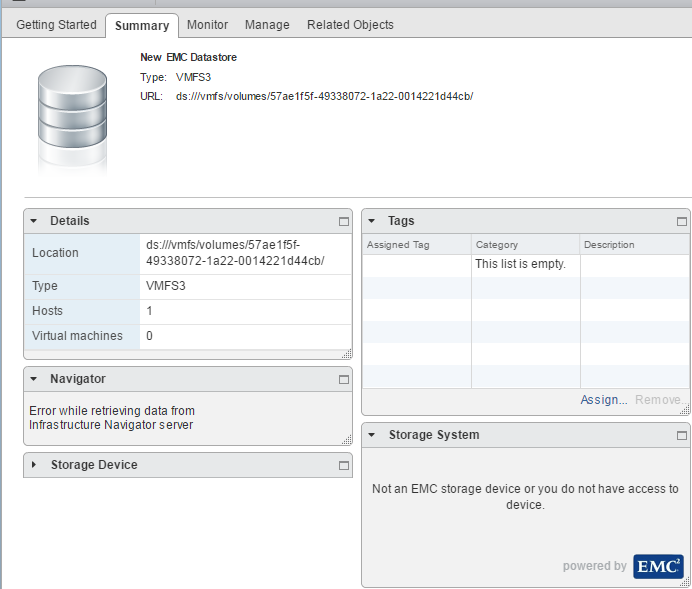
Cause
- vCenter è integrato con VSI.
- La LUN appartiene a un array non registrato con VSI.
- L'array non è registrato con l'utente VSI.
Resolution
Passi:
1. Assicurarsi che il plug-in EMC VSI sia installato in vCenter.
Disponibile in Home -> vCenter.
2. Assicurarsi che l'utente sia registrato su VSI. Viene visualizzato il server VSI = Online in
Home -> vCenter -> EMC VSI -> Solutions Integration Service.
Se NON è registrato, seguire i passaggi A e B.
Se siete registrati, andare al passaggio 3.
Un. Se Solutions integration Service segnala No registered Solutions Integration Service.
Cliccare su Actions e scegliere Register Solutions Integrations Service.
B. Se la registrazione ha esito positivo ma non viene visualizzata in:
Home -> vCenter -> EMC VSI -> Servizio di integrazione di soluzioni. (Fare riferimento 000018454) 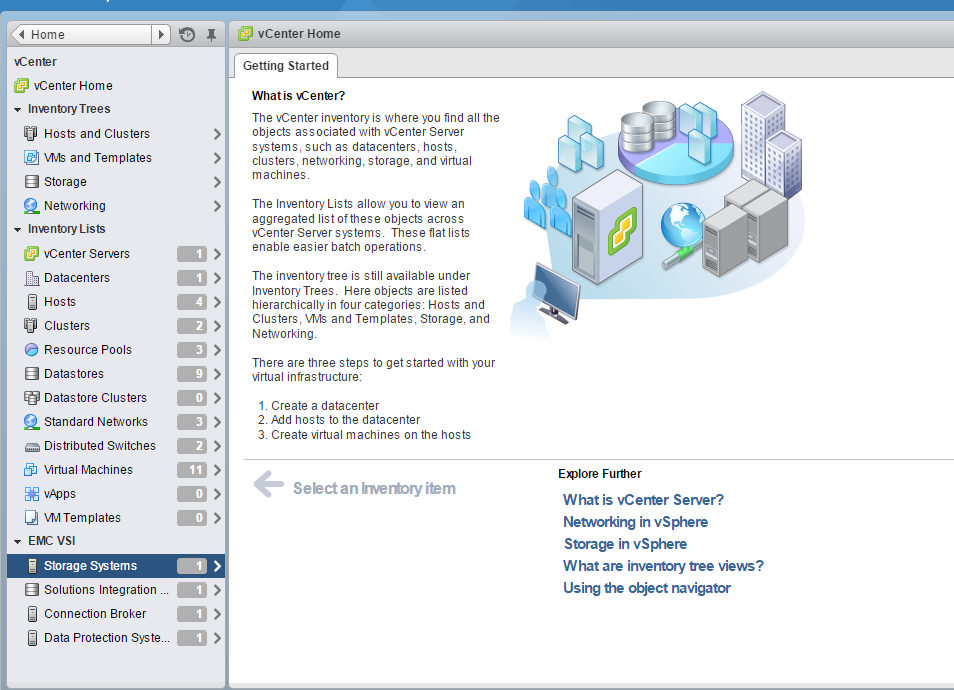
3. Passare a Home -> vCenter -> EMC VSI -> Storage Systems.
In questa schermata cliccare su " Actions".
Selezionare "Register Storage Systems".
ESEMPIO:
- Seleziona il menu a discesa "Tipo di sistema di storage" [ Unity ]
- Seleziona [ ] per lo storage a blocchi ( VMFS o RDM) o per lo storage
a file ( NFS ) - Completo
- IP dello storage processor o della control station ( 127.0.0.1 )
- Nome utente Unisphere o Control Station ( XXXX )
- Password Unisphere o Control Station (XXXXX)
- fare clic su ( OK )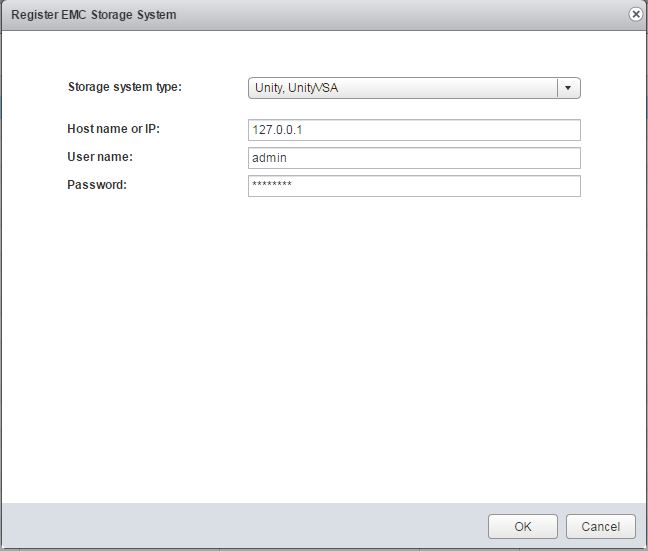
Una volta completata la registrazione, dovresti vedere quanto segue:
- Ora dovresti vedere il nome dell'array " APM000XXXXXXXX"
- Ora dovresti vedere il modello dell'array " UNITYXXXX"
- Ora dovresti vedere Management IP " 127.0.0.1
- Ora dovresti vedere ulteriori informazioni " Block or File = xxxxxxxxx"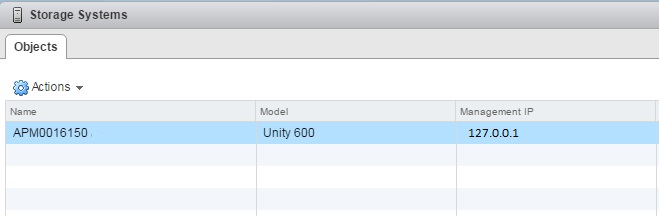
4. Una volta che il sistema di storage è stato registrato correttamente, tornare al datastore e verificare che il messaggio sia stato sostituito con le informazioni corrette sull'array.
Home -> vCenter -> Datastore -> cliccare sul nome
del datastore ESEMPIO DI OUTPUT: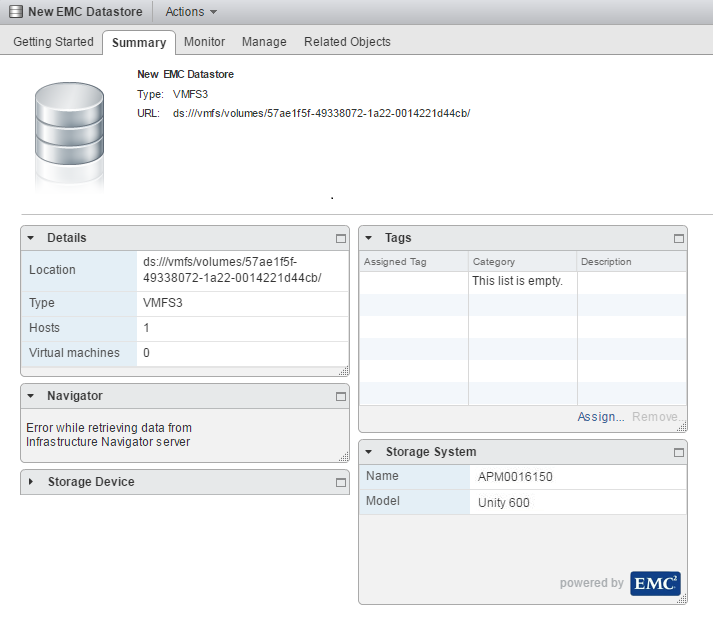
Affected Products
Dell EMC Unity FamilyProducts
Dell EMC Unity Family |Dell EMC Unity All Flash, Dell EMC Unity Family, Dell EMC Unity Hybrid, VNX1 Series, VNX2 SeriesArticle Properties
Article Number: 000052069
Article Type: Solution
Last Modified: 11 Nov 2024
Version: 3
Find answers to your questions from other Dell users
Support Services
Check if your device is covered by Support Services.