「VxRail:VMwareツールのインストールが「SVGAドライバーの自動インストールに失敗しました」で失敗する
Summary: 仮想マシン通信インターフェイス ドライバー(VMCI)ドライバーのインストール中に、VMware Toolsのインストールまたはアップグレードが失敗する場合があります。
This article applies to
This article does not apply to
This article is not tied to any specific product.
Not all product versions are identified in this article.
Symptoms
考えられるエラー:
Setup failed to install the VMCI Virtual Machine Communication Interface driver automatically. This driver will have to be installed manually.
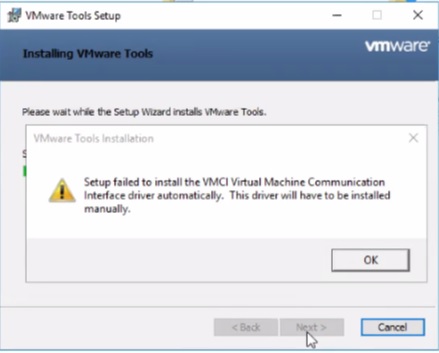
Setup failed to install the SVGA driver automatically. This driver will have to be installed manually.

Cause
- ウイルス対策が有効になっていて、Device Install Serverサービスが実行されていない場合、WindowsでVMwareツールのセットアップが失敗する可能性があります。
- これは、Microsoftルート証明機関が存在しないか、信頼されたルート認証機関ストアから取り消されている場合に発生する可能性があります。
Resolution
以下の2つの解決策があります。上記の原因を確認し、以下の手順を実行します。
解決策1:
この問題を解決するには、VM上のウイルス対策ソフトウェアを無効にします。
解決策2:
この問題を解決するには、次の手順を使用してルート証明書を追加します。
-
VMCIドライバーの問題でVMware Toolsのインストールまたはアップグレードが失敗した仮想マシンから、C:\Windows\System32\driversに移動します。
-
vmci.sysを右クリックし、[プロパティ] > [署名リスト] > [デジタル署名] を選択します。
-
このドライバーの署名に使用された証明書が表示されます。これは、1つまたは複数の証明書である可能性があります。
-
名を選択し、[詳細]をクリックして 、[証明書の表示]を選択します。

-
証明書のインストール>次へをクリックして、ウィザードを完了します。
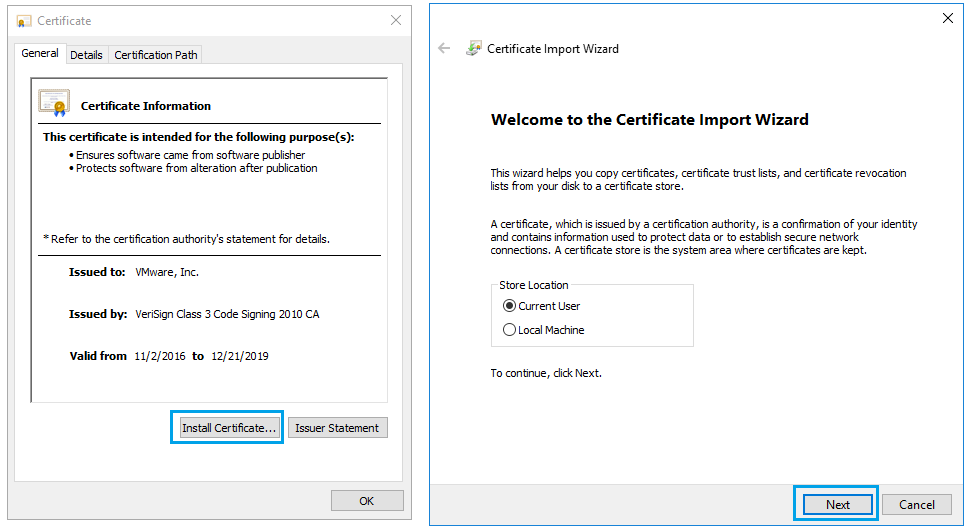
-
「The import was successful」と表示されます。[デジタル署名]の下にあるすべての[署名リスト]に対して同じ手順を繰り返します。
-
VMware Toolsのアップグレードまたはインストールを再試行します。
Additional Information

Affected Products
VxRail Appliance Family, VxRail Appliance Series, VxRail SoftwareArticle Properties
Article Number: 000063245
Article Type: Solution
Last Modified: 24 Dec 2024
Version: 5
Find answers to your questions from other Dell users
Support Services
Check if your device is covered by Support Services.