我要如何尋找 Dell Reliable Memory Technology (RMT) 錯誤,以確認 Precision 工作站的記憶體問題和位置?
Summary: 本文提供尋找 Dell Reliable Memory Technology (RMT) 錯誤的相關資訊,以確認記憶體問題,以及 Precision 固定工作站上回報的 Dual Inline Memory Module (DIMM) 位置。
This article applies to
This article does not apply to
This article is not tied to any specific product.
Not all product versions are identified in this article.
Instructions
如果您在啟動 Precision 工作站時看到下列其中一條錯誤訊息,請閱讀下列章節。
-
Dell Reliable Memory Technology (RMT) 已探索並隔離系統記憶體中的錯誤。您可以繼續工作。建議更換記憶體模組。如需特定 DIMM 資訊,請參閱 BIOS 設定中的 RMT 事件記錄畫面。
-
Dell Reliable Memory Technology (RMT) 已探索並隔離系統記憶體中的錯誤。您可以繼續工作。不會隔離其他錯誤。建議更換記憶體模組。如需特定 DIMM 資訊,請參閱 BIOS 設定中的 RMT 事件記錄畫面。
若要繼續,請按下 F1 鍵。
若要變更設定選項,請按下 F2 鍵。
若要執行內建診斷程式,請按下 F5 鍵。
注意:Dell Precision 工作站 (視型號而定) 可容納許多 DIMM。RMT 記錄中的資訊可協助您快速識別要進一步故障診斷或更換的記憶體 DIMM 或插槽, 而 Dell 技術支援 部門需要這些資訊以協助您進一步進行此工作。
若要使用 RMT 識別記憶體問題,請先確定 RMT 已啟用,然後檢查記錄中的錯誤:
- 確認記錄要儲存至 BIOS,並確定已在系統 BIOS 中啟用 RMT:
- 在 Dell 啟動顯示畫面輕觸 F2 鍵,進入 BIOS 畫面。
- 按一下以開啟 效能 功能表。
- 從「效能」子功能表中選取 Dell RMT 。
- 請確定右窗格中已 啟用 Dell RMT。
- 識別 Dell RMT 記錄在 BIOS 中的位置:
- 按一下以開啟系統記錄功能表。
- 從「系統記錄」子功能表中選取 Dell Reliable Memory Technology 事件。
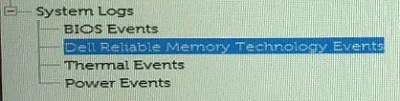
- 閱讀 BIOS 右窗格中的資訊,以識別系統記錄的任何記憶體事件。它也會識別哪個 DIMM 顯示問題。
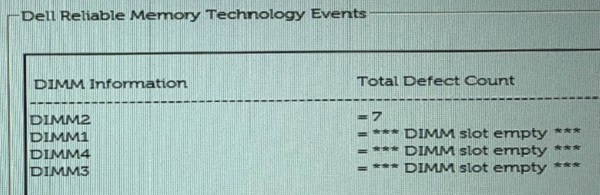
- 使用以下資訊進一步故障診斷您的記憶體問題:如何識別並解決 Precision 桌上型電腦工作站的記憶體問題
Affected Products
Precision 3630 Tower, Precision 3930 Rack, Precision 5820 Tower, Precision 7820 Tower, Precision 7920 Tower, Precision 7920 Rack, Dell Precision Tower 3420, Dell Precision Tower 3620Article Properties
Article Number: 000064540
Article Type: How To
Last Modified: 19 Nov 2024
Version: 6
Find answers to your questions from other Dell users
Support Services
Check if your device is covered by Support Services.