グループポリシーエディタを使用してWindowsでWindows Defenderを永久に無効にする方法
Summary: サード パーティー製のウイルス対策ソフトウェアを使用する際にWindows Defenderを無効にする方法について説明します。グループ ポリシー エディターを使用してWindowsでDefenderを永続的に無効にするには、次の手順を実行します。
This article applies to
This article does not apply to
This article is not tied to any specific product.
Not all product versions are identified in this article.
Instructions
影響を受けるプラットフォーム:
- OptiPlex
- Latitude
- Precision Workstation
- Inspiron
- XPS
- Vostro
- Dell Gシリーズ
- Alienware
対象オペレーティング システム:
- Windows
サード パーティー製のウイルス対策ソフトウェアがコンピューターにインストールされ、有効になっている場合は、Windows Defenderを無効にすることができます。この記事では、Windows内のグループ ポリシー エディターを使用してWindows Defenderを無効にする方法について説明します。
グループ ポリシー エディターを使用したWindows Defenderの無効化
注意:お使いのPCでサード パーティー製のウイルス対策プログラム を実行している場合にのみ、 次の手順を実行してWindows Defenderを無効にすることをお勧めします。
サードパーティのウイルス対策を実行していて、Windows Defenderを無効にする場合は、Windowsのグループポリシーエディターを使用して、以下の手順に従って無効にすることができます。
- キーボードの Windows + R キーを押してコマンド プロンプトを開き、次のように入力します。
cmdをクリックし、[ OK] をクリックします。 - コマンド プロンプトで 「gpedit.msc 」と入力し、 Enterを押します。
- UACプロンプトを確認して続行します。
- 次のパスに移動して、Windows Defenderの設定を開きます。ローカルコンピュータポリシー>コンピューターの構成>管理用テンプレート>Windowsコンポーネント>Windows Defenderの
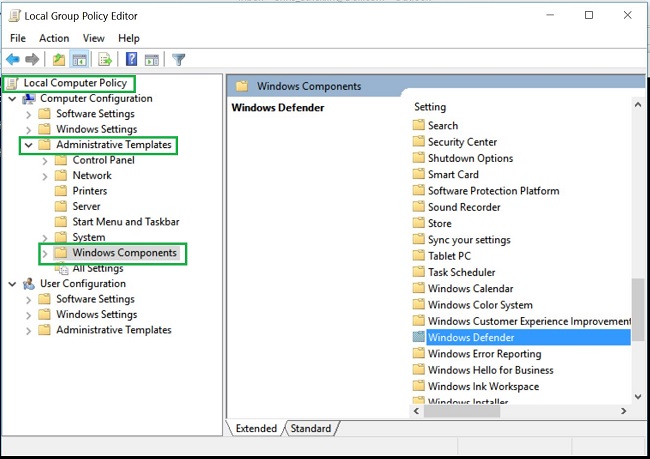
- Windows Defenderフォルダーをダブルクリックして設定を開き、[Windows Defenderポリシーを無効にする]設定を探します

- このポリシーを有効にしてWindows Defenderをオフにするには、[ 有効 ]を選択します

- コンピュータを再起動して、変更を有効にします。
注:サード パーティー製のウイルス対策ソフトウェアを削除し、コンピューターでWindows Defenderを再度有効にする場合は、グループ ポリシー エディターを使用して上記の手順に従います。[Windows Defenderを無効にする]ポリシーで [未構成 ]または [無効 ]のいずれかを選択します。
Affected Products
Alienware, Inspiron, OptiPlex, Vostro, XPS, G Series, G Series, Alienware, Inspiron, Latitude, Vostro, XPS, Fixed Workstations, Mobile WorkstationsArticle Properties
Article Number: 000108754
Article Type: How To
Last Modified: 31 Jul 2025
Version: 7
Find answers to your questions from other Dell users
Support Services
Check if your device is covered by Support Services.