BIOS 和作業系統需求,以符合支援安全核心個人運算
Summary: 本文提供個人電腦上 BIOS 選項設定的相關資訊。 系統 BIOS 中的設定必須設定為支援安全核心電腦、在搭載 Windows 10 版本 19H1 及更新版本的 Intel Whiskey Lake 系統上Microsoft或針對搭載 Windows 10 版本 20H1 及更新版本的 Intel Comet Lake 系統,在作業系統中執行下列步驟。
This article applies to
This article does not apply to
This article is not tied to any specific product.
Not all product versions are identified in this article.
Instructions
目錄:
什麼是 BIOS?
請參閱什麼是 BIOS,以及如何在 Dell 系統上更新 BIOS
如何設定
系統 BIOS 中的下列設定必須設定為支援安全核心個人電腦。
- 安全開機 - 啟用安全開機設定必須為開啟,並將 UEFI CA 選項Microsoft為關閉 (圖 1)。
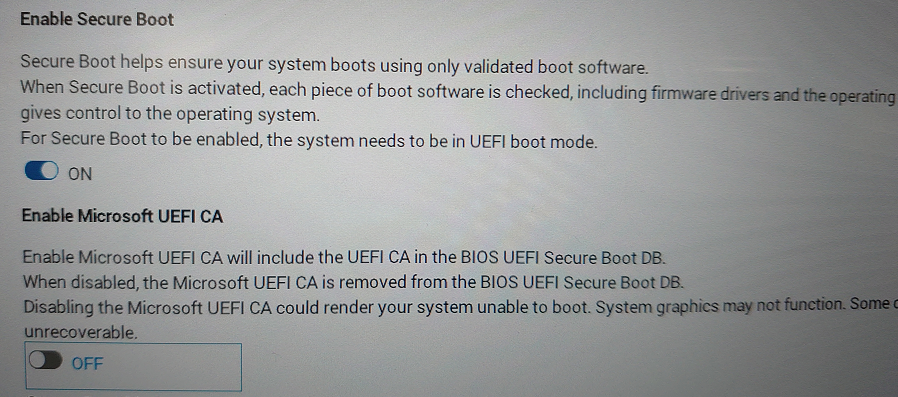
圖1.- 在 BIOS 中的 Secure Boot Enable - 必須在 Security、SMM Security Mitigation 設定中選取 System Management Mode (SMM) SMM Security Mitigation 選項。(圖 2。)
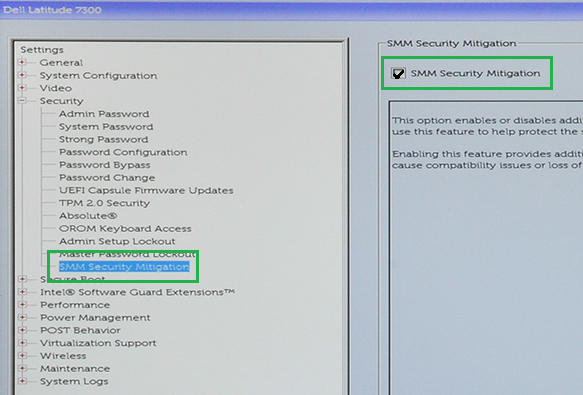
圖2.- 在 BIOS 中的 SMM Security Mitigation Enable - 必須在 Virtualization Support、VT for Direct I/O 設定中選取 VT for Direct I/O 選項。(圖 3。)
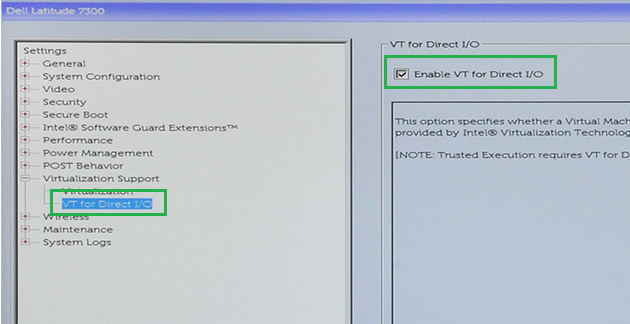
圖3.- 在 BIOS 中的 VT for Direct I/O Enable - 必須在 Virtualization Support、Trusted Execution 設定中啟用 Trusted Execution 選項。(圖 4。)
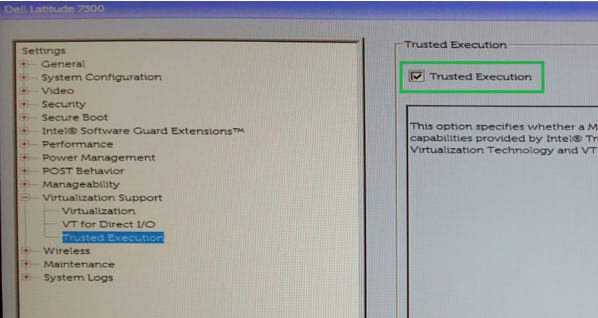
圖4.- 在 BIOS 中的 Trusted Execution Enable
搭載 Microsoft Windows 10 版本 19H1 及更新版本的 Intel Whiskey Lake 電腦,或適用於搭載 Windows 10 版本 20H1 及更新版本的 Intel Comet Lake 電腦,在作業系統中執行下列步驟。
- 在設定、更新與安全性、Windows 安全性、裝置安全性、核心隔離、「核心隔離詳細資料」底下。(圖 5。)
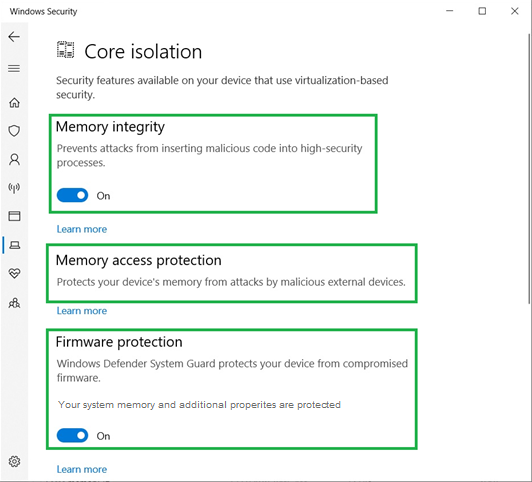
圖5.- Windows 核心隔離設定- 設定記憶體完整性 - 開啟
- 記憶體存取保護則應為 - 存在
- 設定韌體保護 - 開啟
- 完成後,裝置安全性表示:「您的裝置已超出增強硬體安全性的需求。」(圖 6。)
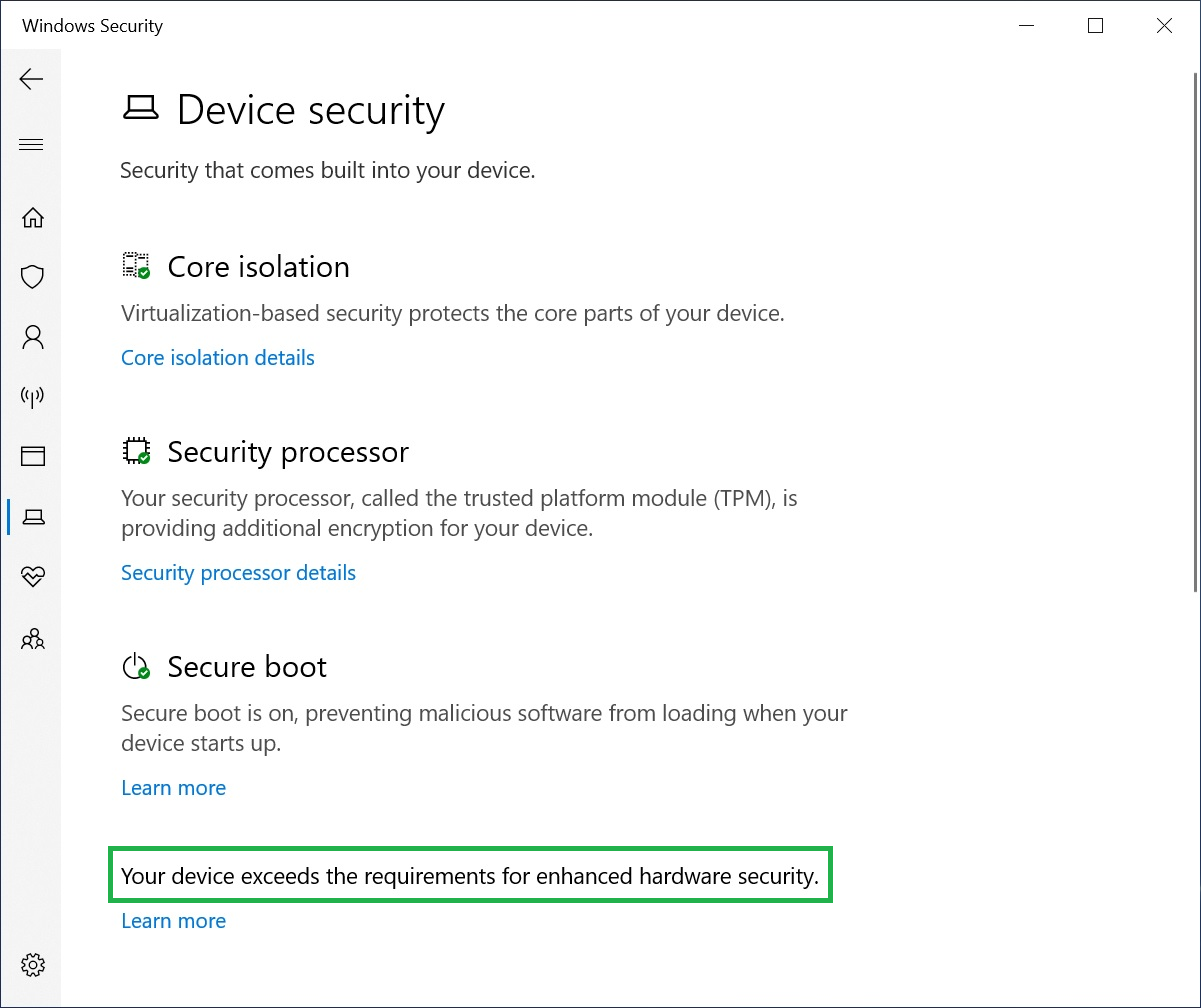
圖6.- 您的裝置已超出增強硬體安全性的需求。
Affected Products
Workstations, Fixed Workstations, Mobile WorkstationsArticle Properties
Article Number: 000124038
Article Type: How To
Last Modified: 27 Oct 2025
Version: 7
Find answers to your questions from other Dell users
Support Services
Check if your device is covered by Support Services.