Tilføjelse af programmer og apps til startmappen i Windows 10
Summary: Sådan tilføjes apps til opstartsmappen i Windows 10 ved hjælp af enkle trin og kommandoer. Optimer opstartsprogrammer for en hurtigere opstart, og kend brugen af shell-startkommandoen.
This article applies to
This article does not apply to
This article is not tied to any specific product.
Not all product versions are identified in this article.
Instructions
Bemærk: Microsoft afslutter support til Windows 10 den 14. oktober 2025. Se vores meddelelse om ophør af support til Microsoft Windows 10 for at få flere oplysninger.
Føj apps til opstart i Windows 10.
-
Du skal oprette en genvej til den app, du vil tilføje for at starte. Træk og slip appen fra Start-menuen til skrivebordet, genvejen til den app oprettes på skrivebordet.
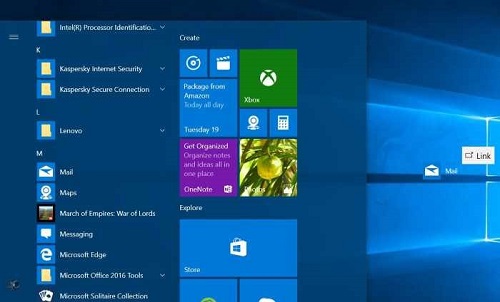
Figur 1: Oprettelse af en skrivebordsgenvej
Figur 2: Skrivebordsgenvej -
Åbn kommandoboksen Kør ved at trykke på Windows-logoet + R-tasterne . Skriv shell i kommandofeltet Kør : Start , og tryk derefter på Enter-tasten for at åbne Start-mappen .
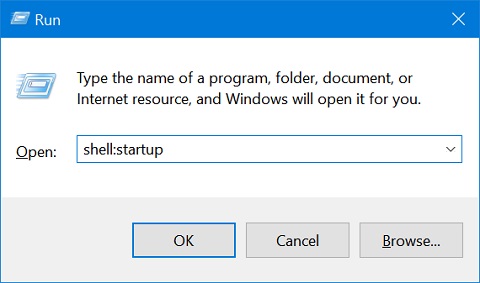
Figur 3: Kør kommandoboks -
Kopier og indsæt appgenvejen fra skrivebordet til denne startmappe , og appen føjes til opstart.

Figur 4: Startmappe
Affected Products
Chromebox, Alienware, Dell All-in-One, Dell Pro Max Micro, Dell Pro Max Slim, Dell Pro Max Tower, Dell Pro Micro, Dell Pro Slim, Dell Pro Tower, Dell Slim, Dell Tower, Inspiron, Legacy Desktop Models, OptiPlex, Vostro, XPS, G Series, Chromebook
, G Series, Alienware, Dell Plus, Dell Pro, Dell Pro Max, Dell Pro Plus, Dell Pro Premium, Inspiron, Latitude, Dell Pro Rugged, Vostro, XPS, Legacy Laptop Models, Latitude Tablets, Surface, XPS Tablets, Mobile Workstations
...
Article Properties
Article Number: 000124550
Article Type: How To
Last Modified: 10 Jul 2025
Version: 15
Find answers to your questions from other Dell users
Support Services
Check if your device is covered by Support Services.