如何识别 Dell Data Guardian 版本
Summary: 了解如何按照这些分步说明识别 Dell Data Guardian 的版本。
This article applies to
This article does not apply to
This article is not tied to any specific product.
Not all product versions are identified in this article.
Instructions
提醒:
- 自 2019 年 12 月起,Dell Data Guardian 已达到支持结束状态。戴尔不再更新本产品及其文章。有关详细信息,请参阅 Dell Data Security 产品生命周期(结束支持和停售)政策。如果您对其他文章有任何疑问,请联系您的销售团队或联系 endpointsecurity@dell.com。
- 请参阅端点安全性,了解有关当前产品的其他信息。
了解 Dell Data Guardian 的版本可让您:
- 识别已知问题
- 确定 UI 差异
- 了解工作流程更改
受影响的产品:
- Dell Data Guardian
受影响的版本:
- 1.2及更高版本
受影响的操作系统:
- Windows
- Mac
提醒:必须已安装有 Dell Data Guardian,才能识别版本。
要识别 Dell Data Guardian 的版本,请单击 Windows 或 Mac。
Windows
- 在Windows系统托盘中,右键单击Dell Data Guardian图标,然后选择About(关于)。
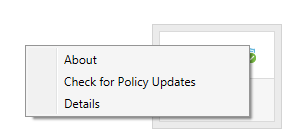
- 记录Dell Data Guardian的完整Version(版本)。
 提醒:您的客户端的版本可能与上面的屏幕截图不同。
Mac
- 打开Dell Data Guardian应用程序。
- 输入授权用户的Email and Password(电子邮件和密码),然后单击Login(登录)。
 提醒:
提醒:- 可能使用授权的UPN代替电子邮件。
- 在菜单栏中,选择Dell Data Guardian,然后单击About Dell Data Guardian(关于Dell Data Guardian)。
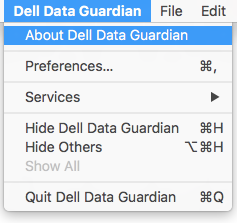
- 记录Dell Data Guardian的完整Version(版本)。
 提醒:您的客户端的版本可能与上面的屏幕截图不同。
Additional Information
Videos
Affected Products
Dell Data GuardianArticle Properties
Article Number: 000124602
Article Type: How To
Last Modified: 13 Feb 2025
Version: 12
Find answers to your questions from other Dell users
Support Services
Check if your device is covered by Support Services.