How to Schedule Managed Reports for Dell Data Security Servers
Summary: Learn about how to schedule managed reports on Dell Data Security Server and Dell Data Security Server Virtual by following these instructions.
This article applies to
This article does not apply to
This article is not tied to any specific product.
Not all product versions are identified in this article.
Instructions
An administrator can schedule Managed Reports to be sent to a list of email recipients for Dell Data Security servers (Dell Security Management Server or Dell Security Management Server Virtual).
Affected Products:
- Dell Security Management Server
- Dell Security Management Server Virtual
Affected Versions:
- Version 10.1.0 and later
A New or Existing managed report may be scheduled to send to one or more email addresses. Click the appropriate task for more information.
Note:
- Email notifications require SMTP settings to be configured on the Dell Data Security server.
- For more information, reference How to Configure SMTP Settings for Dell Data Security Servers.
New
- Sign in to the Dell Data Security administration console.
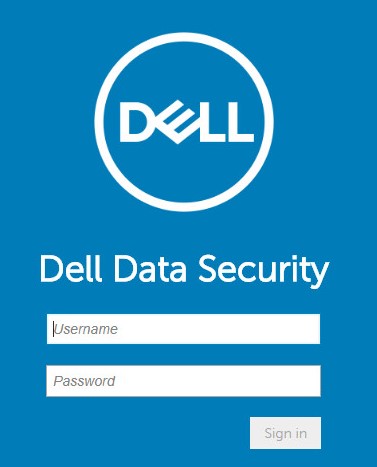 Note: For more information, reference How to Access the Dell Data Security Server Administration Console.
 - From the left menu pane, click Reporting and then Manage Reports.

- Click the Create New Report drop-down and then select the appropriate report.
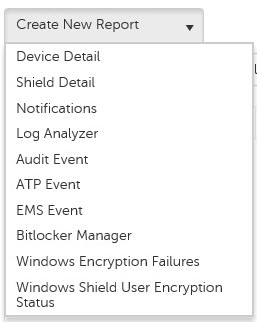
- Change the default report filters as is appropriate. Once finished, click Save As.

- From the Report - Save As menu:
- Populate a Report Name.
- Populate a Description.
- Optionally, select Private.
- Click Save.
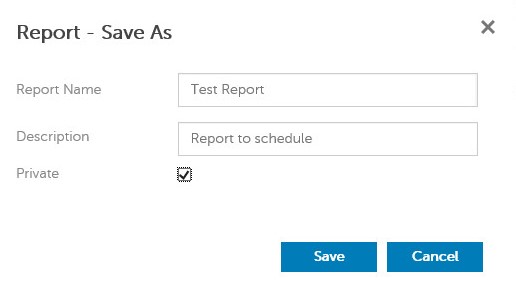 Note: Only the owner and report administrator have visibility to a Private report.
 - Click Schedule.

- Click Add Schedule.

- From the Add Schedule menu:
- Populate an Email to receive the report.
- Select a Schedule for the report to run.
- Select a Time to run.
- Select a Locale.
- Click Save.
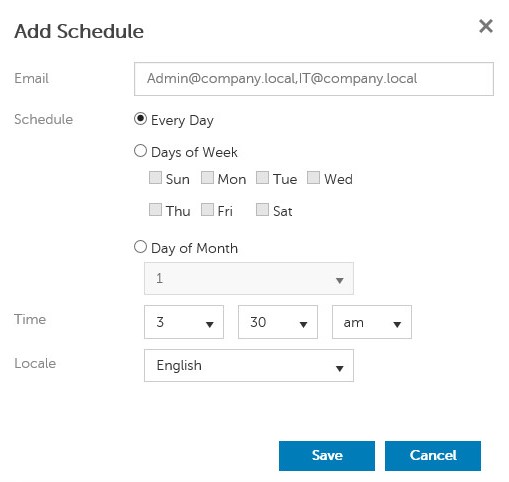 Note: Separate multiple email addresses with commas.
Existing
- Sign in to the Dell Data Security administration console.
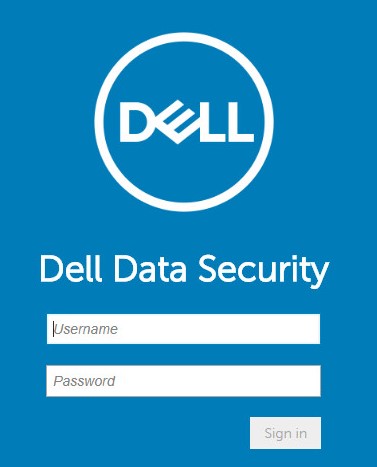 Note: For more information, reference How to Access the Dell Data Security Server Administration Console.
 - From the left menu pane, click Reporting and then Manage Reports.

- Select the report to be scheduled.
 Note: The report information (Name, Description, and Report Type) may differ in your environment.
 - Click Schedule.

- Click Add Schedule.

- From the Add Schedule menu:
- Populate an Email to receive the report.
- Select a Schedule for the report to run.
- Select a Time to run.
- Select a Locale.
- Click Save.
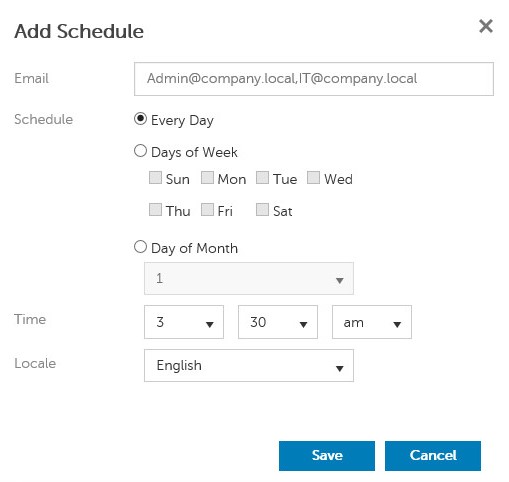 Note: Separate multiple email addresses with commas.
Affected Products
Dell EncryptionArticle Properties
Article Number: 000125166
Article Type: How To
Last Modified: 05 Aug 2026
Version: 10
Find answers to your questions from other Dell users
Support Services
Check if your device is covered by Support Services.