How to Run a Power Supply Unit Self-Test On a Dell Desktop or All-in-One Computer
Summary: Learn how to run a self-test diagnostic on the power supply unit of a Dell desktop or all-in-one computer. Built-in Self Test (BIST) helps determine if the power supply unit is working. ...
This article applies to
This article does not apply to
This article is not tied to any specific product.
Not all product versions are identified in this article.
Instructions
Dell Inspiron, XPS, OptiPlex, Precision, and Vostro desktops include a Built-In Self-Test (BIST) for the power supply unit (PSU). Combined with a status LED on the PSU, BIST lets a user check whether the PSU itself is delivering power, independent of the rest of the computer. If the PSU cannot deliver enough power, the computer will not turn on.
NOTE: Not all computers have a BIST button. Some older Inspiron, XPS, and Vostro desktops lack the button but can still be tested using the Run the Self-Test — PSU Without a BIST Button option. See also: Computer Won't Turn On: Troubleshoot Power Issues library page.
Common Causes of Power Supply Failure
- Faulty or damaged power cable
- Non-working power outlet
- Faulty power strip or surge protector
- Faulty power supply unit
Determine Whether Your PSU Has a BIST Button
Look at the back panel of the desktop, next to the power cable connector (see Table 1 for examples of BIST button locations).
- Tower/mid-size chassis: the BIST button is usually visible directly on the back panel next to the power connector.
- Small-form-factor chassis: the computer cover may need to be removed to see the BIST button on the side of the PSU.
- No button present: PSUs on some older computers have no BIST button at all.
| Examples of a power supply unit with the built-in self-test button | ||
|---|---|---|
| Description | Example Location | |
| BIST button located on the rear of a desktop power supply unit | 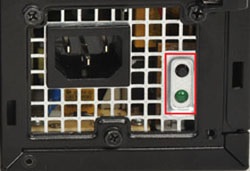 |
|
| Close-up view of a BIST button on a desktop power supply unit | 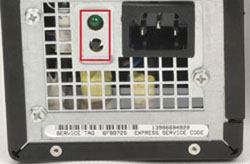 |
|
| Alternative style of a BIST button on a desktop power supply unit | 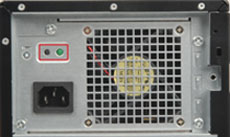 |
|
| Additional variation of a BIST button on a desktop power supply unit | 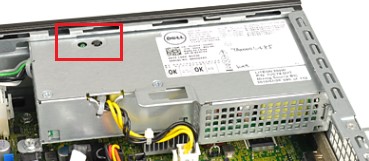 |
|
| Examples of a power supply unit without the built-in self-test button | ||
| Desktop power supply unit without a BIST button | 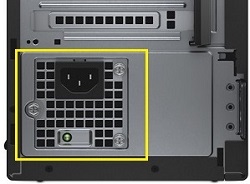 |
|
Table 1: Examples of the BIST Button Location
PSU variant
- When the computer has the BIST button: Follow the instructions in the Run the Self-Test — PSU With a BIST Button section
- When there is No BIST button: Follow the instructions in the Run the Self-Test — PSU Without a BIST Button section
Run the Self-Test — PSU With a BIST Button
- Turn off the computer.
- Press the BIST button and observe the LED.
- Evaluate the result:
- Pass: LED is solid (not flickering/flashing) AND the PSU fan spins normally. This confirms the PSU is delivering power to the computer.
- Fail: LED does not light, OR the fan does not spin correctly (even if the LED lights). Treat a non-spinning fan as a failed test regardless of LED state.
- If the test fails, disconnect and reconnect the power cable, then repeat the test once.
- If it still fails, contact Dell Technical Support for repair options.
Run the Self-Test — PSU Without a BIST Button
- Turn off the computer.
- Disconnect the power cable from the PSU.
- Wait 15–20 seconds.
- Reconnect the power cable to the computer.
- Evaluate the result:
- Pass: LED turns on for approximately 3 seconds, then turns off. This confirms the PSU is delivering power to the computer.
- Fail: LED does not turn on, or the PSU fan does not spin correctly.
- If the test fails, disconnect and reconnect the power cable, then repeat the test once.
- If it still fails, contact Dell Technical Support for repair options.
Additional Information
Tutorial on Dell’s Built In Self Test for power supplies if No Power
Duration: 02:56
Closed captions: This video is available in multiple languages. Click the Closed Caption icon and select the language that you want.
Affected Products
Alienware, Dell All-in-One, Dell Pro All-in-One, Dell Pro Max Micro, Dell Pro Max Slim, Dell Pro Max Tower, Dell Pro Micro, Dell Pro Slim, Dell Pro Tower, Dell Slim, Dell Tower, Inspiron, Legacy Desktop Models, OptiPlex, Vostro, XPS, G Series
, Fixed Workstations, Dell Pro Max Micro XE FCM2250, Dell Pro Max Slim XE FCS1250, Dell Pro Max Tower T2 XE FCT2250, Dell Pro Micro Plus XE QBM1250, Dell Pro Slim Plus XE5 QBS1250, Dell Pro Tower Plus XE5 QBT1250
...
Article Properties
Article Number: 000125179
Article Type: How To
Last Modified: 17 Jul 2026
Version: 15
Find answers to your questions from other Dell users
Support Services
Check if your device is covered by Support Services.