How to Uninstall Carbonite Endpoint
Summary: Follow these step-by-step instructions to uninstall Carbonite Endpoint on either Windows or Mac.
This article applies to
This article does not apply to
This article is not tied to any specific product.
Not all product versions are identified in this article.
Instructions
Note:
- As of May 2020, Carbonite Endpoint has reached End of Sale. This article is no longer updated by Dell. For more information, reference Product Life Cycle (End of Support and End of Life) Policy for Dell Data Security. If you have any questions on alternative articles, either reach out to your sales team or contact endpointsecurity@dell.com.
- Reference Endpoint Security for additional information about current products.
Carbonite Endpoint may require uninstallation to:
- Fix licensing discrepancies.
- Troubleshoot the product.
- Address operating system incompatibility.
This article covers the steps to uninstall the product.
Affected Products:
- Carbonite Endpoint
Affected Operating Systems:
- Windows
- Mac
Click either Windows or Mac for the steps to uninstall Carbonite Endpoint.
Windows
Carbonite Endpoint can be uninstalled on Windows through the:
Click the preferred method for more information.
Note:
- The Carbonite Endpoint .msi package is required for CLI uninstalls.
- The .msi package can be obtained by contacting Dell support. For more information, reference Dell Data Security International Support Phone Numbers.
UI
The process differs between versions v10.2.0 and Later and v10.1.0 and Earlier. Follow the appropriate product versioning instructions for the uninstall process.
Note: For information about locating the product version, reference How to Identify the Carbonite Endpoint Version.
v10.2.0 and Later
- As an administrator, right-click the Windows start menu and then click Run.
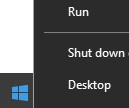
- In the Run UI, type
appwiz.cpland then press OK.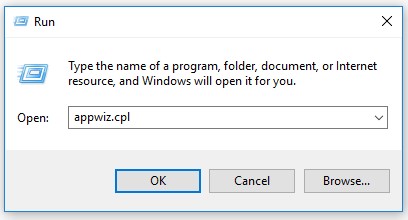
- In Programs and Features, double-click Carbonite Endpoint.
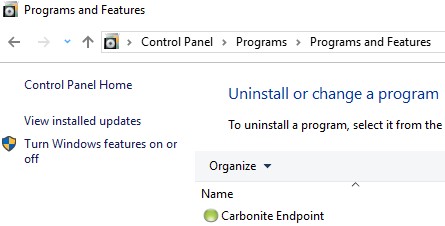
- Click Yes.
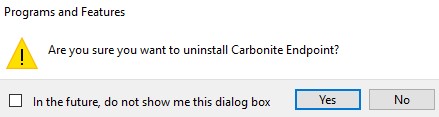
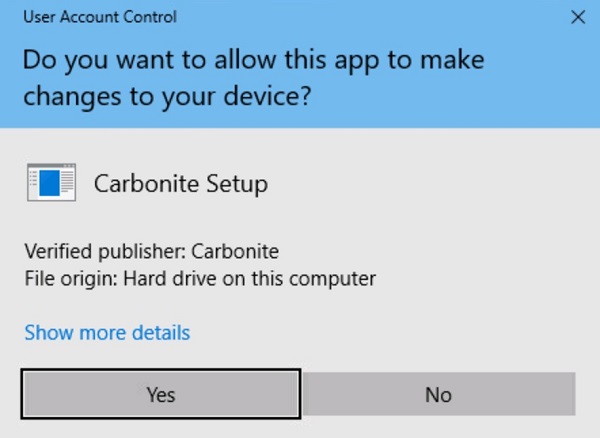
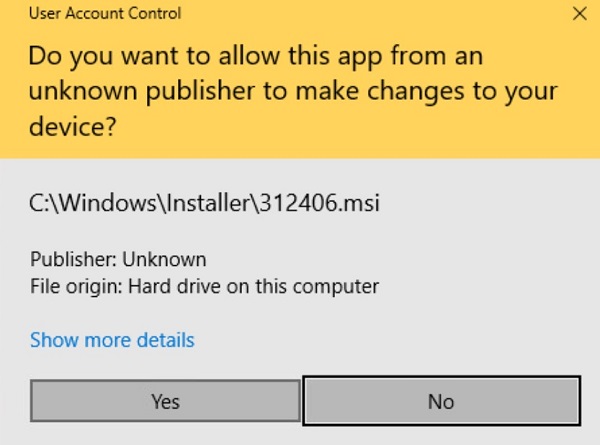
- If User Account Control (UAC) is enabled, click Yes. Otherwise, no additional steps are required.
v10.1.0 and Earlier
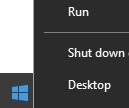
- As an administrator, right-click the Windows start menu and then click Run.
- In the Run UI, type
appwiz.cpland then press OK.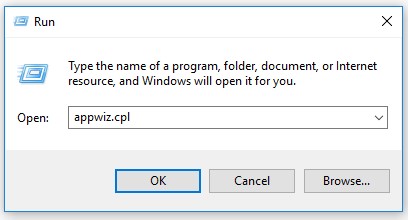
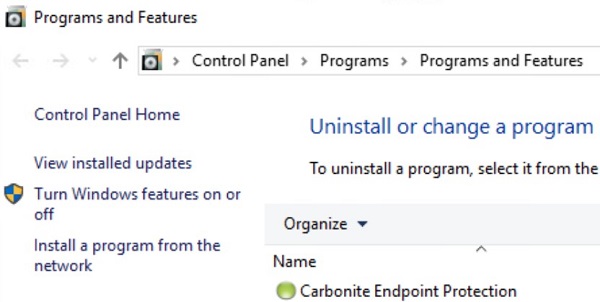
- In Programs and Features, double-click Carbonite Endpoint Protection.
- Click Yes.
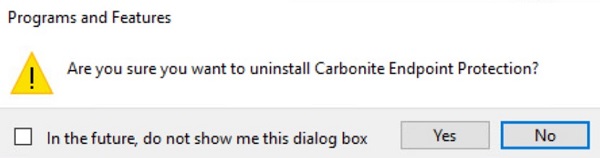
- If User Account Control (UAC) is enabled, click Yes. Otherwise, no additional steps are required.
CLI
- Right-click the Windows Start menu and then click Run.
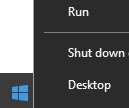
- In the Run UI, type
cmdand then press OK.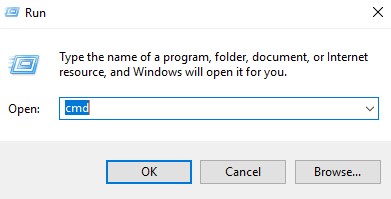
- In Command Prompt, type
cd [DIRECTORY]and then press Enter. Note:
Note:[DIRECTORY]= The path where the.msi resides- The path shown in the example image may differ in your environment.
- Type
msiexec /x DCProtect-[VERSION]-Carbonite.msiand then press Enter. Note:
Note:[VERSION]= The version in the filename of the .msi- The filename shown in the example image may differ in your environment.
Mac
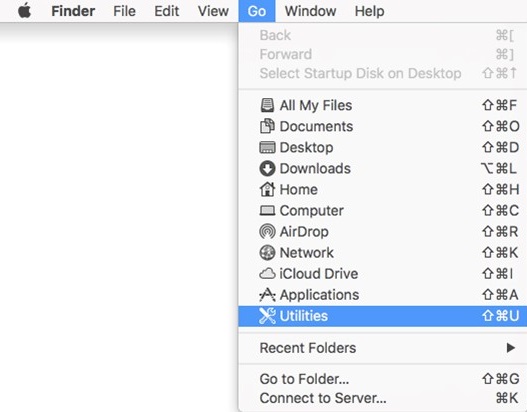
- From the Apple menu, click Go and then select Utilities.
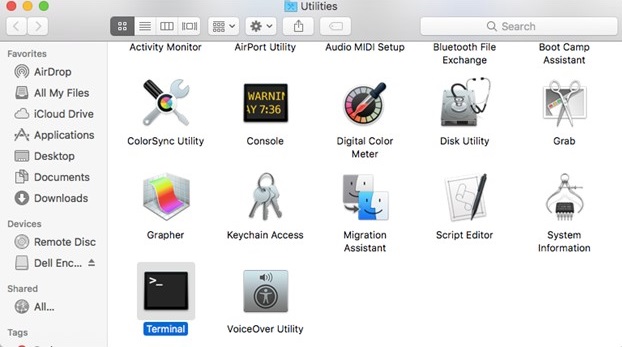
- In the Utilities menu, double-click Terminal.
- In Terminal, type
sudo/Library/Application\Support\DCProtect/uninstall.shand then press Enter. - Populate the password for an account with sudo rights and then press Enter.

To contact support, reference Dell Data Security International Support Phone Numbers.
Go to TechDirect to generate a technical support request online.
For additional insights and resources, join the Dell Security Community Forum.
Affected Products
CarboniteArticle Properties
Article Number: 000126104
Article Type: How To
Last Modified: 11 Jun 2025
Version: 12
Find answers to your questions from other Dell users
Support Services
Check if your device is covered by Support Services.