如何卸载Dell Data Protection Security Tools
Summary: 按照这些分步说明了解如何卸载 Dell Data Protection Security Tools。
This article applies to
This article does not apply to
This article is not tied to any specific product.
Not all product versions are identified in this article.
Instructions
提醒:截至 2018 年 2 月,Dell Data Protection | Security Tools 已到达支持结束阶段。戴尔不再更新本产品及其文章。有关详细信息,请参阅 Dell Data Security 产品生命周期(结束支持和停售)政策。如果您对其他文章有任何疑问,请联系您的销售团队或联系 endpointsecurity@dell.com。
您可能需要卸载 Dell Data Protection | Security Tools 以实现以下目的:
- 满足环境要求
- 对产品进行故障处理
- 解决操作系统不兼容性
本文介绍了产品的卸载步骤。
受影响的产品:
- Dell Data Protection | Security Tools
受影响的版本:
- v1.0 及更高版本
受影响的操作系统:
- Windows
卸载 Dell Data Protection Security Tools
持续时间:00:03:59
如果可用,可以使用此视频播放器上的 CC 图标选择隐藏式字幕(字幕)语言设置。
卸载步骤在 v1.10 到 1.12、 v1.6 到 1.9.1、 v1.2 到 1.5.1 和 v1.0 到 1.1 之间有所不同。选择相应的版本以了解更多信息。有关确定 Dell Data Protection Security Tools 版本的更多信息,请参阅如何确定 Dell Data Protection Security Tools 版本 。
v1.10 至 v1.12
- 右键单击 Windows 的“开始”菜单,然后单击运行。

- 在 “运行 ”UI 中,键入
appwiz.cpl然后按 OK。这将打开 “程序和功能”。 - 双击 Dell Data Protection | Client Security Framework。
 提醒:或者,如果该软件未在 “程序和功能”中列出,客户也可以使用 Dell Data Security 卸载程序来删除 Dell Data Protection Security Tools。有关详细信息,请参阅如何运行 Dell Data Security Uninstaller(英文版)。
 - 单击 Yes。

- 单击 Yes 以重新启动计算机。

- 登录到计算机,然后转至 “程序和功能 ”(步骤 1 和 2)。
- 双击 Dell Data Protection | Security Tools Authentication。

- 单击 Yes 或 No,以保留用户数据。

- 单击 OK 以确认需要重新启动。

- 双击 Dell Data Protection | Security Tools。
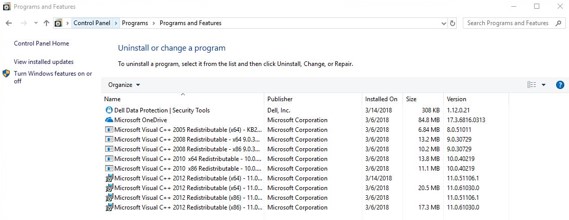
- 单击 Yes 以删除 Dell Data Protection Security Tools。

- 在卸载时,选择 Yes, I want to restart my computer now,然后单击 Finish。

v1.6 至 v1.9.1
- 右键单击 Windows 的“开始”菜单,然后单击运行。

- 在 “运行 ”UI 中,键入
appwiz.cpl然后按 OK。这将打开 “程序和功能”。
- 双击 Dell Data Protection | Client Security Framework。
 提醒:或者,如果该软件未在 “程序和功能”中列出,客户也可以使用 Dell Data Security 卸载程序来删除 Dell Data Protection Security Tools。有关详细信息,请参阅如何运行 Dell Data Security Uninstaller(英文版)。
 - 单击是以确认删除 Dell Data Protection Client Security Framework。

- 单击 Yes 以重新启动计算机。

- 登录到计算机,然后转至 “程序和功能 ”(步骤 1 和 2)。
- 双击 Dell Data Protection | Security Tools Authentication。

- 单击 Yes 或 No,以保留用户数据。

- 单击 OK 以确认需要重新启动。

- 在删除 Dell Data Protection Security Tools Authentication 时,双击 Dell Data Protection |安全工具。

- 单击 Yes 以完全删除 Dell Data Protection Security Tools。

- 在卸载时,选择 Yes, I want to restart my computer now,然后单击 Finish。

v1.2 至 v1.5.1
- 右键单击 Windows 的“开始”菜单,然后单击运行。

- 在 “运行 ”UI 中,键入
appwiz.cpl然后按 OK。这将打开 “程序和功能”。
- 双击 Dell Data Protection | Client Security Framework。
 提醒:或者,如果该软件未在 “程序和功能”中列出,客户也可以使用 Dell Data Security 卸载程序来删除 Dell Data Protection Security Tools。有关详细信息,请参阅如何运行 Dell Data Security Uninstaller(英文版)。
 - 单击是以确认删除 Dell Data Protection Client Security Framework。

- 单击 OK 以确认需要重新启动。

- 单击 Yes 以重新启动计算机。

- 登录到计算机,然后转至 “程序和功能 ”(步骤 1 和 2)。
- 双击 Dell Data Protection | Security Tools Authentication。

- 单击 Yes 以确认删除 Dell Data Protection Security Tools Authentication。

- 单击 Yes 或 No,以保留用户数据。

- 单击 OK 以确认需要重新启动。

- 在删除 Dell Data Protection Security Tools Authentication 时,双击 Dell Data Protection |安全工具。

- 单击 Yes,以删除该应用程序。

- 在卸载时,选择 Yes, I want to restart my computer now,然后单击 Finish。

v1.0 至 v1.1
- 右键单击 Windows 的“开始”菜单,然后单击运行。

- 在 “运行 ”UI 中,键入
appwiz.cpl然后按 OK。这将打开 “程序和功能”。
- 双击 Dell Data Protection | Client Security Framework。
 提醒:或者,如果该软件未在 “程序和功能”中列出,客户也可以使用 Dell Data Security 卸载程序来删除 Dell Data Protection Security Tools。有关详细信息,请参阅如何运行 Dell Data Security Uninstaller(英文版)。
 - 单击是以确认删除 Dell Data Protection Client Security Framework。

- 单击 OK 以确认需要重新启动。

- 单击 Yes 以重新启动计算机。

- 登录到计算机,然后转至 “程序和功能 ”(步骤 1 和 2)。
- 双击 Dell Data Protection | Security Tools Authentication。

- 单击 Yes 以确认删除 Dell Data Protection Security Tools Authentication。

- 单击 Yes 或 No,以保留用户数据。

- 单击 OK 以确认需要重新启动。

- 在删除 Dell Data Protection Security Tools Authentication 时,双击 Dell Data Protection |安全工具。

- 单击 Yes,以删除该应用程序。

- 在卸载时,选择 Yes, I want to restart my computer now,然后单击 Finish。

要联系支持部门,请参阅 Dell Data Security 国际支持电话号码。
转至 TechDirect,在线生成技术支持请求。
要获得更多见解和资源,请加入戴尔安全社区论坛。
Additional Information
Videos
Affected Products
Dell Security ToolsArticle Properties
Article Number: 000126859
Article Type: How To
Last Modified: 22 Aug 2025
Version: 11
Find answers to your questions from other Dell users
Support Services
Check if your device is covered by Support Services.