Come abilitare la tastiera su schermo in modalità tablet come predefinita
Summary: Informazioni su come impostare la tastiera su schermo in modalità tablet come tastiera predefinita quando non è collegata alcuna tastiera fisica, anche con la modalità tablet disattivata. ...
This article applies to
This article does not apply to
This article is not tied to any specific product.
Not all product versions are identified in this article.
Instructions
Prodotti interessati:
- Latitude
- Workstation portatili Precision
- Notebook Dell Plus
- Notebook Dell Pro
- Notebook Dell Pro Max
- Notebook Dell Pro Plus
- Notebook Dell Pro Premium
- Notebook Dell Pro Rugged
Modalità tablet Windows 11
Durata: 00:02:49 (hh:mm:ss)
Se disponibili, è possibile scegliere le impostazioni della lingua dei sottotitoli (sottotitoli) utilizzando l'icona CC su questo lettore video.
Per impostazione predefinita, la tastiera su schermo è disabilitata in Windows e deve essere abilitata tramite le impostazioni di accessibilità.

È disponibile anche una tastiera in modalità tablet abilitata per impostazione predefinita solo quando si passa alla modalità tablet. Gli utenti possono abilitare la tastiera in modalità tablet come tastiera predefinita su schermo quando non è presente alcuna tastiera collegata al computer.
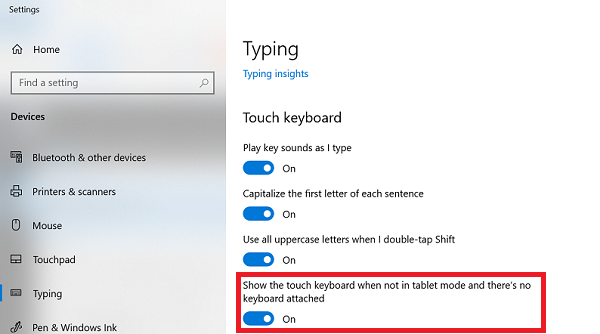
Per abilitare la tastiera in modalità tablet come tastiera predefinita su schermo, attenersi alla seguente procedura:
- Cercare Typing nella ricerca di Windows.

- Una volta aperto Typing settings, scorrere verso il basso fino a Touch keyboard.
- Abilitare Show the touch keyboard when not in tablet mode and there is no keyboard that is attached.
Additional Information
Altre risorse

Affected Products
Dell Plus, Dell Pro, Dell Pro Max, Dell Pro Plus, Dell Pro Premium, Latitude, Dell Pro Rugged, Mobile WorkstationsArticle Properties
Article Number: 000128227
Article Type: How To
Last Modified: 08 Sep 2025
Version: 16
Find answers to your questions from other Dell users
Support Services
Check if your device is covered by Support Services.