Validation de l’état d’activation d’un point de terminaison Dell Encryption
Summary: Comment valider l’état d’activation d’un point de terminaison dans Dell Encryption (anciennement Dell Data Protection | Chiffrement).
This article applies to
This article does not apply to
This article is not tied to any specific product.
Not all product versions are identified in this article.
Instructions
Produits concernés :
- Dell Encryption
- Dell Data Protection | Encryption
Systèmes d’exploitation concernés :
- Windows
Vous pouvez valider le statut d’activation de votre point de terminaison en procédant comme suit.
- Ouvrez la console locale Dell Encryption en accédant à Démarrer tous les programmes Dell Encryption.
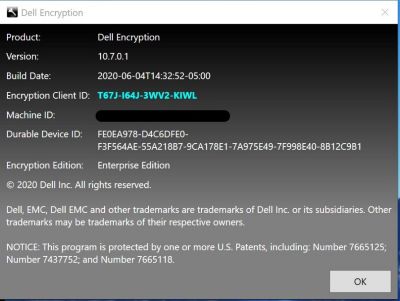
- Une fois l’application Dell Encryption ouverte, cliquez sur en haut à droite. Sélectionnez ensuite À propos de la version x.x.x.xxxx
- À partir de là, vous pouvez voir les éléments suivants :
- Si le Shield ID est vide ou rouge, l’ordinateur n’est pas activé.
- Si le Shield ID est vert ou bleu, l’ordinateur a été activé.
Pour contacter le support technique, consultez l’article Numéros de téléphone du support international Dell Data Security.
Accédez à TechDirect pour générer une demande de support technique en ligne.
Pour plus d’informations et de ressources, rejoignez le Forum de la communauté Dell Security.
Additional Information
Videos
Affected Products
Dell EncryptionArticle Properties
Article Number: 000129423
Article Type: How To
Last Modified: 24 Apr 2025
Version: 13
Find answers to your questions from other Dell users
Support Services
Check if your device is covered by Support Services.