Cannot Adjust the LCD Brightness on XPS 15 7590 Laptops
Summary: The following article provides information about resolving an issue where you cannot increase or decrease the LCD brightness on an XPS 15 7590 laptop.
This article applies to
This article does not apply to
This article is not tied to any specific product.
Not all product versions are identified in this article.
Symptoms
Cannot change the LCD brightness setting
You may not be able to adjust the LCD brightness when you update the BIOS version to 1.5.0 on your XPS 15 7590 laptop.
Open Device Manager to confirm if you find multiple entries under the Monitors. (See Figure.1)
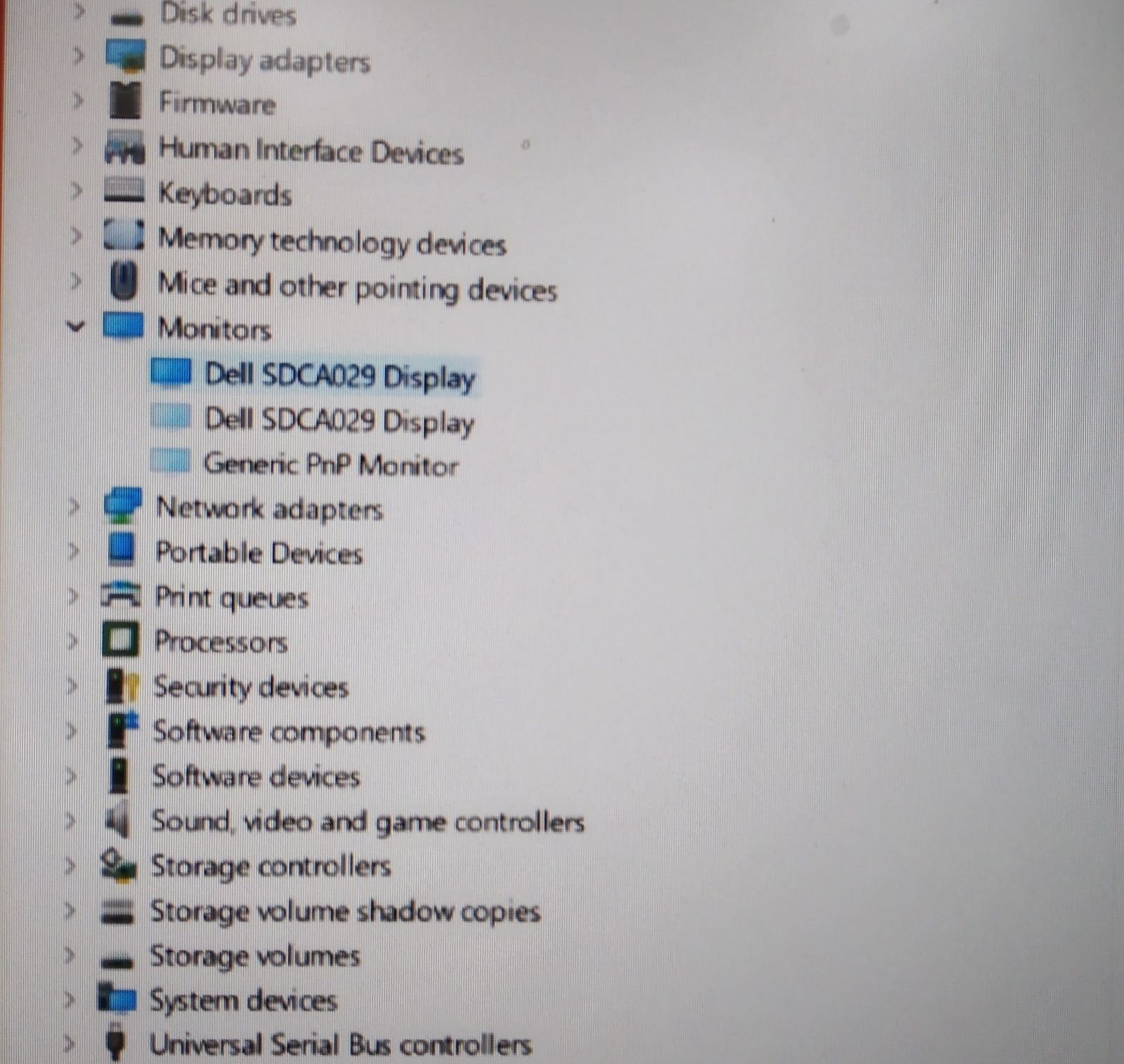
(Figure.1 Device Manager)
None of the following methods allow you to increase or decrease the brightness at this point:
- Using either the Fn + up (F2) or the Fn + down key (F3) keyboard shortcuts to adjust the brightness.
- Adjusting the brightness from the Display Settings or the Windows Mobility Center. (See Figure.2) The value can be adjusted, but the display is stuck at a certain brightness. There is no effect if you adjust it to 0 or 100.
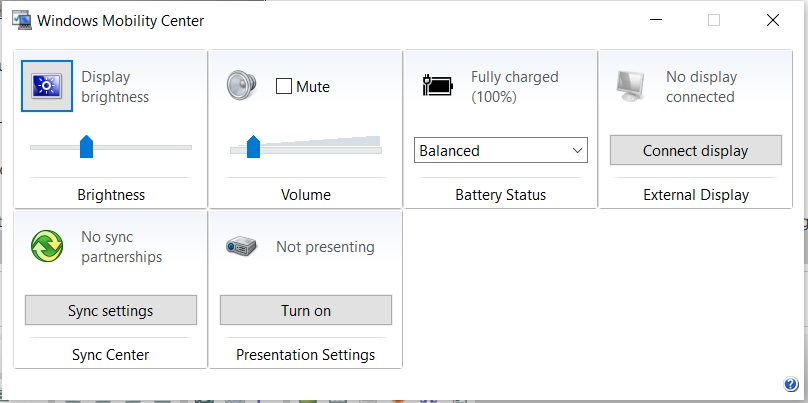
(Figure.2 Windows Mobility Center)
- Updating to the latest version of the Video Driver on the laptops Drivers & Downloads page.
Cause
This section is not applicable to this article.
Resolution
This is not a hardware issue. The following steps take you through resolving this issue:
-
Open the Device Manager utility on your laptop.
Type
Device Managerinto your Start Menu and select the application from the search results. -
Expand the Monitors category.
Click the chevron to open and close the tree function.
-
Uninstall all the monitors listed.
Right click on each monitor in the list and select uninstall from the menu that appears.
-
Reboot your laptop.
-
After it reboots, only one entry is listed under Monitors in Device Manager.
Adjust the brightness in the Windows Setting again to confirm the issue is resolved.
Affected Products
XPS 15 7590Article Properties
Article Number: 000129680
Article Type: Solution
Last Modified: 30 Sep 2025
Version: 6
Find answers to your questions from other Dell users
Support Services
Check if your device is covered by Support Services.