How to Identify the Dell Encryption Enterprise and Personal Self-Encrypting Drive Manager Version
Summary: Learn step-by-step instructions to identify the version of Dell Encryption Enterprise and Dell Encryption Personal Self-Encrypting Drive.
This article applies to
This article does not apply to
This article is not tied to any specific product.
Not all product versions are identified in this article.
Instructions
Knowing the version of Dell Encryption Enterprise and Dell Encryption Personal Self-Encrypting Drive allows administrators to:
- Identify known issues.
- Determine UI differences.
- Understand workflow changes.
- Verify system requirements.
Affected Products:
- Dell Encryption Enterprise Self-Encrypting Drive
- Dell Encryption Personal Self-Encrypting Drive
- Dell Data Protection Self-Encrypting Drive Manager
- Dell Data Protection Security Tools
Affected Operating Systems:
- Windows
Versioning can be determined either through the product user interface (UI) or through the product Installer. Click the appropriate process for more information.
UI
Note: Dell Encryption Enterprise or Dell Encryption Personal Self-Encrypting Drive must be installed before identifying the version through the UI.
- Log in to the Windows computer.
- On the Windows Desktop, double-click the
<PRODUCT>Console. Depending on the version, one of three icons is present:- The following image shows the Dell Data Security Console icon used for versions 8.15.0 and later.

- The following image shows the DDP Console icon used for versions 8.5.0 to 8.13.0.

- The following image shows the DDP Security Console icon used for versions 8.0.0 to 8.4.0.

Note:<PRODUCT>= The branding that is used on the application icon- Alternatively, the
<PRODUCT>Console can be accessed using Explorer at:- v8.0.0 to 8.4.0:
%SYSTEMDRIVE%\Program Files\Dell\Dell Data Protection\Security Tools\Dell.SecurityManager.SystrayApp.exe. - v8.5.0 and later:
%SYSTEMDRIVE%\Program Files\Dell\Dell Data Protection\Security Tools\Dell.SecurityFramework.Console.exe.
- v8.0.0 to 8.4.0:
%SYSTEMDRIVE%is a Windows system variable for the operating system partition drive.
- The following image shows the Dell Data Security Console icon used for versions 8.15.0 and later.
- In the upper right corner of the
<PRODUCT>Console, click the gear icon and then select About. The UI varies slightly based on your version.- The following image shows the user interface for versions 8.15.0 and later.

- The following image shows the user interface for versions 8.5.0 to 8.13.0.

- The following image shows the user interface for versions 8.0.0 to 8.4.0.

- The following image shows the user interface for versions 8.15.0 and later.
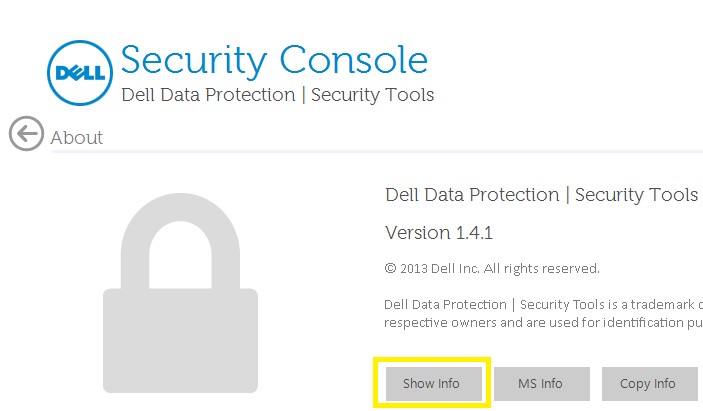
- In the About menu, click Show Info for additional product details. The UI varies slightly based on your version.
- The following image shows the Show Info button for version 8.5.0 and later.

- The following image shows the Show Info button for versions 8.0.0 to 8.4.1.
- The following image shows the Show Info button for version 8.5.0 and later.
- Document the first three numbers of the Build version. In the examples, the first three numbers for build versions are 8.15.0, 8.5.0, and 8.0.0.
- The following image shows an example version for version 8.15.0 and later.

- The following image shows an example version for version 8.5.0 to 8.13.0.

- The following image shows an example version for version 8.0.0 to 8.4.0.

- The following image shows an example version for version 8.15.0 and later.
Installer
Note: For information about downloading the installer, reference How to Download Dell Encryption Enterprise or Dell Encryption Personal.
- Extract the child installers from the Dell Data Security (formerly Dell Data Protection) master installer.
Note: Reference How to Extract Child Installers from the Dell Data Security Master Installer for more information.
- In the extracted master installer path (Step 1), locate
EMAgent_<BITDEPTH>_setup.exeat either:- v8.0 to 8.14.X:
<EXTRACTEDPATH>\Security Tools\EMAgent_<BITDEPTH>_setup.exe - v8.15 and later:
<EXTRACTEDPATH>\Encryption Management Agent\EMAgent_<BITDEPTH>_setup.exe
Note:<EXTRACTEDPATH>= Extracted file path for the installer<BITDEPTH>= Bit depth for the installer
- v8.0 to 8.14.X:
- Right-click
EMAgent_<BITDEPTH>_setup.exeand then select Properties.
- Click the Details tab.

- Record the first three numbers of File version. In the example, 8.4.0 are the first three numbers.

To contact support, reference Dell Data Security International Support Phone Numbers.
Go to TechDirect to generate a technical support request online.
For additional insights and resources, join the Dell Security Community Forum.
Affected Products
Dell EncryptionArticle Properties
Article Number: 000131624
Article Type: How To
Last Modified: 02 Oct 2025
Version: 13
Find answers to your questions from other Dell users
Support Services
Check if your device is covered by Support Services.