Introduction to the new features of the X500 G series of gaming laptops
Summary: The following article provides information about some new features on the Dell X500 series of gaming laptops. These are some Dell features specific to the latest generation of G-Series laptops. ...
This article applies to
This article does not apply to
This article is not tied to any specific product.
Not all product versions are identified in this article.
Instructions
Table of Contents:
- Dell GameShift
- Dell PowerShift
- Dell Smart Shift (For AMD laptops)
- Dell Light Bar (On supported laptops)
Dell has introduced some new features into the x500 series of Gaming laptops to make for a better customer experience on these laptops.
Applicable Products:
- Dell G3 3500 Gaming Laptop
- Dell G5 5500 Gaming Laptop
- Dell G5 SE 5505 Gaming Laptop (AMD)
Dell GameShift
GameShift is a utility by Dell that provides one-touch performance tuning.
To enable GameShift, tap the dedicated G function key (F7) or enable it in the Alienware Command Center (AWCC) on your personal computer. AWCC displays a blue G icon, and a notification appears to indicate it is enabled. It dynamically shifts your key components and cooling to the optimal state for best performance.
Note: When GameShift is enabled during heavy gaming, higher fan noise can be expected. This product has been thoroughly tested and is within the thermal and acoustic specifications. Increased laptop temperature and fan noise are expected during periods of heavy loading and gaming.
To disable GameShift, tap the dedicated G function key (F7) again. Alternatively, disable GameShift in AWCC when not using the personal computer for gaming. GameShift is also disabled when:
- Set the laptop to a sleep state
- Restart the laptop
- GameShift has been active for 24 consecutive hours
- Start a new game
- Terminate the game that has been running on GameShift
- Change the power plans or the thermal profiles of the laptop
Clean Install Instructions:
Alienware Command Center and Alienware OC Controls are installed at Dell's factory. After a clean install of the operating system, an AWCC and Alienware OC Controls reinstall is required before using Game Shift.
-
Browse to the Dell Drivers & Downloads page for the laptop:
-
Select the Operating System.
-
Under Category, select Application
-
Locate the latest AWCC Application.
-
Click Download and save the file to your laptop.
-
Locate the latest Alienware OC Controls Application.
-
Click Download and save the file to your laptop.
-
Open File Explorer and browse to the location where the downloaded files are saved.
-
Double-click the first setup file and follow the on-screen instructions to complete the installation process.
-
Double-click the second setup file and follow the on-screen instructions to complete the installation process.
-
Restart your laptop and enable GameShift
Dell PowerShift
PowerShift is a Dell utility that maintains performance and sits in the background of your laptop. PowerShift prevents rapid battery drain during plugged-in usage. It is a backup and preventative feature added to the standard power and performance checks.
PowerShift is enabled by default and cannot be disabled. It monitors battery performance and activates during extreme conditions of heavy loading during gaming without the adapter plugged in. It monitors inadequate power that is drawn from the AC adapter when it is plugged in. It also checks for a high-power drain while the adapter is plugged in. This only happens when the laptop’s power consumption is over the AC adapter rating. It is also seen when the battery starts to hybrid discharge to provide extra power to the device.
Frequently Asked Questions:
- What happens if the battery still rapidly drains while the AC adapter is plugged in?
- A battery drain greater than five percent is detected while the AC adapter is plugged in, check the health status of the battery and AC adapter.
- Is there a performance decrease to be expected when running this feature?
- There was no impact to performance from PowerShift seen during our benchmark validation.
- Are there instructions to install the feature?
- Install the latest version of the BIOS available for the laptop. PowerShift is embedded in the BIOS EC.
Note: To learn more about updating the BIOS on a Dell computer, see the Dell Knowledge Base article: BIOS Update Guide
Dell Smart Shift (For AMD laptops)
Smart Shift is AMD software that dynamically distributes the power allocation between the processor and graphics. This feature allocates the power to where it is needed most. This feature automatically boosts performance for different demands including gaming, video editing, and productivity.
Smart Shift is enabled by default in the system BIOS. It runs automatically in the background of the laptop. Disabling Smart Shift is not supported.
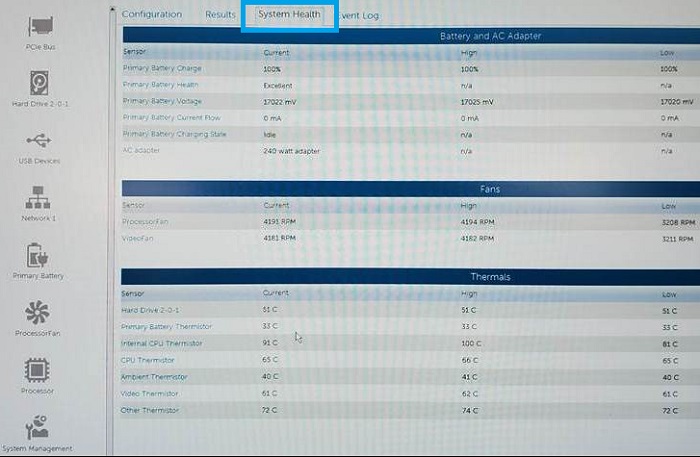
Note: However, Smart Shift is disabled automatically if a sensor failure is detected or if the thermal temperature rises above 113 degrees F (45 degrees C).
Check the health of the Smart Shift sensors in the Dell SupportAssist application:
User Interface:
Follow the Dell recommended best practice of keeping your laptop up to date with the latest drivers and updates from the Support site. This keeps your laptop up to date with the latest user interface from AMD.
Dell Light Bar (On supported laptops)
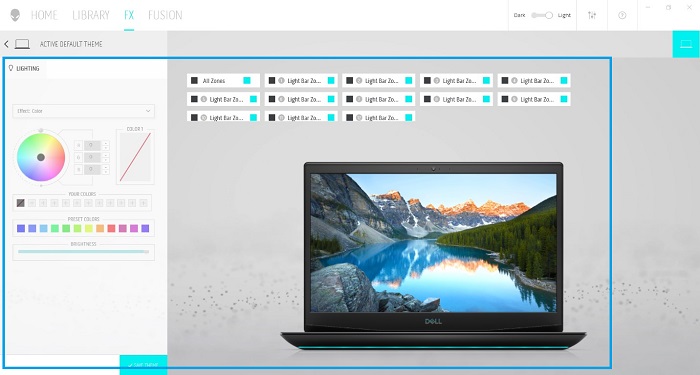
The Light Bar supports 12 zone lighting for color themes, visual effects, and flair that the definitions are set to.
Note: The Light Bar is only available on supported models. Check at the point of purchase.
The Light Bar is enabled and controlled from the AWCC application:
-
Open the AWCC application.
-
Open FX
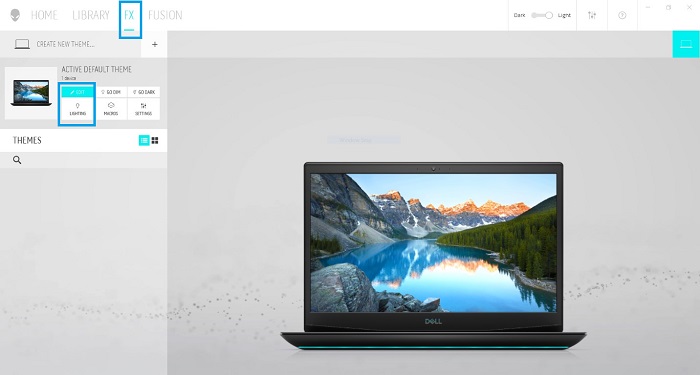 Note: FX also controls the Keyboard lights and Keyboard colors.
 -
Select Lighting (EDIT)
-
The light bar supports 12 zone lighting for the color themes that are custom-defined.
Affected Products
Dell G3 15 3500, Dell G5 15 5500Article Properties
Article Number: 000132265
Article Type: How To
Last Modified: 20 Feb 2026
Version: 11
Find answers to your questions from other Dell users
Support Services
Check if your device is covered by Support Services.