How to Reseat the Keycap when a Key Falls Off the Laptop Keyboard
Summary: The following article explains how to reseat the keycap when a key falls off the keyboard on a Laptop.
This article applies to
This article does not apply to
This article is not tied to any specific product.
Not all product versions are identified in this article.
Instructions
Reseating the keycap
It is possible for the keycap on the internal keyboard to get stuck or come off while using a laptop. To put the keycap back on the keyboard, run through the following steps.
You can reseat a loose keycap:
- Align it with the scissored spring underneath.
- Press down with your finger until the keycap snaps back into place. See Figure 1.
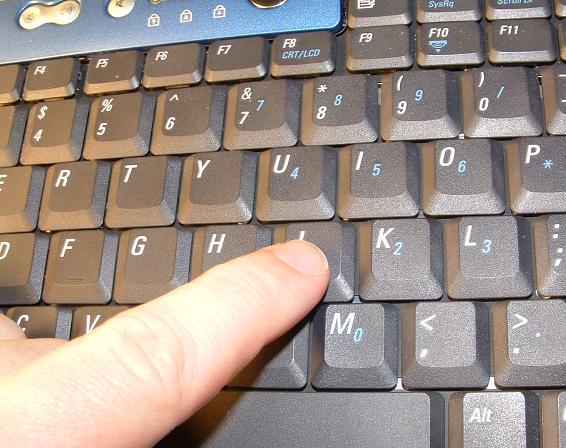
NOTE: You might be required to wiggle your finger back and forth for the keycap to snap down on the scissor spring. There are two snaps, one at the top and one at the bottom of the key.
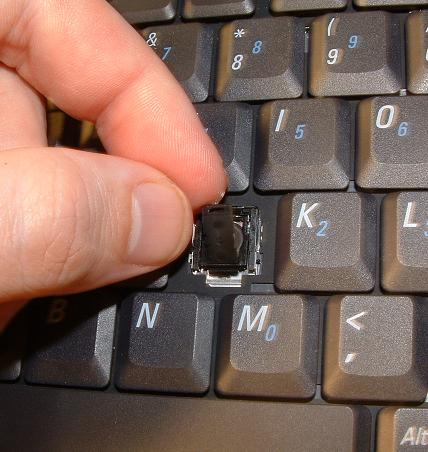
- Where there is a scissor support bar that is loose, clip the lower part of the bar on first under the bottom scissor rail.
- Snap the upper part over the top scissor rail.
- Line up the keycap to reattach it. See Figure 2.
You can learn more about the Dell Service Descriptions at this page:
NOTE: Did the above instructions fail to resolve your issue? Are your keyboard keys popped, broken, damaged, or lost? Use the following link to contact Dell Support:
Affected Products
Chromebook, G Series, Alienware, Dell Laptops, Dell Plus, Dell Pro, Dell Pro Max, Dell Pro Plus, Dell Pro Premium, Inspiron, Latitude, Dell Pro Rugged, Vostro, XPS, Legacy Laptop Models, Mobile Workstations, Dell Pro Max 16 XE MC16250Article Properties
Article Number: 000133100
Article Type: How To
Last Modified: 19 Jun 2025
Version: 7
Find answers to your questions from other Dell users
Support Services
Check if your device is covered by Support Services.