OME: How to grant SSH access to Dell technical support
Summary: To enable this SSH connection, it is necessary to have a file signed by Dell support. This file is called dat.ini and is generated through the TUI.
This article applies to
This article does not apply to
This article is not tied to any specific product.
Not all product versions are identified in this article.
Instructions
For troubleshooting reasons, technical support may need to connect to the OpenManage Enterprise Appliance using the SSH protocol.
To allow this SSH connection, it is necessary to have a file signed by the Dell support. This file is called dat.ini and is generated using the TEXT User interface (TUI).
Steps to generate the dat.ini file:
1. Connect to the OpenManage Enterprise virtual machine console.
2. Select "Enable Field Service Debug (FSD) Mode" - "Unblock FSD Capabilities" - "Generate" 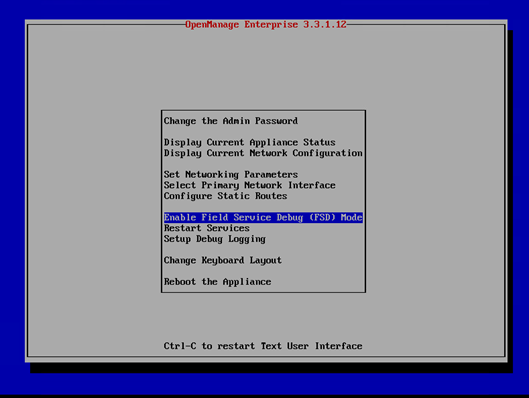
3. Unblock FSD Capabilities.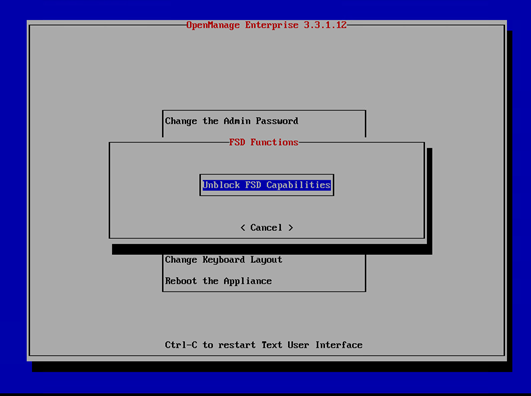
4. For security purpose, you must set an access period. After setting the start date and end date, click "Generate." The access period cannot be more than 180 days.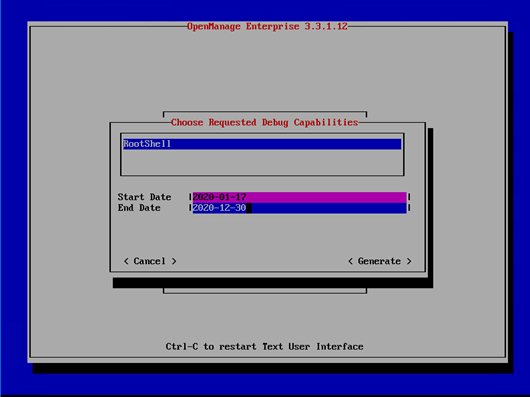
5. Recover the dat.ini file using the path displayed on the following message. 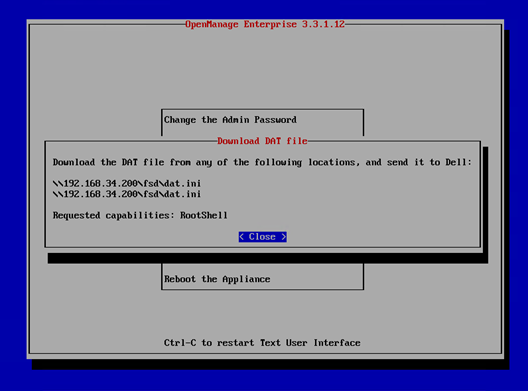
IMPORTANT: FSD sharing requires guest access using CIFS/SMB.
Ensure that your environment allows this guest access to the sharing in question, otherwise you may have an error message with denied access. For more information, see this Microsoft article
Once the file is generated, you can send it to the support team.
This file is signed by our development team. The file can be installed in the same way it was generated, that is using the OpenManage Enterprise Appliance console.
1. From the FSD menu, validate "Install/Grant Signed FSD DAT."
2. Select "Invoke the debug capability"
This allows root access using SSH. From that moment on, the technical support can take control of your installation.
How to revoke access
To revoke access, return to the same menu and select "Disable Debug Capabilities"
Affected Products
Dell OpenManage Enterprise, Dell EMC OpenManage EnterpriseArticle Properties
Article Number: 000133255
Article Type: How To
Last Modified: 11 Feb 2025
Version: 6
Find answers to your questions from other Dell users
Support Services
Check if your device is covered by Support Services.