Dell Networking X Series: WebGUI 및 CLI를 사용하여 MAC 주소 테이블을 확인하는 방법
Summary: WebGUI 또는 CLI를 통해 Dell Networking X Series 스위치를 관리하여 동적, 인터페이스별 및 VLAN 기반 주소를 포함한 MAC 주소 테이블을 볼 수 있습니다.
This article applies to
This article does not apply to
This article is not tied to any specific product.
Not all product versions are identified in this article.
Symptoms
이 문서에서는 WebGUI 또는 CLI를 통해 Dell Networking X Series 스위치에서 MAC 주소 테이블을 확인하는 방법에 대해 설명합니다.
다음 방법을 사용하여 스위치에 연결된 장치의 MAC 주소를 찾을 수 있습니다.
1. WebGUI
를 사용하여 확인2. 명령줄(CLI)을 사용하여 확인
WebGUI를 사용하여 확인
1단계: Network Administration(네트워크 관리) -> Port Settings(포트 설정) -> Address Tables(주소 테이블)를 클릭합니다.

2단계: "동적 주소 테이블"을 클릭하여 이 스위치에 연결된 모든 장치의 MAC 주소를 확인합니다.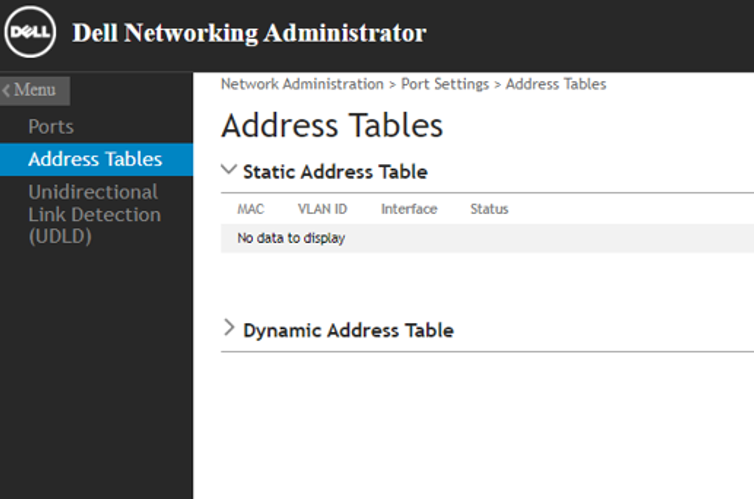

| 명령 구문 | 설명 |
console# show mac address-table |
모든 장치의 MAC 주소를 나열합니다. |
console# show mac address-table interface GigabitEthernet X/Y/Z |
GigabitEthernet X/Y/Z에서 학습하는 모든 장치의 MAC 주소를 나열합니다. |
console# show mac address-table vlan XX |
VLAN XX에서 학습하는 모든 장치의 mac 주소를 나열합니다. |
샘플 출력
아래 예에서 출력은 VLAN 30에서 학습한 mac 주소를 보여줍니다.
console# show mac address-table vlan 30

Flags: I - Internal usage VLAN

Aging time is 300 sec

 Vlan          Mac Address         Port       Type
------------ --------------------- ---------- ----------
   30        XX:XX:XX:XX:XX:XX   gi1/0/1    dynamic
아래 예에서 출력은 인터페이스 gi1/0/1에서 학습한 mac 주소를 보여줍니다.
console# show mac address-table interface GigabitEthernet 1/0/1

Flags: I - Internal usage VLAN

Aging time is 300 sec

    Vlan          Mac Address         Port       Type
------------ --------------------- ---------- ----------
    1         XX:XX:XX:XX:XX:XX   gi1/0/1    dynamic
   30        XX:XX:XX:XX:XX:XX   gi1/0/1    dynamic
Cause
.
Resolution
.
Affected Products
Dell Networking X1000 Series, Dell Networking X4000 SeriesArticle Properties
Article Number: 000134741
Article Type: Solution
Last Modified: 08 Apr 2025
Version: 4
Find answers to your questions from other Dell users
Support Services
Check if your device is covered by Support Services.