如何解決 B2360d/B2360dn Dell 雷射印表機上的紙匣 1 空/載入紙匣 1 錯誤
Summary: 本文提供有關如何解決 B2360d/B2360dn Dell 雷射印表機上的紙匣 1 空/載入紙匣 1 錯誤的資訊和步驟。
This article applies to
This article does not apply to
This article is not tied to any specific product.
Not all product versions are identified in this article.
Instructions
- 檢查紙張是否未受損,以及導軌是否已調整以適合紙張。如果有新的紙張,請嘗試更換紙張。
- 檢查紙匣中的紙張大小是否與列印驅動程式中設定的紙張大小相符。
- 檢查是否正在使用最新韌體。如果沒有,請安裝此型號的最新韌體。
警示:關閉印表機電源,然後從牆壁插座拔下印表機電源,再完成下列步驟。
- 取出紙匣。
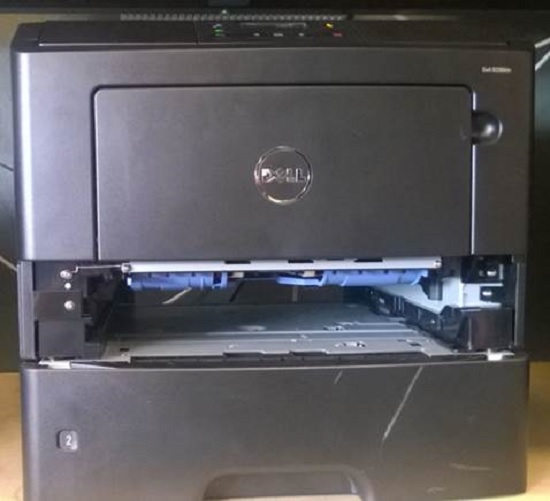
- 找到位於紙匣上方中央的揩撥臂。
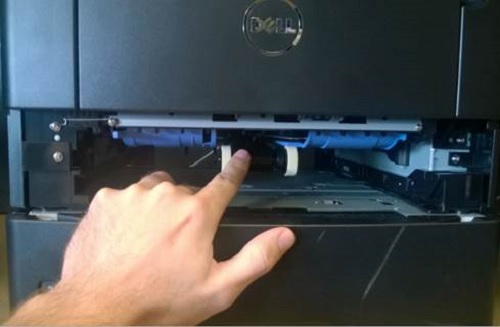
- 將鎬輪胎從鎬臂上滾下來(這具有橡皮筋的感覺)。

- 使用酒精清潔劑 (首選異丙醇) 清潔滾筒。

- 將進紙輪胎 (2) 重新安裝到揩取臂上,然後重新安裝紙盒。
- 重新插入印表機並打開電源。列印測試頁面。
如果這些步驟無法修正問題,請聯絡 Dell 技術支援部門。
Affected Products
Dell B2360d Mono Laser Printer, Dell B2360dn Mono Laser PrinterArticle Properties
Article Number: 000135058
Article Type: How To
Last Modified: 11 Jul 2025
Version: 3
Find answers to your questions from other Dell users
Support Services
Check if your device is covered by Support Services.