How to Download Microsoft Office from My Account (Previously Dell Digital Locker)
Summary: The following article has information about downloading Microsoft Office from My Account (previously Dell Digital Locker.)
This article applies to
This article does not apply to
This article is not tied to any specific product.
Not all product versions are identified in this article.
Instructions
How to Download Microsoft Office from My Account (Previously Dell Digital Locker)
When you order Microsoft Office from Dell as a Software and Peripheral (S & P) license (not factory installed on your computer), the entitlement is delivered through My Account (Previously Dell Digital Locker).
Note: Migration for My Account is explained here: Dell Digital Locker has moved to My Account
Entitlement Identification
S & P licenses are shipped and invoiced on separate orders, and entitlement is not listed on the order for the computer.
Locate the digital order confirmation email with the order information. The email is sent at the time of purchase to the email address that you provide to Dell.
If you cannot find the email in your mailbox, check the Spam and Trash folder.
Download Process
Use the following steps to download Microsoft Office using My Account:
- Go to the My Account Portal.
- Enter your Email Address and Password.
- Accept the End User License Agreement (EULA).
- Click Software Licenses and Subscriptions.
- Locate and click the Office Edition that you ordered.
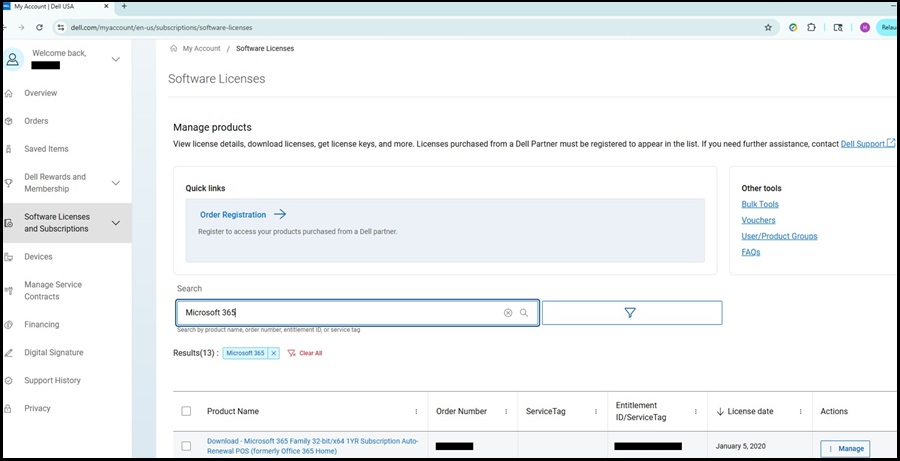
- Click Activate Subscription (Office 365) or Activate Product (Office 20XX versions). The browser redirects to the Microsoft Office portal.
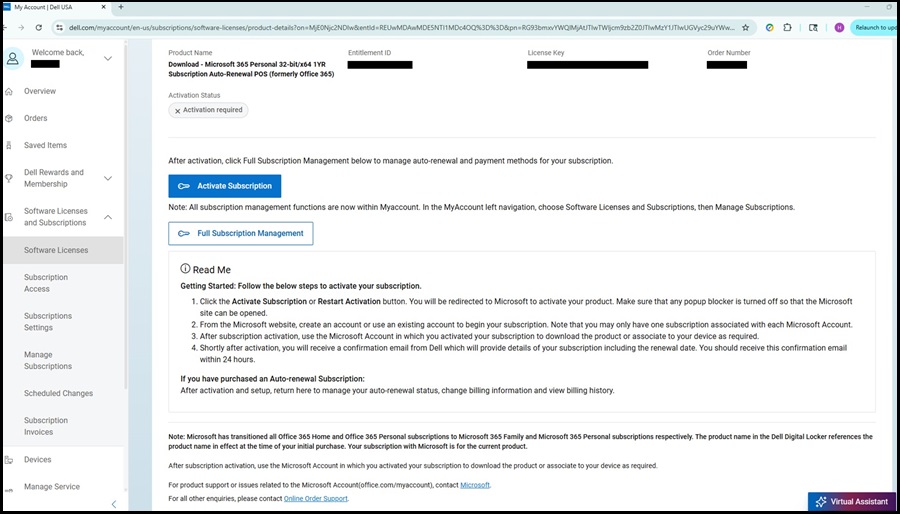
- Click Get Started.
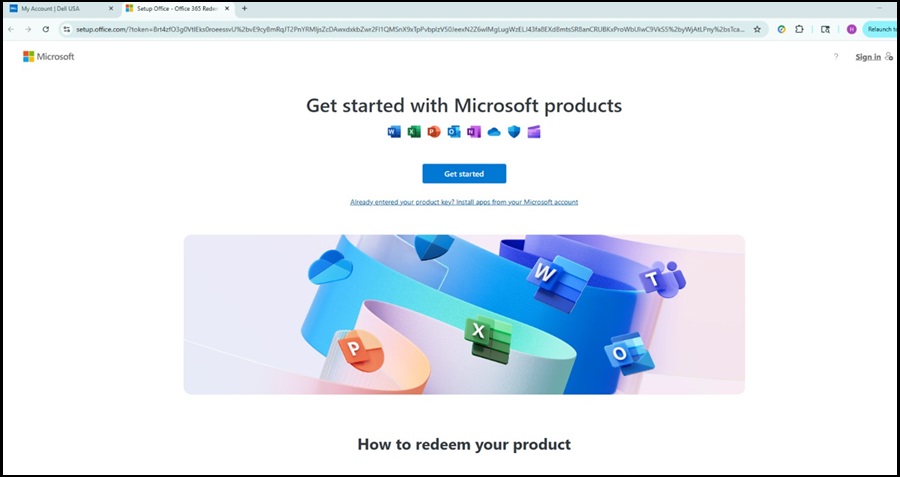
- Log in with your Microsoft Account.

- Go to Subscriptions and look for Products you've Purchased. Click Install your Office product.
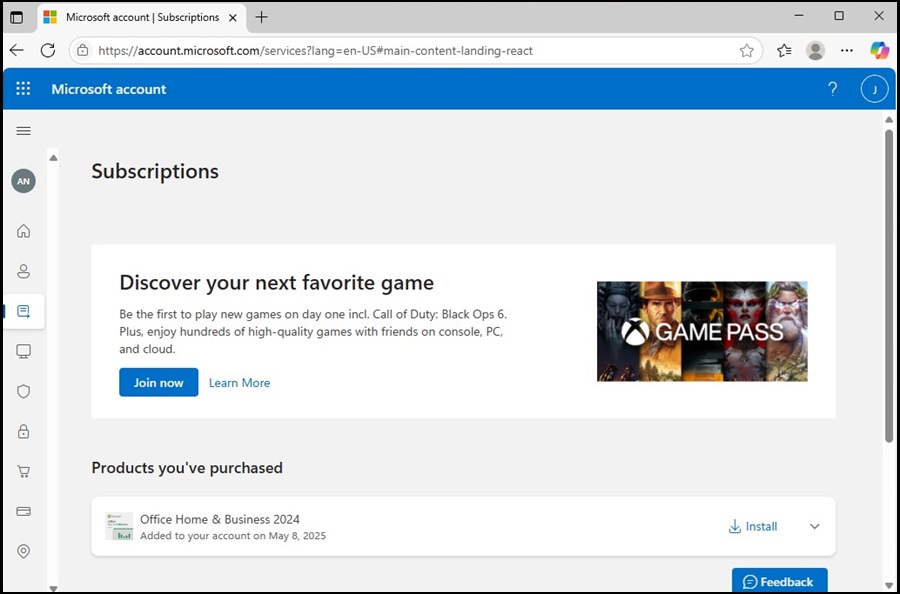
- Click the Downloaded Install File to install Office and follow the install instructions.
If Microsoft Office is not on your computer after a hard drive replacement or reinstallation of Windows. Go to the Microsoft account page and click Install next to your Office product to redownload.
Affected Products
Alienware, Dell All-in-One, Dell Pro All-in-One, Dell Pro Max Micro, Dell Pro Max Slim, Dell Pro Max Tower, Dell Pro Micro, Dell Pro Slim, Dell Pro Tower, Dell Slim, Dell Tower, Inspiron, OptiPlex, Vostro, XPS, G Series, G Series, Alienware
, Dell Laptops, Dell Plus, Dell Pro, Dell Pro Max, Dell Pro Plus, Dell Pro Premium, Inspiron, Latitude, Dell Pro Rugged, Vostro, XPS, Fixed Workstations, Mobile Workstations, Dell Pro Max Micro XE FCM2250, Dell Pro Max Slim XE FCS1250, Dell Pro Max Tower T2 XE FCT2250, Dell Pro Max 14 Premium MA14250, Dell Pro Max 16 Premium MA16250, Dell Pro Max 16 Plus MB16250, Dell Pro Max 18 Plus MB18250, Dell Pro Max 16 XE MC16250, Dell Pro Micro Plus XE QBM1250, Dell Pro Slim Plus XE5 QBS1250, Dell Pro Tower Plus XE5 QBT1250, Microsoft 365 from Dell
...
Article Properties
Article Number: 000135141
Article Type: How To
Last Modified: 11 Nov 2025
Version: 10
Find answers to your questions from other Dell users
Support Services
Check if your device is covered by Support Services.