How to Install Additional RAM on the 5330dn Dell Laser Printer
Summary: This article provides information on "How to Install Additional RAM on the 5330dn Dell Laser Printer"
This article applies to
This article does not apply to
This article is not tied to any specific product.
Not all product versions are identified in this article.
Symptoms
Table of Contents:
This article provides information on "How to Install Additional RAM on the 5330dn Dell Laser Printer"
1. Install Memory Module
- Switch the printer off, disconnect the power and data cables.
- Remove the controller card cover.
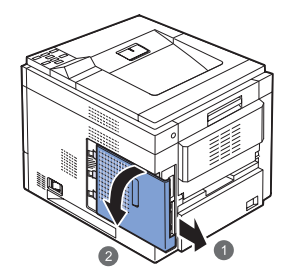
- Remove the new memory module from its packaging.
- Locate the memory slot on the controller card. Align the memory module with the slot, noting the position of the notch on the module's edge connector.
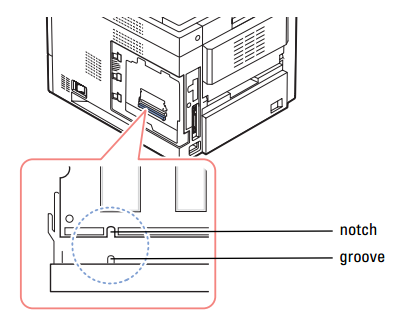
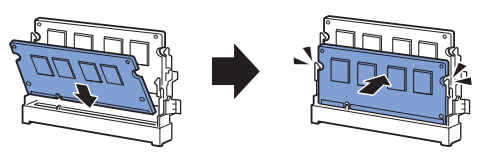
- Insert the memory into the slot then push back to lock in place. Ensure the module is full inserted into the slot and the latches are secure.
- Replace the controller card cover.

- Switch the printer on.
- Confirm the memory is detected by printing a configuration report.
- Press the Menu button.
- Press the Down Arrow until "Report" is highlighted, press Tick/Select to select.
- Select "Configuration".
- Configuration report prints.
The printer's base memory is 256MB, the 512MB memory module expands this to 768MB.
More info can be found in the 5330dn User’s Guide.
Back to Top2. Enable Additional RAM in Printer Properties
Instructions below are for Windows 7, the general procedure is similar for other operating systems.
- Click on the start button. In the search box type "printers".
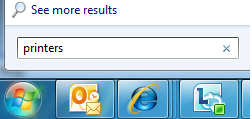
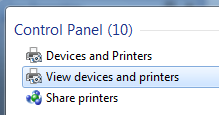
- Select "View Devices and Printers".
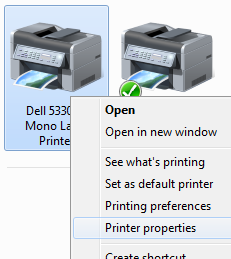
- Right click on the printer icon, select "Printer Properties".
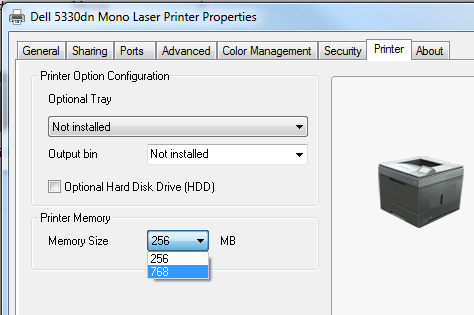
- Select the "Printer" tab.
- In the "Printer Memory" section of the dialogue, set the drop down menu for "Memory Size" to 768MB.
- Click "OK".
More info can be found in the 5330dn User’s Guide.
If these steps do not correct the problem, please contact Dell Technical Support.
Back to Top
Cause
N/A
Resolution
N/A
Affected Products
Dell 5330dn Workgroup Mono Laser PrinterArticle Properties
Article Number: 000135384
Article Type: Solution
Last Modified: 07 Jun 2024
Version: 4
Find answers to your questions from other Dell users
Support Services
Check if your device is covered by Support Services.