ADF Paper Jam or Multiple Feed Issue on a Dell 3115cn Printer
Summary: How to troubleshoot auto document feeder (ADF) paper jams and multiple feed issues on the Dell 3115cn Printer.
This article applies to
This article does not apply to
This article is not tied to any specific product.
Not all product versions are identified in this article.
Instructions
- Look at the table below to verify the document meets the ADF specifications.
Paper Type Specifications Capacity 50 sheets Acceptable Paper Size (Max) Fast scan direction: 148mm (5/8") Slow scan direction: 210mm (8.3") Acceptable Paper Size (Min) Fast scan direction: 215.9mm (8.5") Slow scan direction: 355.6mm (14") Types Cut paper and plain paper Weight 50-124gsm (16-28 lb bond) - Ensure that the ADF is closed against the platen glass completely.
- Check for and remove foreign objects inside the printer.
-
Unplug the printer from its power source.
- Remove all paper trays.
- Open the front cover.
- Remove the toner cartridge.
-
- Inspect the ADF Feed Rollers.
- Turn the printer off and remove the AC power cable from the back of the printer.
- Open the ADF cover.

Figure 1: Opening the ADF cover - Gently rotate the feed rollers located where the paper feeds into the printer.
- Check that the black flippers on the feed rollers are present.
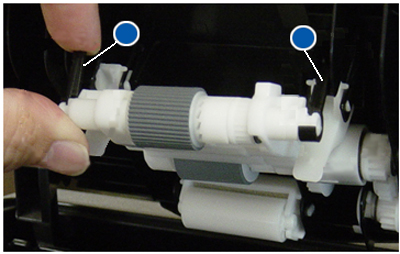
Figure 2: Feed Roller
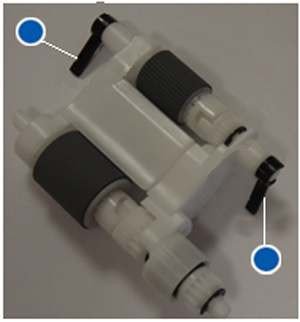
Figure 3: Black Flippers - Check that the white flippers are present.
Note: When the rollers get soiled with ink stains, paper from the Auto-Document Feeder (ADF) may also be soiled. In that case, slightly dampen a soft lint-free cloth or paper towel with a neutral detergent or water. Remove the contamination from the rollers until the are clean and dry.
Affected Products
Dell 3115cn Color Laser PrinterArticle Properties
Article Number: 000136165
Article Type: How To
Last Modified: 27 Mar 2024
Version: 4
Find answers to your questions from other Dell users
Support Services
Check if your device is covered by Support Services.