How to Make a Bootable USB Flash Drive Using Diskpart
Summary: This article provides instructions on how to create a bootable USB flash drive using the Diskpart utility.
This article applies to
This article does not apply to
This article is not tied to any specific product.
Not all product versions are identified in this article.
Instructions
Table of Contents:
Caution: These instructions are aimed at advanced users. You may change a setting that could prevent your computer from starting correctly and you could suffer a potential loss of data. Use these instructions at your own risk!
1. Create a bootable USB flash drive using the Diskpart utility.
A user may want to create a bootable USB flash drive which has a larger partition than the maximum 2 GB created using the Dell Diagnostic Distribution Package (DDDP), see Article How to Create a Bootable USB Flash Drive using Dell Diagnostic Deployment Package (DDDP).
Diskpart can be used to create a partition larger than 2 GB on the USB flash drive so larger files can be used. Diskpart is a Disk Partition utility available within Windows.
Follow the steps in the next section on how to use Diskpart to create a bootable Windows USB flash drive:
Note: You require a 4 GB minimum USB flash drive and your Windows reinstallation DVD.
2. How to use Diskpart.
-
Insert your USB flash drive (4 GB or larger preferable) into your system.
Warning: Following the remaining steps results in all data on the USB flash drive being lost. Ensure that you back up any data to another device before proceeding.
-
Go to the Command Prompt. Select Start and type
CMDin the search field, right clickCMD.exeand select Run as administrator.
Alternatively, go to Start > All programs > Accessories > right click Command Prompt and select Run as administrator.

-
A User Account Control (UAC) dialog Window may appear. Click Yes to Continue.
-
When the Command Prompt opens, enter the following commands followed by Enter:
-
DISKPART- This starts the utility. -
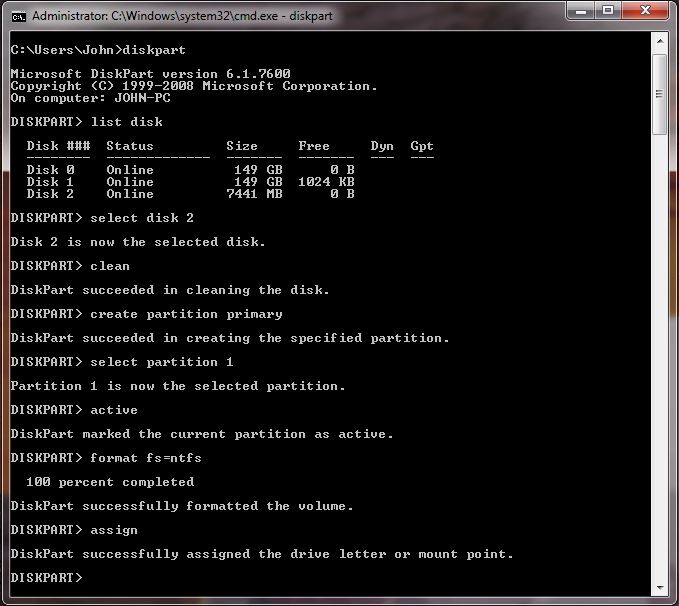
LIST DISK- This shows the disk number of your USB flash drive. In the image below the USB flash drive shows as Disk 2.
-
SELECT DISK X(ReplaceXwith your USB flash drive number, we are using 2 in this example). -
CLEAN- This wipes the drive. -
CREATE PARTITION PRIMARY- Creates a partition. -
SELECT PARTITION 1- Selects partition 1. -
ACTIVE- Marks the current partition as active. -
FORMAT FS=NTFS QUICK- This formats the partition. -
ASSIGN- Assigns a drive letter. -
EXIT
Insert your Windows DVD into the optical drive.
From Command Prompt, enter the following:
g:  (Where "g" is your DVD drive letter)
cd boot (changes to boot directory)
G:\boot bootsect /nt60 d:  (Where "d" is your USB drive letter)

Copy all files from the Windows CD to the USB flash drive using xcopy
cd\
G:\xcopy g:\*.* /s/h/f  f:\
This copies the Windows installation files onto the USB flash drive, it may take several minutes.
xcopy switches are as follows:/s - Copies directories and subdirectories except empty ones./h - Copies hidden and system files./f - Displays full source and destination filenames while copying.
To display the full list of switches, type xcopy /? <enter>
This makes the USB drive bootable. When selected at startup, it boots straight into the Windows installation.
Affected Products
Dell All-in-One, Dell Pro Max Micro, Dell Pro Max Slim, Dell Pro Max Tower, Dell Pro Micro, Dell Pro Slim, Dell Pro Tower, Dell Slim, Dell Tower, Dell Plus, Dell Pro, Dell Pro Max, Dell Pro Plus, Dell Pro Premium, Inspiron, Latitude, Dell Pro Rugged
, Vostro, XPS, Legacy Laptop Models, Fixed Workstations
...
Article Properties
Article Number: 000136959
Article Type: How To
Last Modified: 22 Jul 2025
Version: 12
Find answers to your questions from other Dell users
Support Services
Check if your device is covered by Support Services.