New SSD is Not Detected in Windows 11 and Windows 10 Disk Management
Summary: The following article is about a newly installed solid state disk (SSD) that Disk management does not detect. This is on the Windows 11 and Windows 10 operating systems with Storage Spaces set up. ...
This article applies to
This article does not apply to
This article is not tied to any specific product.
Not all product versions are identified in this article.
Instructions
Newly installed SSD seen in BIOS and Device Manager, but is not detected in Disk Management?
Are you having detection problems after recently fitting an aftermarket or third-party SSD? It is recognized in the BIOS and Device Manager, but Disk Management cannot see it?
You can resolve this is by removing the drive from the storage pool that has taken ownership of the new drive in Manage Storage Spaces.
Note: This solution depends on you having Windows 11 or Windows 10 installed on your computer. Storage Spaces must have been set up prior to you installing your new SSD. If you do not have storage spaces configured on your computer, this guide is not going to help you. See the following link for further help with storage drives:
 Source additional information about Hard Drives and solid state drives on our support page
Source additional information about Hard Drives and solid state drives on our support page
Steps to remove a drive from a Windows 11 or Windows 10 Storage Pool
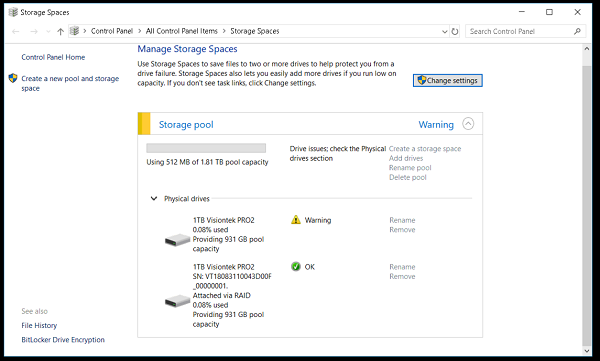
(Figure.1 Manage Storage Spaces)
If you have created a pool in Windows 11, Windows 10, or upgraded an existing pool, then you can remove a drive from it. The data stored on that drive is moved to other drives in the pool, and you can use that drive for another purpose:
-
Open the start menu and type Storage Spaces, then select Storage Spaces from the list of results that appear
-
Select change settings > physical drives to see all the drives in your pool
-
Locate the drive that you want to remove from the pool
-
Select prepare for removal > prepare for removal. Leave the computer plugged in until the drive is ready to be removed
-
If the computer keeps going into sleep, you can prevent this:
-
In Windows 11: Type Power and battery in the Start Menu, and then select screen and sleep. Change When plugged in, put my device to sleep after, to Never
-
In Windows 10: Type Power & sleep in the Start Menu, and then select power and sleep settings. Change when plugged in, computer goes to sleep after, to Never
-
-
When the drive is showing as ready to remove, select remove > remove drive. Now, you can enter the Disk Management console and see if the computer now detects the drive.
-
You may want to delete the Storage Pool if the drive is still not detected
Note: If the drive has been fitted for a while, you may run into problems when you try to prepare the drive for removal. You need enough free space in the pool to store all the data from the drive you want to remove. You can add a new drive to the pool that is as large as the drive you plan to remove and then try again. You can find out more about Storage Spaces on the following link to the Microsoft Support page:

Affected Products
G Series, Inspiron, Latitude, Vostro, XPS, Fixed WorkstationsArticle Properties
Article Number: 000137098
Article Type: How To
Last Modified: 24 Jul 2025
Version: 7
Find answers to your questions from other Dell users
Support Services
Check if your device is covered by Support Services.