PowerVault: Incompatible Magazine Error on PowerVault TL2000 / 4000 Tape Library Devices
Summary: On the panel and on the web interface the TL2000 / 4000 Tape Library reports Incompatible Magazine. This error message can be seen either through the front Operator Control Panel (OCP), or through the Web Interface/RMU (Remote Management Unit). Also, the library can report the I/E slots as "disabled." ...
This article applies to
This article does not apply to
This article is not tied to any specific product.
Not all product versions are identified in this article.
Instructions
This article provides information about "Incompatible Magazine Error on PowerVault TL2000 / 4000 Tape Library Devices."
Table of Contents
Error Message
On the panel and on the web interface the TL2000 / 4000 Tape Library reports Incompatible Magazine. This error message can be seen either through the front Operator Control Panel (OCP), or through the Web Interface/RMU (Remote Management Unit). Also, the library can report the I/E slots as "disabled."
Possible Causes
The following can be some of the possible causes of an Incompatible magazine error:
- Usually this is related to the I/E magazine not being inserted all the way or being in the incorrect slot, if the tape library is a TL4000.
- The incompatible magazine error message can occur during a factory restore or a restore of the VPD, according to the User's Guide.
Possible Resolutions
The following are possible solutions to the error message of the incompatible magazine error:
- Try to reseat the magazine by ejecting it first. It can be reseated by ejecting the magazine through the OCP or through the Web Interface.
- OCP > Control > Magazine > Left or Right > Magazine Unlocking
- Web Interface > Manage Library > Release Magazine > Select Right or Left > click Release
- While the left magazine is ejected, check the I/E (Import/Export) button.
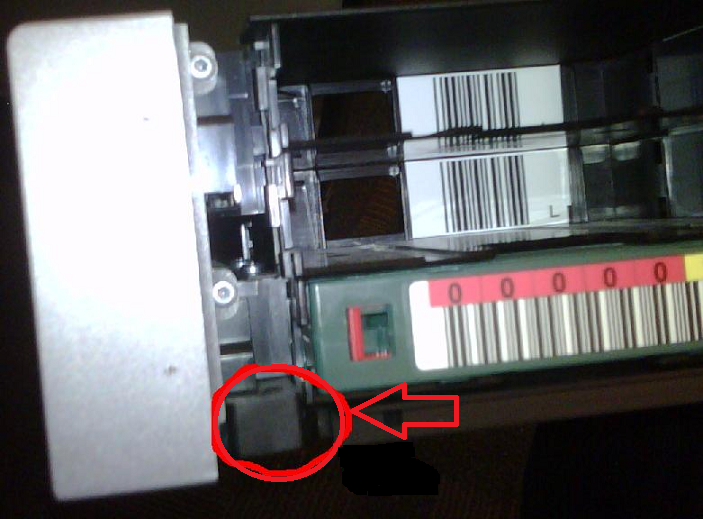
Make sure that it can eject the I/E Slot. Beyond that you might check for physical damage around the button. - While the magazines are ejected, check for any obstructions that could cause an issue.
- If necessary, power down the library, eject all the magazines by using the following link:
- Remove all the media, and re-insert the magazines. Afterwards, power on the library, and see if the error presents itself again.
- Check to make sure the I/E station magazine is in the left slot on the TL2000 and the bottom left hand slot in the TL4000.
- If a factory restore has been completed, wait for the tape library to complete its configuration and initialization.
If necessary, after the configuration and initialization is complete, reboot or power cycle the TL2000/TL4000 Tape Library. - Otherwise try a firmware update for the library if not on current firmware. The newest firmware as of this article is C.00, which can be downloaded at Dell's Support Site.
You can check this through the front panel and in the web interface.
PowerVault TL2000/TL4000 Tape Library - How to Check the Firmware Revisions for the Tape Library and Tape Drives
- Use the following link to see a "how-to" on updating the tape library firmware:
PowerVault TL2000/TL4000 Tape Library - How to Upgrade the Firmware for the Tape Library and Tape Drives - If after the firmware update (and the above listed), the tape library still does not recognize the magazine correctly, contact Dell Technical Support for further assistance.
Affected Products
PowerVault TL2000, PowerVault TL4000Article Properties
Article Number: 000137823
Article Type: How To
Last Modified: 30 Oct 2025
Version: 7
Find answers to your questions from other Dell users
Support Services
Check if your device is covered by Support Services.