Como executar o teste de diagnóstico da unidade na biblioteca ML3
Summary: Como executar o diagnóstico da unidade no painel frontal ML3.
This article applies to
This article does not apply to
This article is not tied to any specific product.
Not all product versions are identified in this article.
Resolution
Caso deseje testar a unidade em um ML3, você pode fazer um Teste de diagnóstico de unidade.
Na tela inicial, pressione duas vezes: Enter
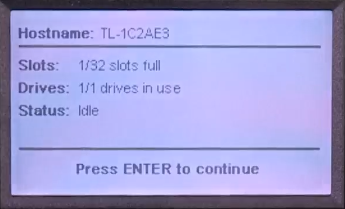
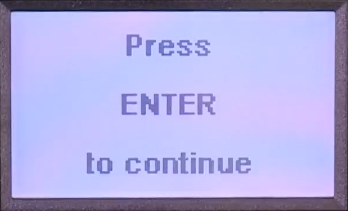 Now no menu Início, selecione Manutenção.
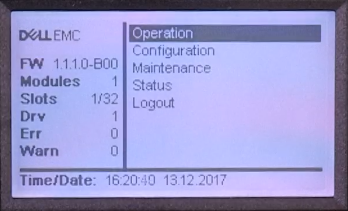
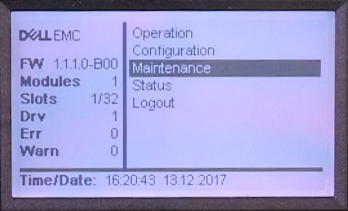
Selecionar testes de biblioteca...

selecione Drive Diagnostics...

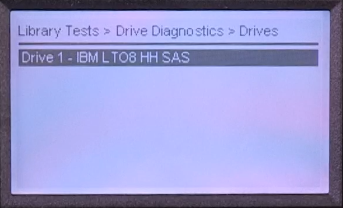
Agora você pode escolher a unidade que deseja testar. (Nessa biblioteca há apenas uma unidade disponível)
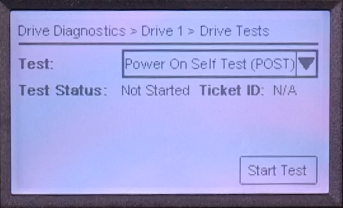
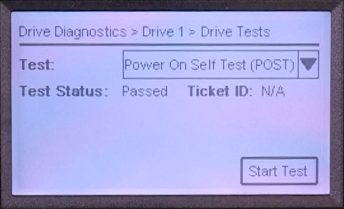
Para a unidade selecionada, você encontrará um menu suspenso. Aqui você pode encontrar o Autoteste de inicialização (POST).
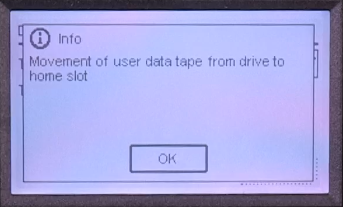
Se uma fita estiver carregada na unidade selecionada, a biblioteca a descarregará.
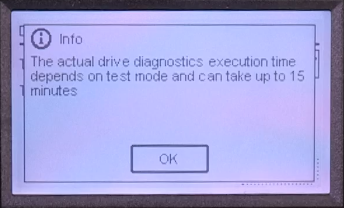
Depois disso, o teste está em execução e as informações de andamento serão exibidas.


se todos os testes forem bem-sucedidos, o status do teste será Aprovado.
Na tela inicial, pressione duas vezes: Enter
Now no menu Início, selecione Manutenção.
Selecionar testes de biblioteca...
selecione Drive Diagnostics...
Agora você pode escolher a unidade que deseja testar. (Nessa biblioteca há apenas uma unidade disponível)
Para a unidade selecionada, você encontrará um menu suspenso. Aqui você pode encontrar o Autoteste de inicialização (POST).
Se uma fita estiver carregada na unidade selecionada, a biblioteca a descarregará.
Depois disso, o teste está em execução e as informações de andamento serão exibidas.
se todos os testes forem bem-sucedidos, o status do teste será Aprovado.
Affected Products
Dell EMC ML3, Powervault LTO6, PowerVault LTO7, PowerVault LTO8Article Properties
Article Number: 000144463
Article Type: Solution
Last Modified: 21 Feb 2021
Version: 3
Find answers to your questions from other Dell users
Support Services
Check if your device is covered by Support Services.