Inspiron 5680 Light Bar Settings
Summary: This article provides the BIOS instructions to enable and disable the Light Bar on the Inspiron 5680.
This article applies to
This article does not apply to
This article is not tied to any specific product.
Not all product versions are identified in this article.
Symptoms
Managing or adjusting the settings of the Dell Light Bar on the Inspiron 5680 is only available from the BIOS. Below are the steps to assist you with this process.
Cause
No cause information
Resolution
1. Power on system
2. Press F2 to enter BIOS setup menu before entering the Operating System (OS)
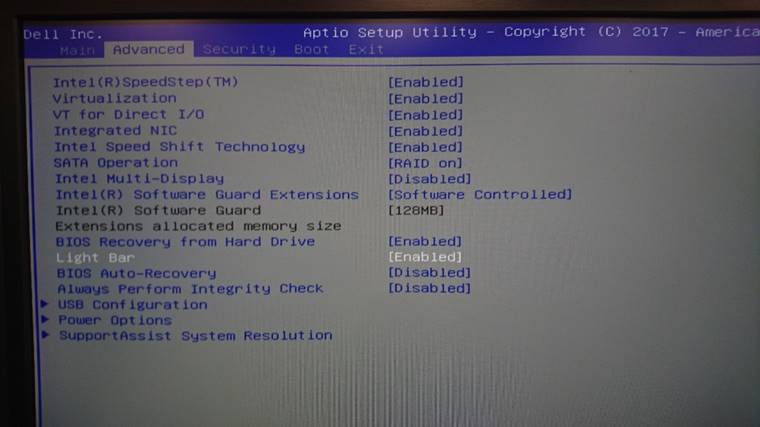
3. Move to the Advanced tab by using the left/right keys on your keyboard, and select the option Light Bar by using the up and down keys. Light Bar section as below image.
4. Press the Enter or space key to switch selection from Enabled to Disabled, or conversely for the Light Bar.
5. Press F10 to Save & Reset. Then select Yes and press Enter.
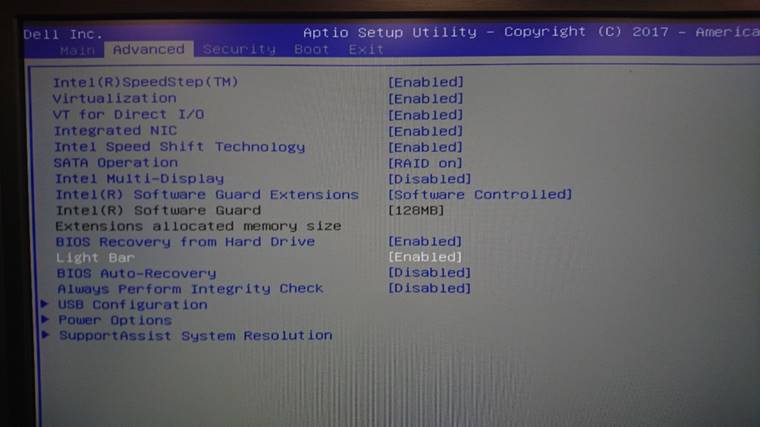
6. Perform a system restart and the light bar enables or disables as you selected at step 4.
For more information about this Inspiron system, go to the Dell Support site - offering articles, diagnostics, drivers, and system configuration.
2. Press F2 to enter BIOS setup menu before entering the Operating System (OS)
3. Move to the Advanced tab by using the left/right keys on your keyboard, and select the option Light Bar by using the up and down keys. Light Bar section as below image.
4. Press the Enter or space key to switch selection from Enabled to Disabled, or conversely for the Light Bar.
5. Press F10 to Save & Reset. Then select Yes and press Enter.
6. Perform a system restart and the light bar enables or disables as you selected at step 4.
For more information about this Inspiron system, go to the Dell Support site - offering articles, diagnostics, drivers, and system configuration.
Affected Products
Inspiron 5680Article Properties
Article Number: 000146629
Article Type: Solution
Last Modified: 27 Sep 2024
Version: 6
Find answers to your questions from other Dell users
Support Services
Check if your device is covered by Support Services.