How to boot to Windows 8 Recovery Environment
Summary: This article is a guide for different ways to launch Windows 8 recovery environment from the Startup Options during boot.
This article applies to
This article does not apply to
This article is not tied to any specific product.
Not all product versions are identified in this article.
Symptoms
How to boot to Windows 8 Recovery Environment?
At the Startup Options screen, you will have three options to choose from (see Figure.1):
- Continue (loads Windows normally)
- Troubleshoot
- Turn off your PC
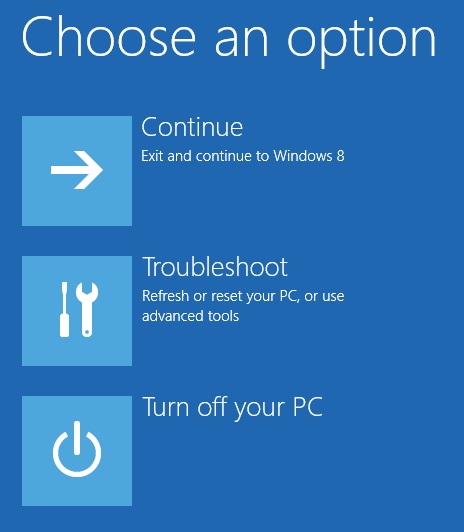
Figure.1 Advanced Startup Options menu in Windows 8.
Cause
No cause information is available.
Resolution
Method 1: SHIFT + Restart
One way to start Windows 8 in Windows Recovery Environment is to simply press SHIFT and then click on Restart. What’s good about this method is that you can do it from within Windows, or you can do it even if no one is logged onto the system.

So if you need to troubleshoot a Windows 8 machine or boot from a secondary device and you can’t log into the system, then you can still restart in Windows RE by clicking on the power button icon at the bottom right of the login screen.
Method 2: PC Settings
The second way to do it is to go to PC Settings in Windows 8. You can do that by opening the Charms bar and then clicking on Settings.

Then click on Change PC Settings at the bottom of the settings bar:

Finally, click on General and then click on Restart now under the Advanced startup section.

Method 3: Automatic or Recovery Drive
Lastly, if Windows 8 detects any boot problem with the system, it will automatically load up Windows RE boot options.
If your board supports the new UEFI firmware, this will happen automatically. If not, you would still need to press the F8 key, but you will not have a lot of time since Windows 8 loads so much faster.
Instead, the best way would be to use Methods 1 or 2. However, if you cannot boot into Windows 8 at all, and the boot options do not come up automatically, you’ll have to hope you created a Windows 8 USB Recovery Drive. A recovery drive in Windows 8 will basically let you create a bootable USB flash drive that will load the Windows RE environment in case it won’t load automatically and you can’t get into Windows.
When you see the Dell Logo and the Windows 8 Circling dots, Hold the power button down until system shuts off.
Perform this procedure 3 times.

When done correctly you should see this page below.

Click on Use Advanced Repair Options .

Click on Troubleshoot.

From here, you will have the following options availble:
- Refresh your PC
- Reset your PC
- Dell Backup and Recovery
- Advanced Options
Article Properties
Article Number: 000151893
Article Type: Solution
Last Modified: 23 Apr 2021
Version: 4
Find answers to your questions from other Dell users
Support Services
Check if your device is covered by Support Services.