Data Domain: How to access the DDOS console through iDRAC on a DD3300 system
Summary: This document describes how to access the DD3300's console through iDRAC.
This article applies to
This article does not apply to
This article is not tied to any specific product.
Not all product versions are identified in this article.
Instructions
Problem Description
The initial setup of a Data Domain system is traditionally done through a serial console connection. Following the initial setup from a direct connect serial connection, many customer environments do not have a way to remotely connect to the console other than a LAN connection over SSH or Telnet. There is a need to be able to access the DD3300's console through a different interface. iDRAC on DD3300 supports Serial Over LAN (SOL), which can be used to access DDR's console through iDRAC dedicated port. This document describes how to access the DD3300's console through iDRAC.
Symptoms
Unable to access DD3300 through remote serial or LAN connection.
Applies To:
DD3300
Solution
Users can access the DD3300's console through iDRAC when the serial console and Ethernet connection to NIC ports are unavailable.
Pre-Requisites
- iDRAC access must be enabled. Refer KB 517134 - How to configure iDRAC on DD3300
Steps
Configure BIOS for SOL.
-
Log in to iDRAC through web browser
-
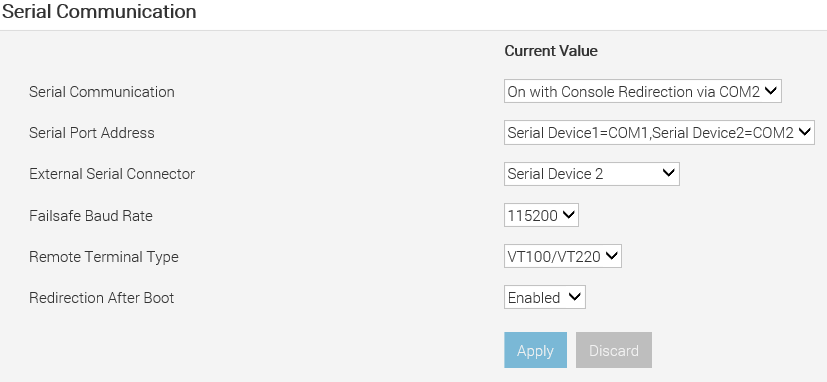
Go to Configuration > BIOS Setting > Serial Communication
-
Specify the following values:
- Serial communication -- On with Console Redirection via COM2
- Serial Port Address -- Serial Device1=COM1, Serial Device2=COM2
- External Serial Connector -- Serial Device 2
- Failsafe Baud Rate 115200
- Remote Terminal Type -- VT100/VT220
- Redirection After Boot Enable
-
Click Apply for Serial Communication settings
-
Go to the bottom of the page and click At Next Reboot or Apply and Reboot. The DD must be rebooted so iDRAC can apply the new BIOS settings.
Configure iDRAC to use SOL.
-
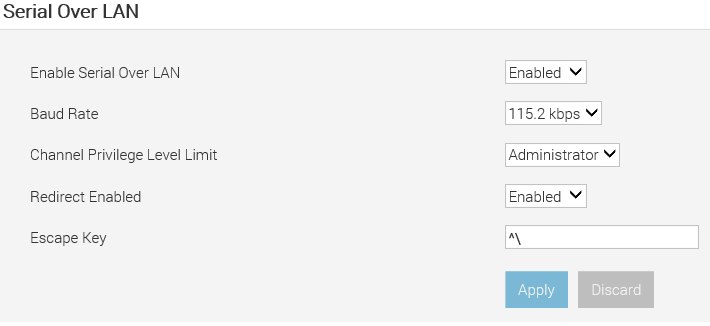
In the iDRAC Web interface, go to iDRAC Settings > Connectivity > Serial Over LAN.
The Serial over LAN page is displayed.
-
Specify the following value:
- Enable Serial Over LAN -- Enable
- Baud Rate -- 115.2 kbps
- Channel Privilege Level Limit -- Administrator
- Redirect Enabled -- Enable
- Escape Key -- ^\ (CTRL + \)
-
Click Apply
The IPMI SOL settings are now configured.
Enable supported SSH protocol.
To enable SSH.
- Go to iDRAC Settings > Services
- Select Enabled for SSH
- Ensure that the Port Number is set to 22
- Click Apply
SSH is now enabled.
Using SOL over an SSH Session
To start SOL from Putty on a Windows system.
- Open Putty
- Enter the same hostname or IP address that is used for the iDRAC web UI.
- Use port 22 as the default port.
- Select Open to connect.
- Enter User ID and password to log in. Usually root/SN
- Enter one of the following commands to start SOL
connectconsole com2
- To exit out of the DDOS console, press ^\ (CTRL + \)
- Type exit to close the SOL session.
NOTE:
Only one iDRAC SOL or serial console can be active at a time.
Only one iDRAC SOL or serial console can be active at a time.
Additional Information
References
Integrated Dell Remote Access Controller 9 (version 3.00.00.00)
Dell EMC Data Domain DD3300 - Hardware Overview and Installation Guide
Affected Products
Data DomainProducts
Data Domain, DD3300 ApplianceArticle Properties
Article Number: 000155514
Article Type: How To
Last Modified: 18 Sep 2025
Version: 11
Find answers to your questions from other Dell users
Support Services
Check if your device is covered by Support Services.