VxRail: How to Query or Update the Management Account In VxRail Version 7.0.x and 8.0.x
Summary: This article explains how to query and update the saved VxRail credentials in VxRail Manager in versions 7.0.x and 8.0.x.
This article applies to
This article does not apply to
This article is not tied to any specific product.
Not all product versions are identified in this article.
Instructions
Note: This article is intended to assist with troubleshooting and validation of VxRail management account issues from the VxRail perspective, including identifying account synchronization, credential, and connectivity-related problems. It is not intended to be the primary procedure for changing or updating management account passwords. For supported password change and account update procedures, use the steps documented in the applicable VxRail Administration Guide. Following the Administration Guide ensures that password changes are properly synchronized across all VxRail and VMware components and helps prevent account mismatches that can result in cluster health or management issues.
For management account password updates, refer to:
Change the password of the VxRail management user
Change the VMware ESXi host management user password
Change the VMware ESXi host management user password (VxRail 8.0.320 and later)
For management account password updates, refer to:
Change the password of the VxRail management user
Change the VMware ESXi host management user password
Change the VMware ESXi host management user password (VxRail 8.0.320 and later)
Starting from VxRail version 7.0.010, the vCenter and ESXi host management accounts are stored in a lockbox microservice.
The method to query or update the management account has changed from previous versions.
The passwords as accessed below are base64 encoded and not in plain text.
Prerequisites
- SSH to the VxRail Manager using the 'mystic' administrator user
- Switch to the root user.
su -
Querying existing saved credentials:
Querying vCenter management account:
Command to run:
curl --unix-socket /var/lib/vxrail/nginx/socket/nginx.sock -X GET 'http://localhost/rest/vxm/internal/lockbox/v1/credentials?lockbox_name=SYSTEM&credential_names=management_account_vc'|jq
Example output:
{
  "items": [
    {
      "connection_type": "OK",
      "credential_name": "management_account_vc",
      "is_found": true,
      "password": "xxxxxxxxxxx",
      "username": "management@localos"
    }
  ]
}
In this example, the vCenter management account username is management@localos, and the encoded password is xxxxxxxxxxx.
To decode the password, use the following command.
echo -n 'xxxxxxxxxxx' | base64 -d
Query ESXi host management account:
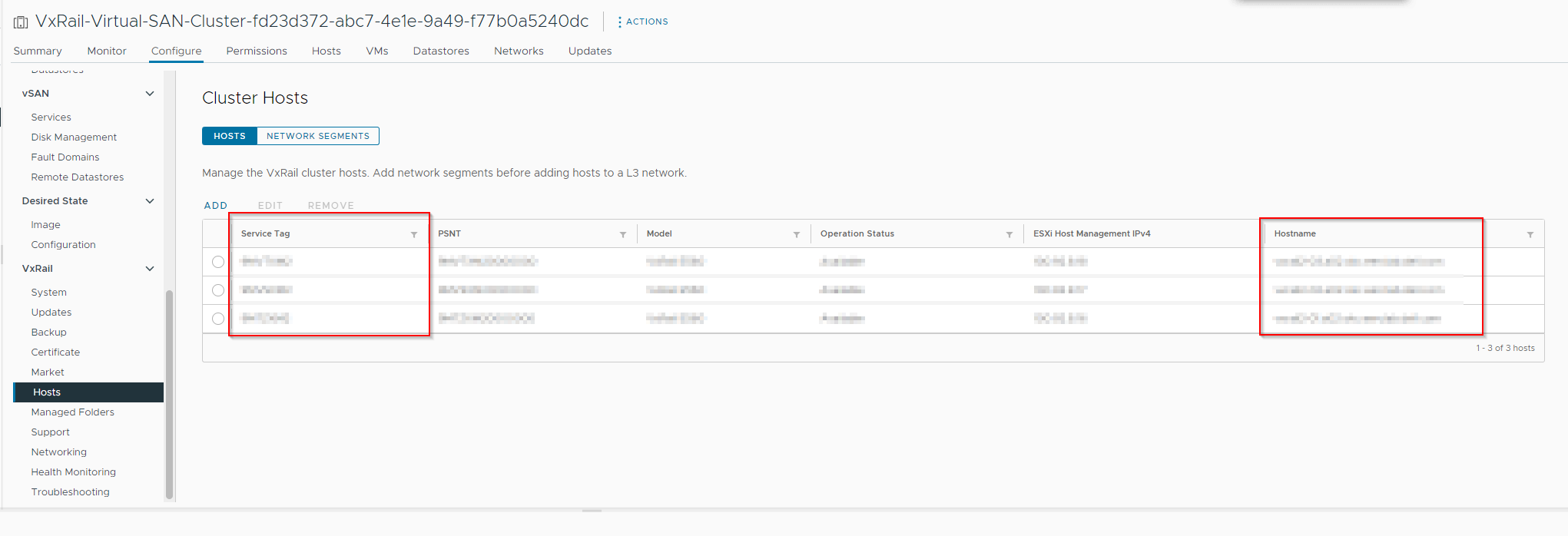
- In order to access the account, you must know the PowerEdge Service Tag (ST) - seven character serial such as AB1CDE2 - to access the specific credential.
Replace any section that has<host-SN>with the Service Tag.
For example, you can use the following section of the VxRail plug-in to view serials and the hostname:
- Use the following command to gather the VxRail host credentials, replacing
<host-SN>with the server's Service Tag.
curl --unix-socket /var/lib/vxrail/nginx/socket/nginx.sock -X GET 'http://localhost/rest/vxm/internal/lockbox/v1/credentials?lockbox_name=SYSTEM&credential_names=management_account_esxi__<host-SN>'| jq
Using the previous example Service Tag:
curl --unix-socket /var/lib/vxrail/nginx/socket/nginx.sock -X GET 'http://localhost/rest/vxm/internal/lockbox/v1/credentials?lockbox_name=SYSTEM&credential_names=management_account_esxi__AB1CDE2'| jq
Output:
{
  "items": [
    {
      "credential_name": "management_account_esxi__V015001",
      "is_found": true,
      "password": "XXXXXXXX",
      "username": "management"
    }
  ]
}
In this example, ESXi host management account username is management. The encoded password is XXXXXXXX.
To decode, use the following command:
echo -n 'XXXXXXXX' | base64 -d
Updating saved credentials:
Update vCenter management account:
- Stop
vmware-marvinservice:
systemctl stop vmware-marvin- To encode the password, run the command below substituting your password:
echo -n 'Password123!' | base64
UGFzc3dvcmQxMjMh
The -n is necessary to avoid inserting a new line character; this would otherwise be a different password than intended.
- Query the current vCenter management account username. If you do not know the vCenter management account username, see the above section "Query vCenter management account" to query the username.
- To update vCenter management account, run below command and replace
VC_MGMT_USER_NAME and ENCODED_PASSWD_FROM_STEP_1:
curl -X PUT --unix-socket /var/lib/vxrail/nginx/socket/nginx.sock -H "accept: application/json" -H "Content-Type: application/json" -d '{"lockbox_name":"SYSTEM","credentials":[{"credential_name":"management_account_vc","username":"VC_MGMT_USER_NAME","password":"ENCODED_PASSWD_FROM_STEP_1"}]}' 'http://localhost/rest/vxm/internal/lockbox/v1/credentials'
Example:
curl -X PUT --unix-socket /var/lib/vxrail/nginx/socket/nginx.sock -H "accept: application/json" -H "Content-Type: application/json" -d '{"lockbox_name":"SYSTEM","credentials":[{"credential_name":"management_account_vc","username":"vxrm@localos","password":"UGFzc3dvcmQxMjMh"}]}' 'http://localhost/rest/vxm/internal/lockbox/v1/credentials'
- Update management account password from vCenter, navigate to vSphere>Hamburger Menu>Administration>Users and Groups>filter by domain that vCenter management account exists in, Edit the account, and set the new plaintext password.
- Start
vmware-marvinservice:
systemctl start vmware-marvin
Update ESXi host management account
- To encode the password, run the command as in the example below:
Example:
echo -n 'Password123!' | base64
UGFzc3dvcmQxMjMh
- You should know the ESXi host Serial Number (SN) or Service Tag.
- You should know the ESXi host management account username (note: Management account users and the serial numbers are listed in the VxVerify output file:
vxverify_tests.json) - Stop
vmware-marvinservice:
systemctl stop vmware-marvin- To update ESXi host management account, run the below command and replace
ESX_MGMT_USER_NAMEandENCODED_PASSWD_FROM_STEP_1and<host-SN>:
curl -X PUT --unix-socket /var/lib/vxrail/nginx/socket/nginx.sock -H "Accept: application/json" -H "Content-Type: application/json" -d '{"lockbox_name":"SYSTEM","credentials":[{"credential_name":"management_account_esxi__<host-SN>","username":"ESXI_MGMT_USER_NAME","password":"ENCODED_PASSWD_FROM_STEP_1"}]}' 'http://localhost/rest/vxm/internal/lockbox/v1/credentials'
Example:
curl -X PUT --unix-socket /var/lib/vxrail/nginx/socket/nginx.sock -H "Accept: application/json" -H "Content-Type: application/json" -d '{"lockbox_name":"SYSTEM","credentials":[{"credential_name":"management_account_esxi__V010101","username":"esxmgmt","password":"UGFzc3dvcmQxMjMh"}]}' 'http://localhost/rest/vxm/internal/lockbox/v1/credentials'
How to decrypt the password:
echo -n "VnhsYWJSQGlsMSE=" | base64 -d
VxlabR@il1!
- Navigate to
https://ESXiIPAddressand login as root. Click Manage>Users and Groups>Edit the ESXi management user>set the new plaintext password. - Start
vmware-marvinservice:
systemctl start vmware-marvin
After Making a change to the password:
- Enable Health Monitoring either from the VxRail UI > Health Monitoring > Health Monitoring Status > Enable or using CLI.
curl -X PUT --unix-socket /var/lib/vxrail/nginx/socket/nginx.sock -H "Accept: application/json" -H "Content-Type: application/json" http://127.0.0.1/rest/vxm/internal/configservice/v1/configuration/keys/state_cluster_suppressed -d '{"value": "false"}'
- Restart the
vmware-marvinservice.
systemctl restart vmware-marvin
Additional Information
The credentials can be tested by running VxVerify, see article: VxRail: How to run the VxRail Verify tool.
Affected Products
VxRail, VxRail Appliance Series, VxRail SoftwareArticle Properties
Article Number: 000157662
Article Type: How To
Last Modified: 14 Sep 2026
Version: 39
Find answers to your questions from other Dell users
Support Services
Check if your device is covered by Support Services.