NetWorker: La barra di avanzamento NMC si blocca al 5% dopo l'avvio della finestra NetWorker Administration
Summary: Questo articolo della Knowledge Base documenta uno scenario che può causare il blocco della barra di avanzamento della GUI NMC al 5% di avanzamento.
This article applies to
This article does not apply to
This article is not tied to any specific product.
Not all product versions are identified in this article.
Symptoms
NetWorker Management Console (NMC) viene utilizzata per connettersi a un server NetWorker. Dopo aver tentato di connettersi a un server NetWorker da NMC, viene visualizzata una barra di caricamento che non avanza oltre il 5%.
 L'interfaccia utente web di NetWorker (NWUI) si connette al server NetWorker senza problemi.
Sul server NetWorker sono registrati uno o più VMware vCenter.
Il gstd.raw del server NMC segnala un errore di autenticazione per vCenter:
Il nsrvisd-deamon.log del server NetWorker segnala gli errori di accesso per uno o più vCenter.
Sul server NetWorker sono registrati uno o più VMware vCenter.
Il gstd.raw del server NMC segnala un errore di autenticazione per vCenter:
Linux: /opt/lgtonmc/logs/gstd.raw
Windows: C:\Program Files\EMC NetWorker\Management\GST\logs\gstd.raw
Windows: C:\Program Files\EMC NetWorker\Management\GST\logs\gstd.raw
gstd NSR notice ERROR generated: "Unable to fetch data from vCenter: Cannot complete login due to an incorrect user name or password." in file "/disks/nasbld/nas83/nw/#.#/nsrwebui/modules/nsm/gstnsm.c" line #4750
Linux: /opt/nsr/vproxy/logs/nsrvisd/nsrvisd-daemon.log
Windows: C:\Program Files\EMC NetWorker\nsr\vproxy\logs\nsrvisd/nsrvisd-daemon.log
Windows: C:\Program Files\EMC NetWorker\nsr\vproxy\logs\nsrvisd/nsrvisd-daemon.log
YYYY-MM-DDTHH:mm:SS-TZ ERROR:  [##] 952aa502-3e5a-442b-99bf-80f4372bc4e0-vCenter_Name: Unable to log in to vCenter 'vCenter_Name': ServerFaultCode: Cannot complete login due to an incorrect user name or password.
YYYY-MM-DDTHH:mm:SS-TZ ERROR:  [##] 952aa502-3e5a-442b-99bf-80f4372bc4e0-vCenter_Name: Failed to load inventory from 'vCenter_Name'.
Cause
Le credenziali utente utilizzate per accedere a vCenter non vengono accettate.
Resolution
1. Sul server NetWorker, aprire un prompt dei comandi dell'amministratore o una sessione SSH root.
Per ciascuno dei vCenter che segnalano un errore di accesso nel nsrvisd-daemon.log, effettuare le seguenti operazioni.
2. Utilizzando il comando nsrports , verificare che il server NetWorker sia in grado di risolvere vCenter e connettersi alla porta 443.
nsrports -t vCenter_Name -p 443
Esempio:
[root@nsr ~]# nsrports -t vcsa.amer.lan -p 443
Forward lookup for vcsa.amer.lan
Query time:              0.001 sec
Canonical name (CNAME):  vcsa.amer.lan
Address (A):             192.168.9.111
Connect to port 443:     Succeeded (0.001 sec)

Reverse lookup for 192.168.9.111
Query time:              0.000 sec
Name:                    vcsa.amer.lan
NOTA: Se il comando precedente restituisce informazioni DNS errate o non riesce a connettersi alla porta 443 di vCenter, questi problemi devono essere risolti nell'ambiente. Consultare l'amministratore di dominio/rete per informazioni sugli errori di risoluzione DNS o sui problemi di connessione delle porte.
3. Utilizzare il comando nsradmin Utilità della riga di comando per verificare quale account utente viene utilizzato per vCenter che segnala gli errori di accesso nel nsrvisd-daemon.log.
[root@nsr ~]# nsradmin
NetWorker administration program.
Use the "help" command for help, "visual" for full-screen mode.
nsradmin> p type: nsr hypervisor; name: vcsa.amer.lan
                        type: NSR hypervisor;
                        name: vcsa.amer.lan;
                     version: 8.0.2;
                     comment: ;
                     service: VMware VirtualCenter;
                    endpoint: "https://vcsa.amer.lan/sdk";
                    username: networker_user@vsphere.local;
                    password: *******;
                     command: nsrvim;
                       proxy: nsr.amer.lan;
              console events: Yes;
                       cloud: No;
              console cancel: Yes;
Snapshot FreeSpace Warning Threshold: 0;
Snapshot FreeSpace Failure Threshold: 0;
        restricted data zone: ;
nsradmin>
4. Da un web browser, accedere a vSphere Web Client per vCenter Server.
5. Accedere a vSphere utilizzando l'account utilizzato per aggiungere vCenter a NetWorker (vedere il passaggio 3).
NOTA: Se non si è in grado di accedere a vSphere con questo account, consultare l'amministratore VMware per informazioni sulla password corretta. Se l'accesso ha esito positivo, usare questa password per aggiornare le credenziali in NetWorker.
6. Sul server NetWorker, aggiornare la password per l'account utente vCenter. Questa operazione può essere eseguita utilizzando nsradmin o l'interfaccia utente web di NetWorker.
Metodo nsradmin:
Un. Sul server NetWorker, aprire il prompt dei comandi dell'amministratore o la shell root.B. Eseguire:
nsradmin
C. Dalla
nsradmin prompt dei comandi, impostare il tipo sulla risorsa vCenter:
. type: nsr hypervisor; name: vCenter_Name
NOTA: Se non si conosce il nome di vCenter, eseguire il comando seguente per ottenere i nomi di vCenter:
print type: nsr hypervisor
D. Aggiornare la password per vCenter con la password corretta utilizzata per accedere a vSphere nel passaggio 5.
B. Passare a Protection-VMware>vCenters.
C. Selezionare vCenter che segnala gli errori di autenticazione.
E. Aggiornare la password e cliccare su Save.

update password: Correct_PasswordEsempio:
[root@nsr ~]# nsradmin
NetWorker administration program.
Use the "help" command for help, "visual" for full-screen mode.
nsradmin> . type: nsr hypervisor; name: vcsa.amer.lan
Current query set
nsradmin> update password: !Password1
                    password: *******;
Update? y
updated resource id 198.0.90.20.0.0.0.0.196.80.99.102.192.168.9.150(3983)
nsradmin>
Metodo NWUI:
A. Accedere all'interfaccia utente web di NetWorker (NWUI) per il server NetWorker: https://NetWorker_Address:9090/nwuiB. Passare a Protection-VMware>vCenters.
C. Selezionare vCenter che segnala gli errori di autenticazione.
NOTA: Quando si seleziona vCenter in NWUI, viene visualizzato un avviso che indica "Error retrieving inventory tree for vCenter 'vCenter Name'.
D. Con vCenter selezionato, fare clic su Edit.
E. Aggiornare la password e cliccare su Save.
F. Dopo aver aggiornato la password, verificare che l'inventario vCenter sia visibile nella finestra vCenter Inventory.
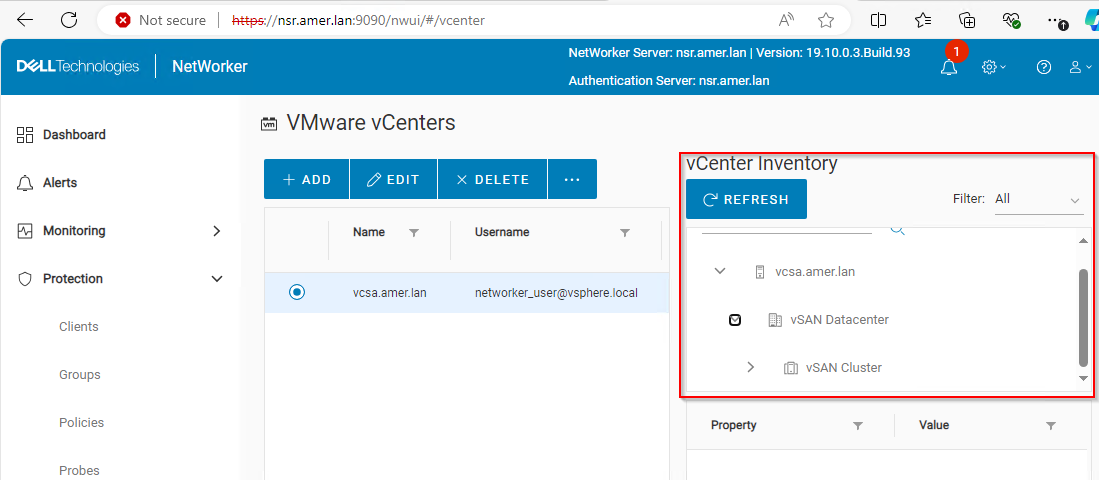
7. Una volta corrette le credenziali per ogni vCenter che in precedenza segnalava errori di accesso, avviare NMC e tentare di connettersi al server NetWorker.
Additional Information
Il documento NetWorker VMware Integration Guide fornisce informazioni sulle autorizzazioni richieste dall'account utente VMware vCenter utilizzato per NetWorker VMware Protection. Questa guida è disponibile tramite: https://www.dell.com/support/home/product-support/product/networker/docs
Affected Products
NetWorkerProducts
NetWorker Family, NetWorker SeriesArticle Properties
Article Number: 000165440
Article Type: Solution
Last Modified: 15 Aug 2025
Version: 6
Find answers to your questions from other Dell users
Support Services
Check if your device is covered by Support Services.