如何配置 Netskope 本地检测
Summary: 通过启用此选项,您可以检测端点的位置,如果端点位于本地,则 Netskope 客户端会对所有流量进行隧道传输。
This article applies to
This article does not apply to
This article is not tied to any specific product.
Not all product versions are identified in this article.
Instructions
受影响的产品:
- Netskope
受影响的版本:
- 72 版及更高版本
当客户端在本地时,会通过隧道传输以下类型的旁路流量。
- 证书锁定应用程序
- 异常域
- 异常类别
- 在网页浏览器中,导航到 Netskope Web 控制台:
- 美国数据中心:https://[TENANT].goskope.com/
- 欧盟数据中心:https://[TENANT].eu.goskope.com/
- 法兰克福数据中心:https://[TENANT].de.goskope.com/
提醒:[TENANT] = 您的环境中的租户名称
- 登录到 Netskope Web 控制台。

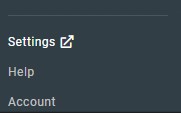
- 单击设置。
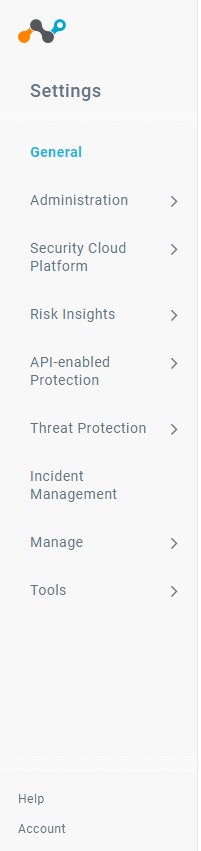
- 单击 Security Cloud Platform。
- 单击 Devices。
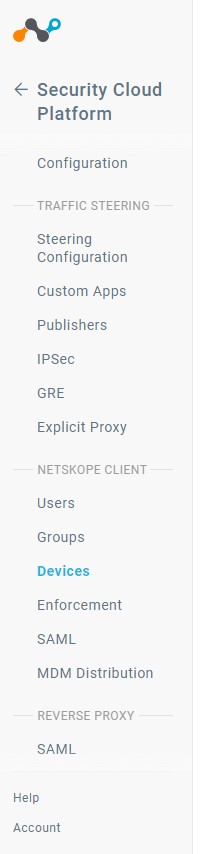
- 单击 Client Configurations。

- 在“客户端配置”中,单击“ 默认租户配置”。
 提醒:默认租户配置是全局更改,将传播到所有已部署的 Netskope 客户端。对于更有针对性的更改,请单击 “新建客户端配置 ”,然后选择要作为目标的组织单元或用户组。
 - 在“客户端配置”中,单击“ 本地检测 ”复选框以启用本地检测。
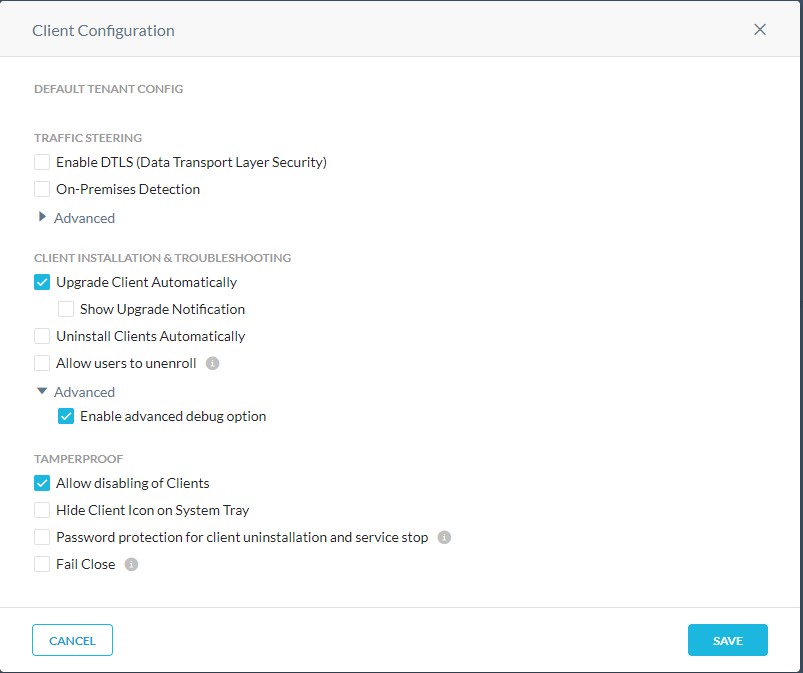
- 启用本地检测后,您现在可以配置 Netskope 客户端尝试连接到的 DNS 名称或 HTTP 地址 ,并验证它是打开还是关闭。
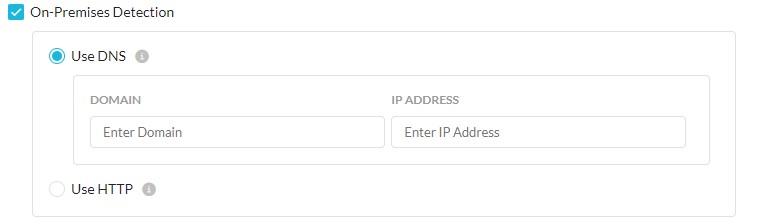
对于 DNS,输入域名及其响应的相应 IP 地址。
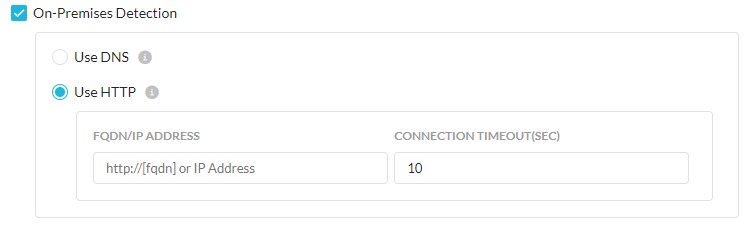
对于 HTTP,客户端查找 HTTP 响应代码 200,如果成功,设备将被视为本地。 - 填充 DNS 或 HTTP 值后,单击 Save。
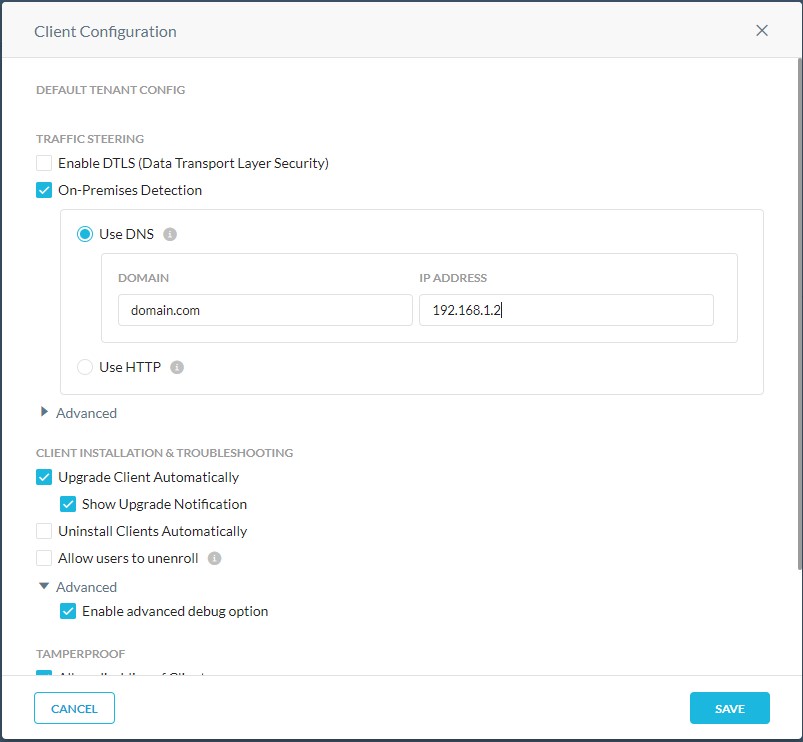
- 您现在已配置 Netskope 客户端,以检测其何时处于或离开本地状态。
要联系支持部门,请参阅 Dell Data Security 国际支持电话号码。
转至 TechDirect,在线生成技术支持请求。
要获得更多见解和资源,请加入戴尔安全社区论坛。
Affected Products
NetskopeArticle Properties
Article Number: 000180639
Article Type: How To
Last Modified: 09 Dec 2024
Version: 9
Find answers to your questions from other Dell users
Support Services
Check if your device is covered by Support Services.